One-Net/DASDEC User Manual 4-4v3.0 | r0616
Header
Web Interface - Header Secon
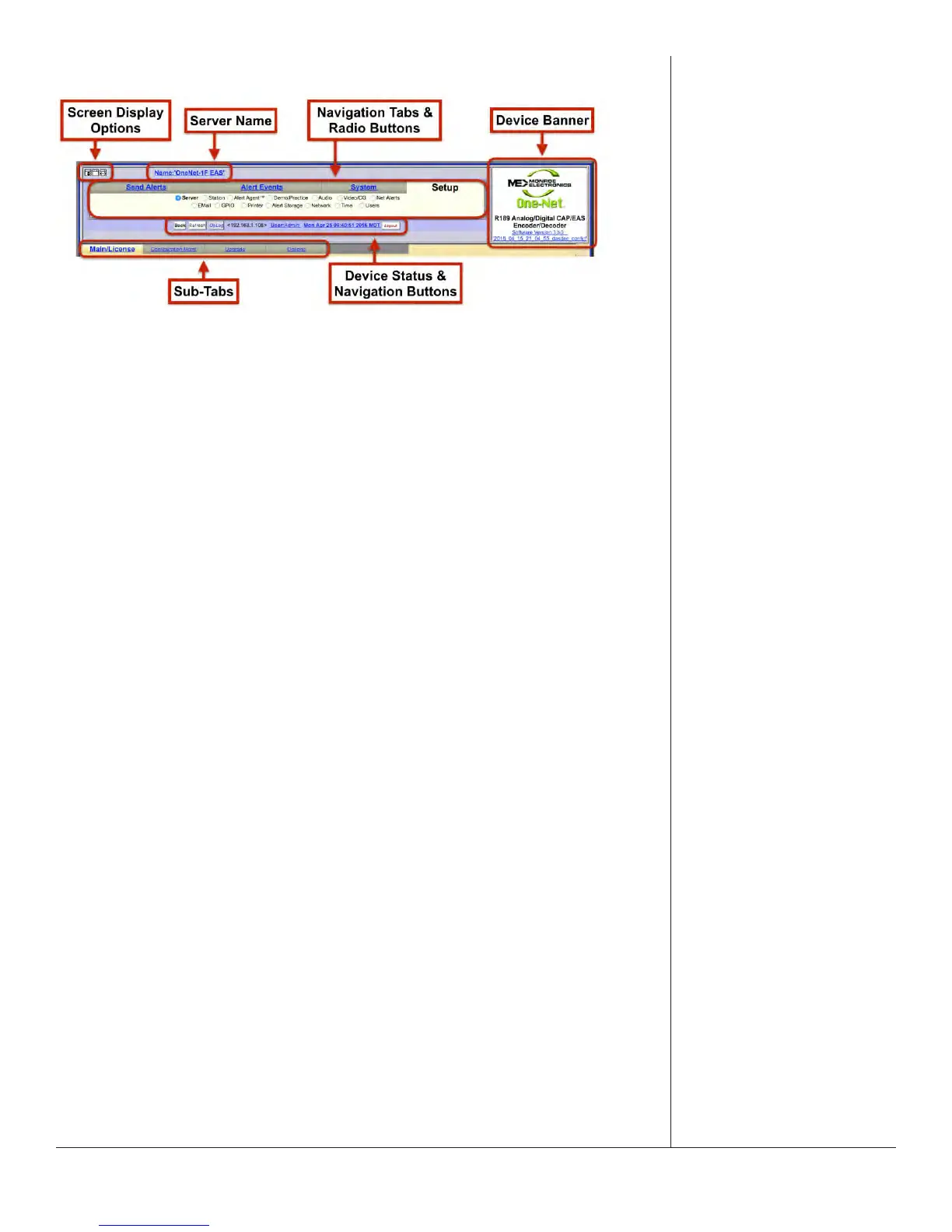
Located at the top of every screen, the header contains the following informaon and
controls:
• Screen Display Opons: The three square buons at the top le of the screen
control screen layout by performing the following acons:
- Staonary Menu Header: Locks the header secon so it remains at the top of
the screen. The remaining poron of the screen may be scrolled up/down. An
internal page scroll bar is displayed to the right of the body secon of the web
interface.
- Collapse Menu Header: Removes the standard top navigaon secon (tabs
and radio buons) from the header.
- Page Width: Toggles the width of the web interface from 800 pixels to 1000
to 1200 pixels to accommodate monitors and resoluons of diering sizes.
• Server Name: The Server Name, located at the top of the header, displays the
name of the parcular EAS device. This informaon is useful for facilies with
mulple EAS devices, or large organizaons with a common network between
facilies. To change the server name, follow the hyperlink, or navigate to Setup >
Server > Main/License.
• Device Banner: The Device Banner, located in the upper right-hand corner of
the web interface, displays the EAS model, soware version, and last loaded
conguraon le.
- One-Net models have a Monroe Electronics logo, followed by One-Net R189
Analog/Digital CAP/EAS Encoder/Decoder.
- The DASDEC model have the Digital Alert System logo, followed by
DASDEC-1EN Analog/Digital CAP/EAS Encoder/Decoder.
The installed soware version is listed just below as a hyperlink (blue, underlined
text); clicking the link will take you to the System > Help > About menu, where you
can nd addional informaon about the installed soware. If the EAS device has
recalled a stored conguraon le, that conguraon le name will be shown just
below the soware version. This hyperlink will take you to the Setup > Server >
Conguraon Management menu.


 To Next Page