MOON Stellar DVD Player
Parental Control
When activated, the ‘Parental Control’ allows access to only those DVD-Video discs that you previously
authorized to be played on the MOON Stellar DVD Player. To setup the ‘Parental Control’ you will
have to create a 4-digit PIN (Personal Identification Number).
Activating Parental Control
Please ensure that the player is stopped. Press the SETUP button to
activate the ‘Settings Menu’. Move to the ‘Parental Control’ section
using or . Press or to change Parental Control to ‘Active’. You
will be asked to enter a 4-digit PIN code of your own choice, and then
be asked to confirm your choice (Please refer to the section ‘Creating a
4-digit PIN Number’ below). You will have to remember this PIN code
as it must be entered to play any DVD-Video disc unless you have
previously authorized the DVD disc as suitable for all ages. To de-
activate ‘Parental Control’, repeat the above procedure. If you forget
your PIN code, you can erase it when the Stellar requests the PIN
code by pressing four times. The ‘Parental Control’ will then be
automatically de-activated.
Authorizing discs
Insert the DVD disc you wish to authorize and close the drawer. The
on-screen display will ask for your PIN code. Enter your 4-digit PIN
code and press . Select ‘Parental Control’ from the on-screen display
by pressing . Then the on-screen display will prompt you for your
PIN code again. The DVD disc is now authorized, and will play without
enterinh your 4-digit PIN code. To cancel your authorization, repeat
the last two steps. You can have a total of fifty (50) authorized DVD
discs. If you exceed this number, the least frequently played DVD
disc(s) are automatically unauthorized.
Creating a 4-digit PIN Number
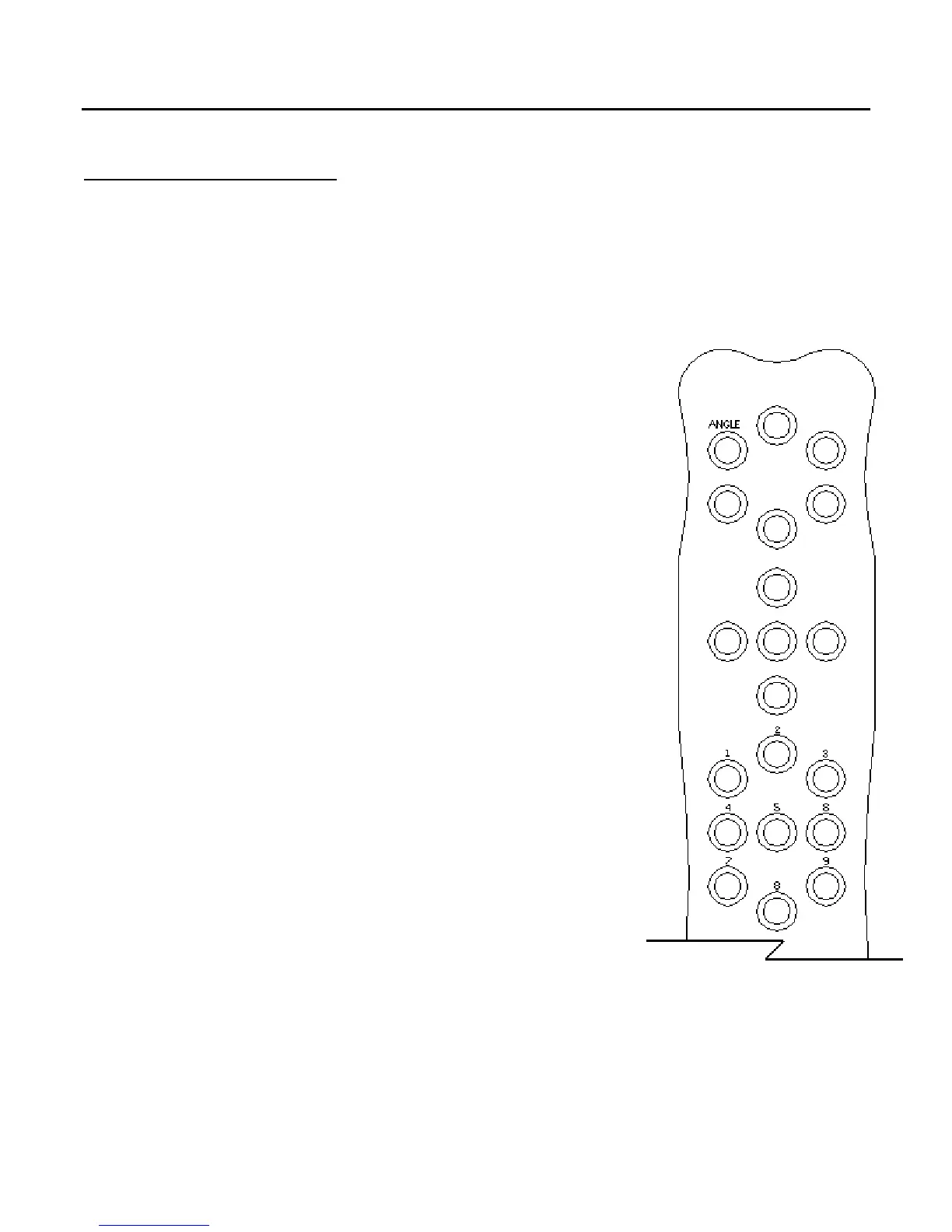
Since the remote control keypad doesn’t have numbered buttons, you
will need to use a special function to enter the 4-digit PIN-code. Press
and hold down the ANGLE button for two seconds. Then you can enter
your 4-digit PIN-code using the group nine (9) buttons located on the
lower part of the remote control. Please refer to figure 6, at the right,
to see the correlation between the assigned numbers and the
Figure 6
remote buttons. The remote control remains in this mode for five (5)
seconds after the last button is pressed, then automatically returns to
its normal operating mode.
____________________________________________________________________________________
Parental Control 20


 To Next Page