10 Getting Started - Connecting Devices
3.2 User Account and Camera Setup on Android™
Devices
What you need
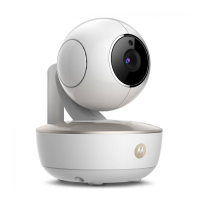
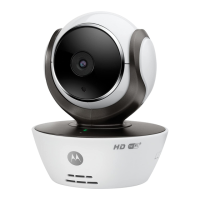
• MBP85CONNECT Camera
• MBP85CONNECT Camera Power Adapter
• Device with Android™ system version 4.2 or above
3.2.1 Powering ON and connecting the MBP85CONNECT
Camera
• Connect the power adapter to mains power socket and insert the plug into
the micro USB socket on the back of the Camera.
• Make sure that the ON/OFF switch is in the ON position.
• The Camera’s Red LED flashes after the Camera has finished booting. When
you hear two beeps, this means the Camera is ready for setup.
3.2.2 Download the Hubble for Motorola Monitors application
• Go to the Google Play™ Store to search for “Hubble for Motorola Monitors”.
• Download the Hubble for Motorola Monitors App from the Google Play™
Store and install it on to your Android™ device.


 To Next Page
 Loading...