Chapter 2
Operating the MC50
Chapter 2
Chapter 2
Operating the MC50
Introduction
This chapter provides basic instructions for using the mobile computer.
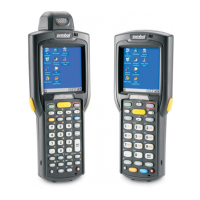
Using the Function Buttons
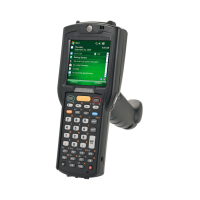
The mobile computer has various buttons for performing certain functions.
Figure 2-1
Function Buttons
•
Power: Turns the mobile computer on and off. See Starting the Mobile Computer on page 1-6. Press and
hold the Power button to turn the backlight on and off.
•
Scan: Press to scan bar codes or capture images. See Data Capture on page 2-13.
•
Volume: Press to display the Volume dialog. Press the top or bottom portion of the button to increase or
decrease volume.
•
Action: Press to open an application or perform a function. See the Microsoft
®
Applications User Guide
for Symbol Devices to set an application to open.
•
Keypad Lock: The Keypad Lock switch locks the keypad so that keys are not accidently pressed. Note
that when locked, the mobile computer does not respond to keypad input. Move this switch up to lock the
keypad. Move the switch down to free the keypad for use.
•
Reset Button: Press to reset the mobile computer. See Resetting the Mobile Computer on page 2-19.
Scan
Button
Power Button
Volume
Battery Release
Keypad
Lock
Action Button
Scan Button
Reset Button
Battery Lock Switch



 To Next Page
 Loading...