myPOS Smart Technical Specicaon & Warranty (Updated March 2018) | page 12myPOS Smart User Manual | page 12
Accept payments
myPOS Smart supports payments with magnec stripe (reader
is in the back side of the device, on the top), CHIP & PIN
(reader is at the boom of the device) and contactless (NFC,
built-in antenna below the magstripe reader).
You can accept card payments using the following built-in
apps:
• Payment app – enter the amount and tap DONE
• Register app – add the desired items/amount and tap
CHARGE
Smart card
If the card has a CHIP, insert the card into the boom reader
with the CHIP facing towards the keyboard. If the card is not
recognised, an error message will be displayed. Smart cards
usually require a PIN code to conrm the transacon. If a PIN
code is required, ENTER PIN screen will be displayed.
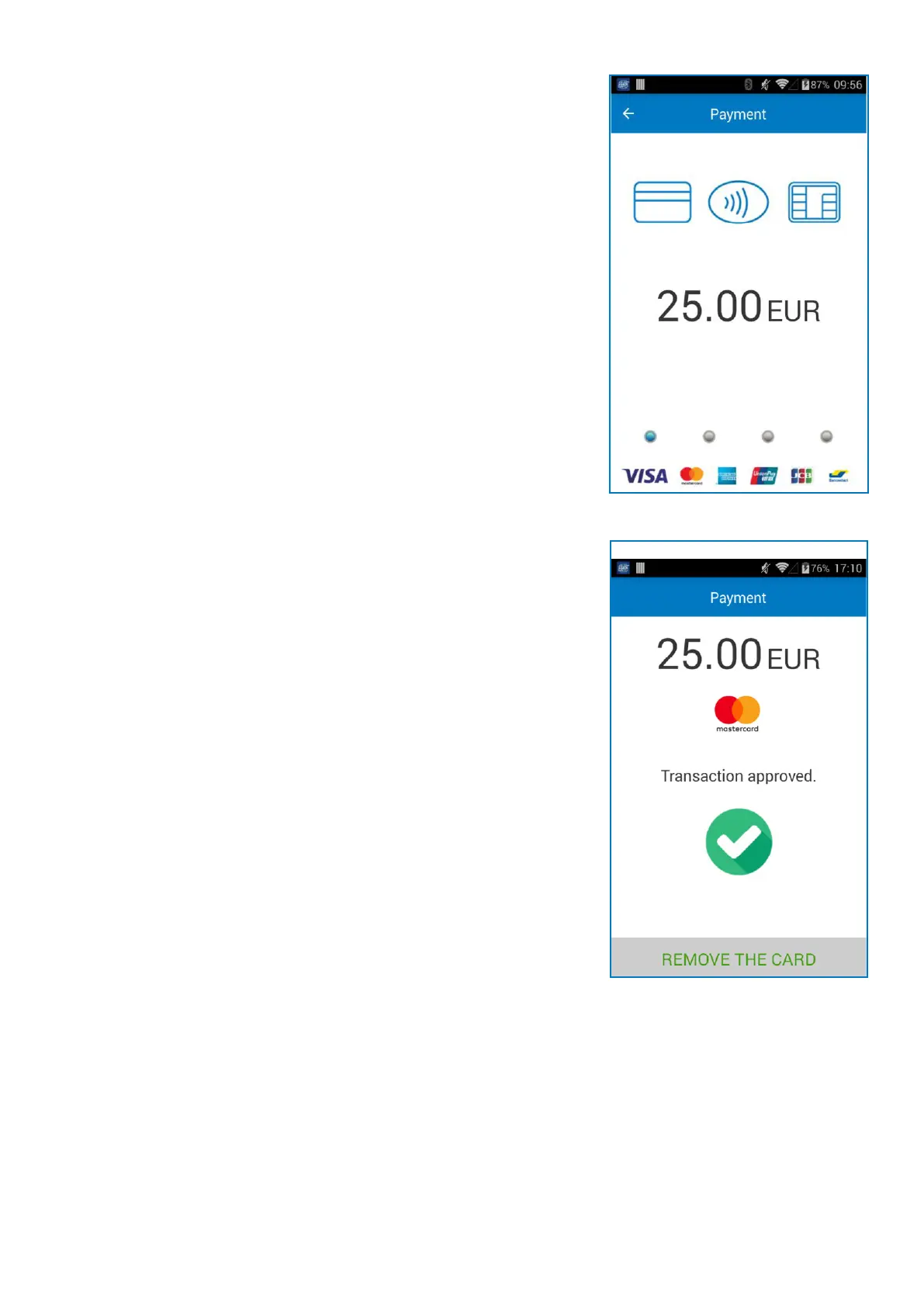
The myPOS Smart device will iniate the transacon
authorizaon process by communicang with myPOS. The
PROCESSING screen will indicate that the procedure is not
completed.
If the transacon is approved by the issuer, conrmaon
message “TRANSACTION IS APPROVED” will be displayed. At
this point, you can remove the card from the reader and return
it to the customer.



 To Next Page