myPOS Smart Technical Specicaon & Warranty (Updated March 2018) | page 6myPOS Smart User Manual | page 6
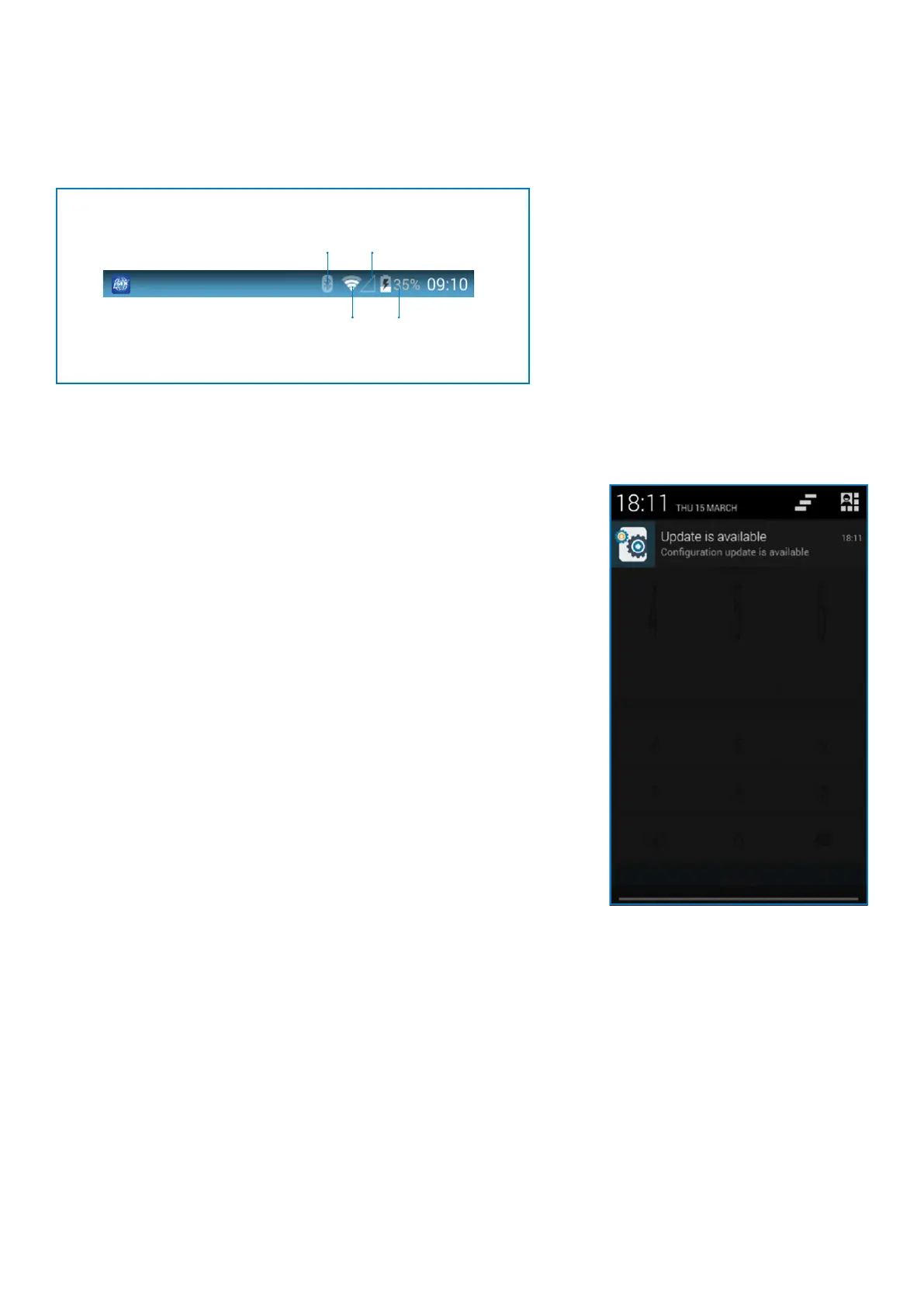
Status bar
The Status bar at the top of the Home screen provides device informaon
(such as network status, baery charge, and me) on the right side, and
nocaon alerts on the le.
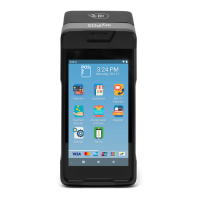
Notication panel
You will receive nocaons about Conguraon or System updates in the
Nocaon panel. You can access it from the Home screen.
1. Drag the Status bar down to display the Nocaon panel.
• Swipe down the list to see nocaon details.
• To open an item, tap on it.
• To clear a single nocaon, drag the nocaon le or right.
• To clear all nocaons, tap Clear all.
2. Drag upward from the boom of the screen or tap Back to close
the Nocaon panel.
Signal
WiFi



 To Next Page