myPOS Smart Technical Specicaon & Warranty (Updated March 2018) | page 13myPOS Smart User Manual | page 13
Magnetic stripe card
Magnec stripe cards are swiped with the magnec stripe facing
up through the reader located at the top side of the myPOS
Smart device.
Make sure that the card is inserted properly and the boom of
the card runs rmly and at even speed. The speed of swiping
the card must not be too slow, as this can somemes cause
problems.
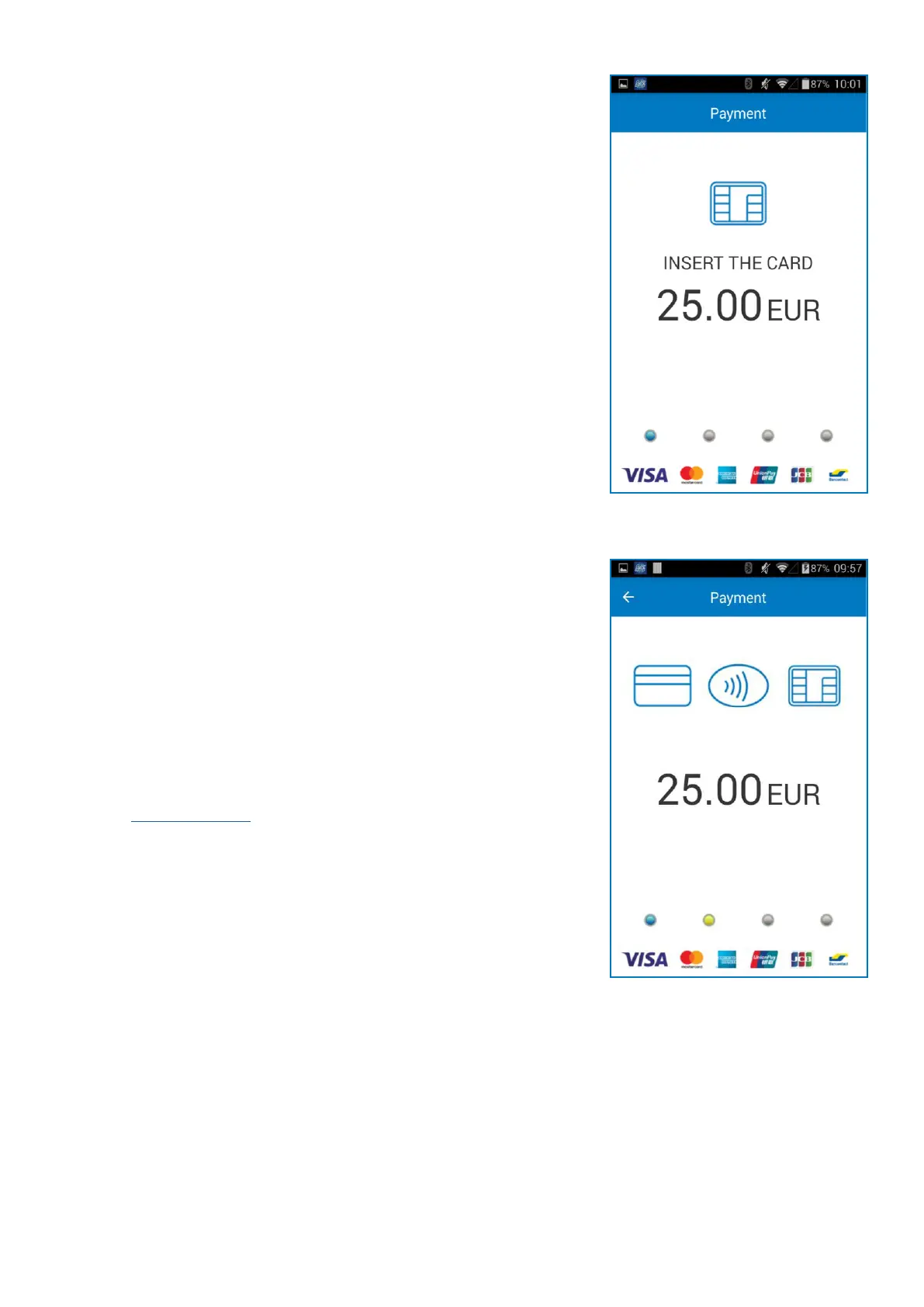
If a chip card is swiped, the app will display a screen with
instrucons that the card should be inserted into the chip
reader.
The myPOS Smart device will iniate the transacon
authorizaon process by communicang with myPOS. The
PROCESSING screen will indicate that the procedure is not
completed. If the transacon is approved by the issuer
conrmaon message: “TRANSACTION IS APPROVED” will be
displayed. At this point, you can remove the card from the
reader and return it to the customer.
Contactless cards
Hold the card (or smartphone) approximately 3cm above the
NFC reader of your myPOS Smart device. When the contactless
reader recognises the card, the four-color indicators will ash.
If the card is successfully read, all four indicators will be on. It
takes one second and aer you hear a beep, you can remove
the card.
If the card requires a PIN code, ENTER PIN screen will be
displayed.
For step-by-step instrucons how to accept payments please
refer to the Built in Apps Guide.



 To Next Page