myPOS Smart Technical Specicaon & Warranty (Updated March 2018) | page 4myPOS Smart User Manual | page 4
Activation code
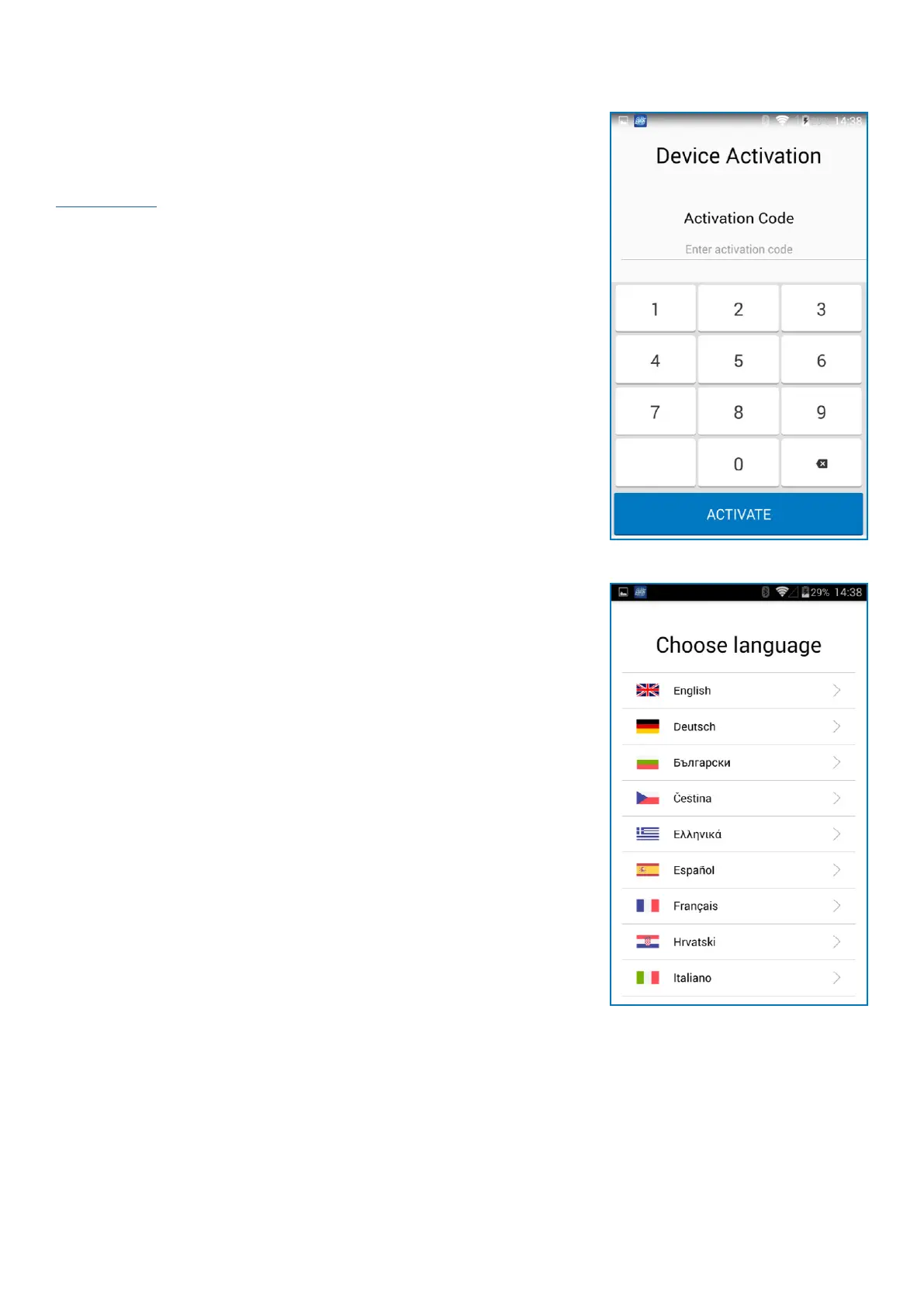
The acvaon is a one-me process and requires an acvaon code
generated by myPOS to be entered manually on your myPOS Smart device.
Step 1: If you do not have a myPOS account, please register at
www.myPOS.eu and follow the instrucons. If you have a myPOS account,
please log in to your account and go to menu Devices > Acvate your
device and follow the steps.
Step 2: Please enter the acvaon code on your myPOS Smart device
and press „ACTIVATE“. Your device must be connected to the Internet to
complete the acvaon process.
Step 3: Upon successful acvaon, your myPOS Smart device will restart
automacally.
Congratulaons! Your new myPOS Smart device is now acvated and ready
to be used. You can nd the new device listed in your myPOS account,
menu “Devices”.
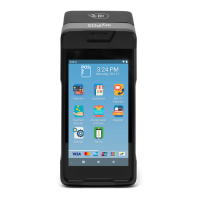
Once the device is successfully connected to the Internet, you will be
prompt to choose a device language.
Note! You can change the language and connecon sengs at any me
and using the Sengs app.
Once your myPOS device is acvated, it is permanently linked to your
myPOS account. Even if the device is stolen or lost, any processed payment
transacon will be credited to your account. In case your device is lost or
stolen, please inform our Customer Support Centre immediately.



 To Next Page