myPOS Smart Technical Specicaon & Warranty (Updated March 2018) | page 8myPOS Smart User Manual | page 8
Manage your device
Device settings
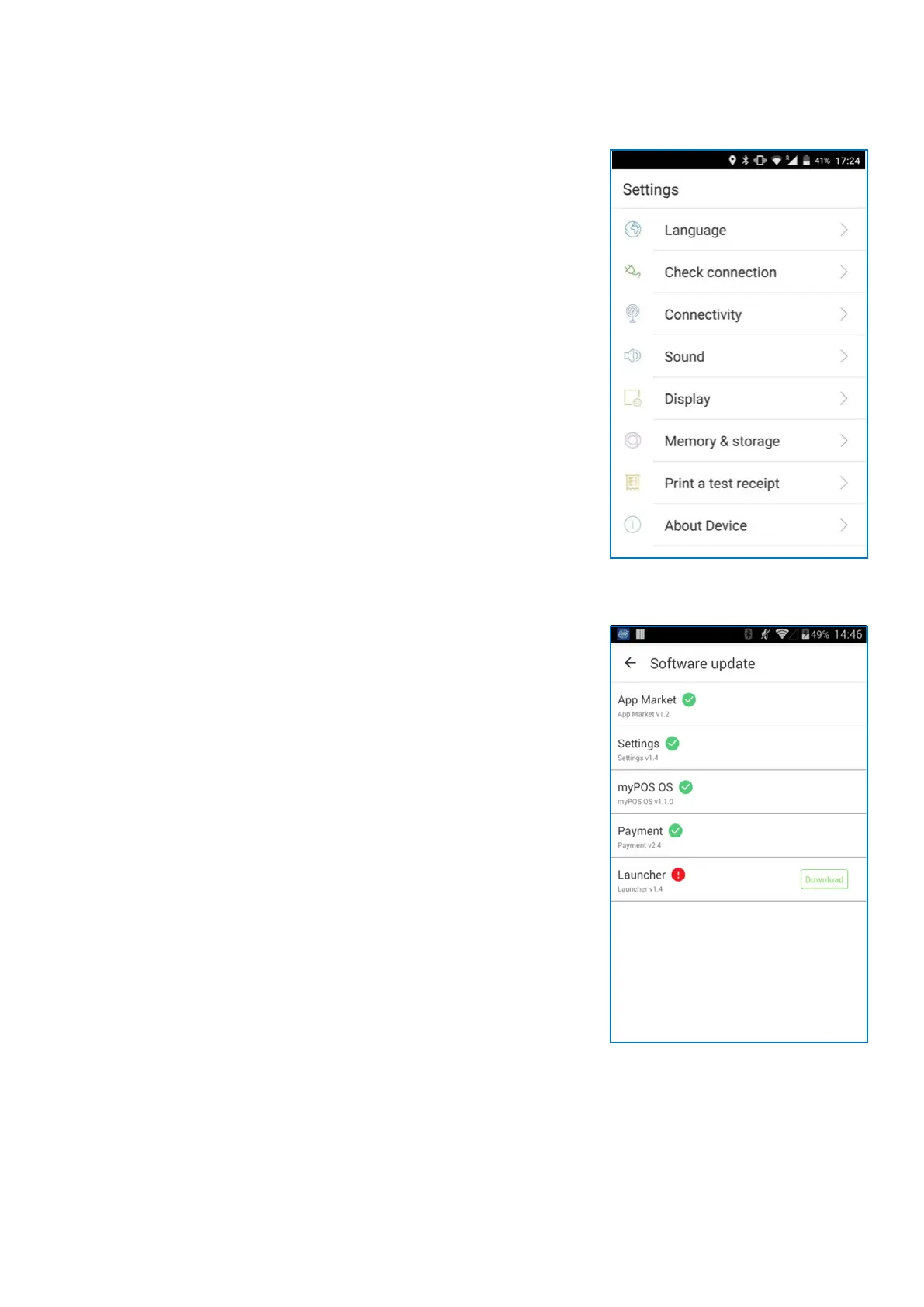
You can check or change the following sengs of your myPOS Smart
device using the Sengs app:
• Language – change the language of your device. Please note that
this will eect not only the device interface but also the language
of your print outs (receipts and reports)
• Check connecon – check your connecon to the myPOS server
• Connecvity – change the connecon type of your device (Wi-Fi
and Bluetooth)
• Sound – turn the sounds on/o and manage volume levels
• Display – manage your device Home screen (Layout and
Wallpaper), change sleep me and display brightness
• Memory & Storage – get informaon about memory and storage
(System data, User data and Available space)
• Print a test receipt
• About device - get informaon about Name, Billing descriptor,
TID, Last STAN, Soware version and Last date of update
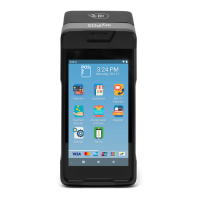
• Soware update – in this menu you can check if there are
any available updates of the system apps, such as myPOS OS,
App market, Payment app, Sengs app, Launcher). Keep your
soware up to date to get the best from your device. Latest
soware versions will help your myPOS Smart device run more
quickly and eciently, enable new features, x bugs and prevent
security vulnerabilies.
• Reset - reset your device sengs and start using it with a
dierent Outlet or myPOS account. Please have in mind that this
will restore your default device sengs and you will no longer be
able to accept payments. To start using your device again, you will
need to acvate it.



 To Next Page