Preparation for use
16 | BRM2 Brain Monitor Reference Manual
Setting up user accounts
To perform the following procedure you must either log in using the ADMIN account or have the “Edit
the System Setup” and “Administer Other Users” privileges enabled in your own user account.
To add a new user account:
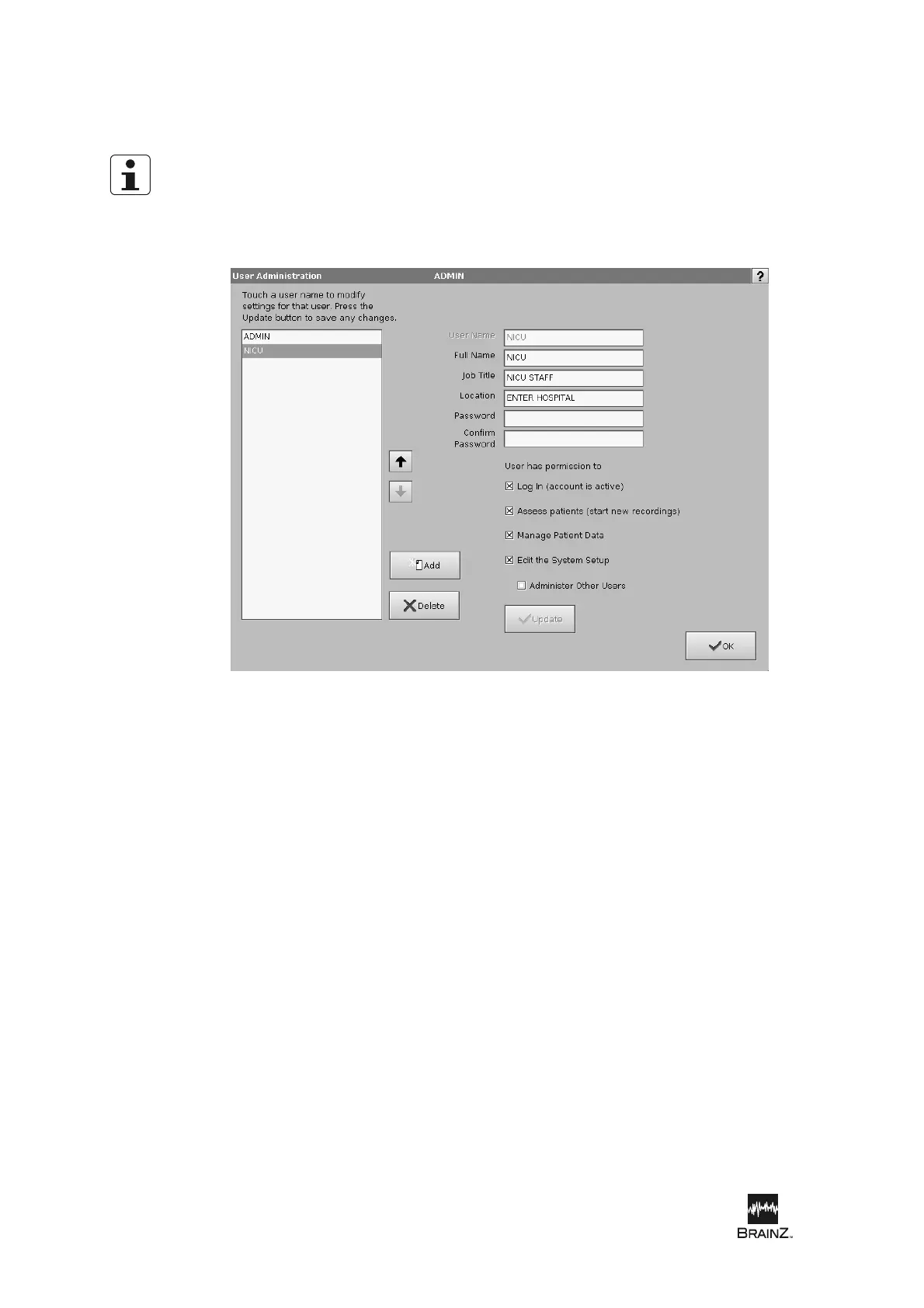
1. From the System Setup screen touch Users to display the User Administration screen.
2. Touch Add.
3. Touch the User Name field to display the Onscreen Keypad and enter a short code to identify the
user (for example, the user’s first initial plus surname). Touch Enter.
4. Type the user’s full name and touch Enter.
5. Type the user’s job title and touch Enter.
6. Type the name of the hospital or other location in which the BRM2 Brain Monitor is in use and
touch Enter.
7. Type an initial password for the user and touch Enter.
8. Retype the initial password and touch Enter.
9. Touch to select the appropriate check boxes to set the privileges for the account:
- Log in: select for all active users
- Assess patients: select for users permitted to perform patient assessments
- Manage Patient Data: select for users permitted to use the File Manager to transfer or
view patient data files
- Edit the System Setup: select for users who are permitted to change system settings
- Administer Other Users: select for users who are permitted to create or modify user
accounts
10. Touch Update to create the user account.
Figure 5: User Administration screen







 To Next Page