Using the NEC MobilePro 4-11
Using the Voice Recorder
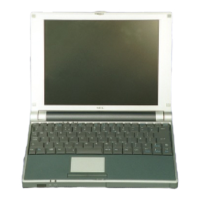
The NEC MobilePro features a voice recorder application to record and
play voice memos. Recording is dictation quality only and not intended
for musical recording. Recording voice memos with the NEC MobilePro
is easy.
Recording Memos
Follow these steps to record with the Microsoft Voice Recorder.
1.
Tap Start, Programs, Accessories, then select Microsoft Voice
Recorder.
2.
Hold your NEC MobilePro with the microphone facing you.
3.
Tap the record button (red dot) and speak into the microphone.
4.
When you are finished recording, tap the Stop button (black square).
A beep sounds when the recording stops.
To play back your recording, tap to highlight your selection and tap the
Play button (green triangle) or simply double tap your selection.
You may want to modify the recording format to improve the quality of
playback. To modify the recording format, tap Tools, Recording Format
and use the drop-down box to change the format to PCM and to modify
the Attributes to a higher sampling rate.
Note
Recording works best if you position the microphone about three
inches away from your mouth while speaking.
Memory required for voice memo storage varies depending on user
settings.
Menu Selections
The Voice Recorder provides a variety of menu selections under the File,
Control, and Tools selections. Refer to the online help provided with the
voice recorder application for details about its use. Just tap the question
mark icon in the upper right-hand corner of the screen to access the online
help.


 To Next Page