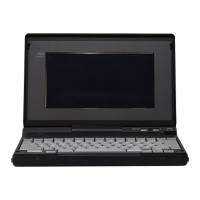
Using the NEC MobilePro 4-17
Resetting the MobilePro
Occasionally you may need to reset your NEC MobilePro. For instance,
you may need to reset after restoring data from your host PC, after
modifying the MobilePro's configuration, when you are unable to power
on using the Power button, or when the operating system stops
responding.
The NEC MobilePro is equipped with two reset buttons, designed for use
depending upon specific conditions. The two reset buttons are:
! Soft Reset Button — The soft reset button allows you to restart the
NEC MobilePro operating system while preserving any saved data.
This method is similar to a “warm boot” on your host PC.
! Full Reset Button — The full reset button restores your system to its
original shipping configuration, erasing all information that you have
entered.
Note
To ensure the safety of your information at all times, you should
perform regular backups of your MobilePro information to your host PC.
For more information, see the section in Chapter 3, “Backing Up and
Restoring Data.”
Using the Soft Reset Button
Before using the soft reset button to reset the MobilePro, close any open
files or applications, if possible. When you soft reset the MobilePro, you
may lose open/unsaved files.
Follow these steps to use the soft reset button to reset the MobilePro.
1.
Open the display panel and remove the stylus from its holder.
2.
Power on the MobilePro.
3.
Turn over the MobilePro.
4.
Locate the soft reset button on the bottom of the MobilePro.
5.
Using the stylus, press the soft reset button. (You may need to press
the button more than once.) This resets the unit.


 To Next Page