English-53
English
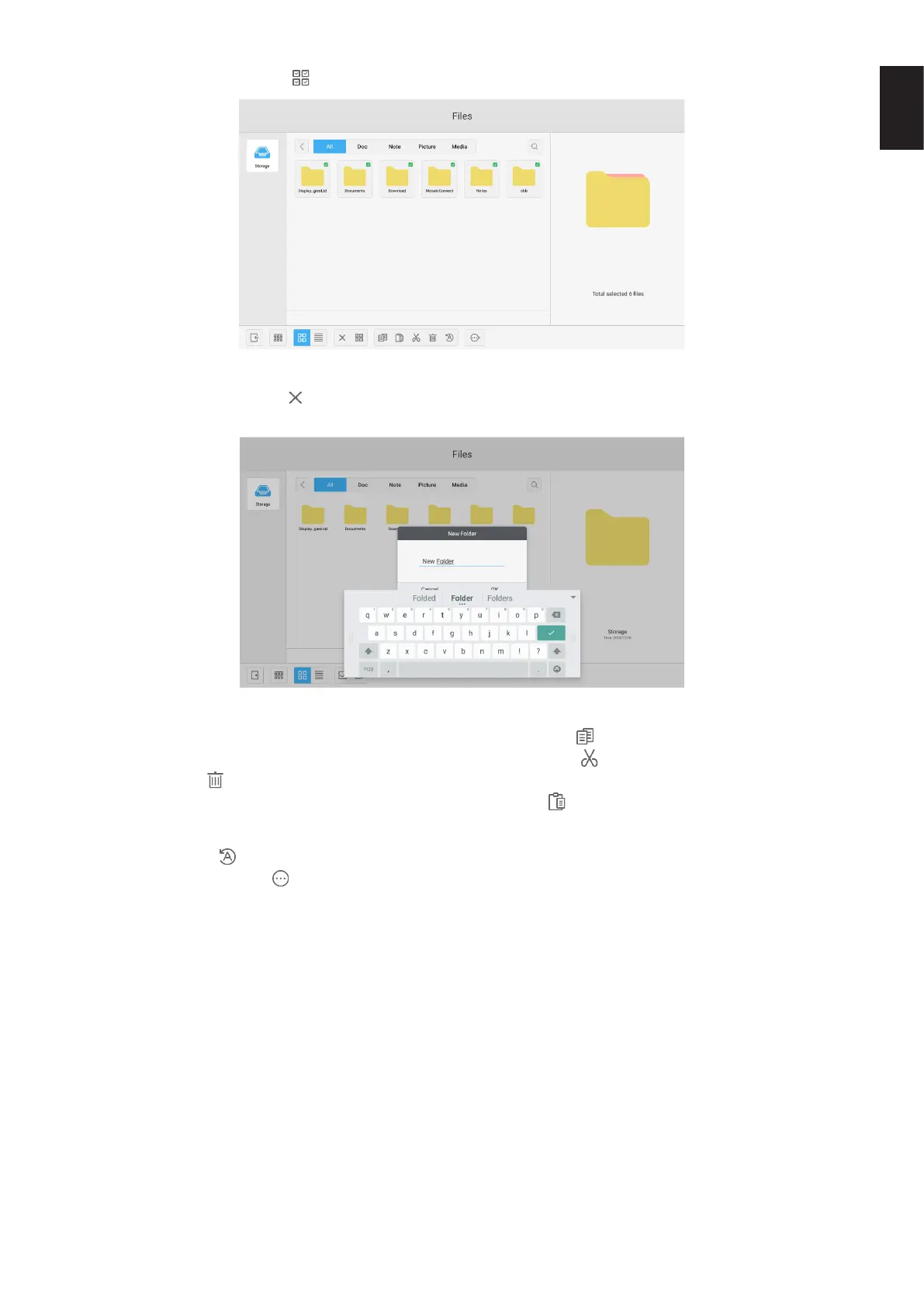
2. Selecting all. By clicking the button, you can select all resources under the current directory.
Fig 4-2-2 Selecting all interface
3. Cancelling selecting. Click
to cancel all resources that have been selected currently.
4. Creating. Click “Creating” to create new folders under the current directory.
Fig 4-2-3 New Folder
5. Copying. When the resource is selected, the copy button will appear. Click
to copy the currently selected resource.
6. Cutting. When the resource is selected, the cutting button will appear. Click
to cut the currently selected resource.
7. Deleting. Click
to delete the selected resource.
8. Pasting. When there is any resource being copied or cut currently, the
button is available. Users can paste the
copied/cut resource to the specied location as required. You can execute the pasting operation only when the default
folder is displaying “all” resource locations.
9. Renaming. Click
to rename the selected resource.
10. More. Insert USB to Click
to pop out the “send to” button. You can send the selected le to the target folder.
11. Select a certain resource, the resource operation menu will pop out at the bottom of the window. You can perform
operations such as deleting, copying, cutting, pasting, and renaming on the current resource.








 To Next Page