14Chapter 2 . Basics
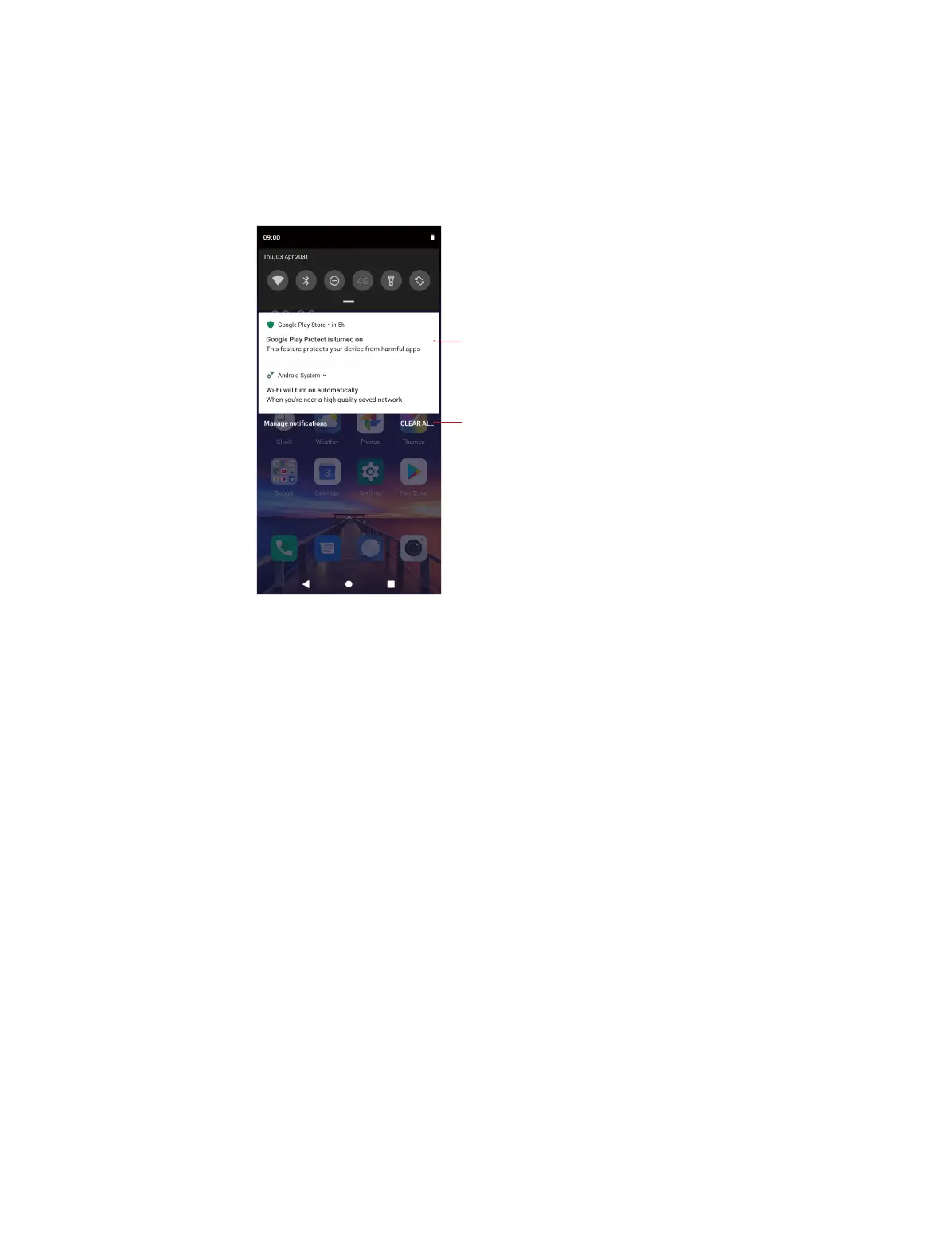
2. 5 Notification Panel
Notification Panel collects all the notifications and alerts so that you can review them whenever
you like.
Use Notification Panel
Tap to remove all the notications at once
Notication
• Open Notification Panel: Swipe down from the status bar to open the Notification Panel.
• View a notification: When there is a notification reminder, you can open the Notification Panel
and tap the notification item to view the details. From the Lock screen, new notifications, such
as missed calls and messages are displayed on it. Double-tap it to view the details.
• Clear notifications: Swipe the notification left or right to remove it from the list. You can also tap
CLEAR ALL to remove all the notifications at once. From the Lock screen, swipe left or right to
remove the notification.
• Close Notification Panel: Swipe up, or tap the Home button or Back button.
2. 6 Quick Settings Panel
Use shortcut switches on the Quick Settings Panel to enable or disable functions quickly without
using a settings menu.
Use Quick Settings Panel
• Open the Quick Settings Panel: Swipe down twice from the status bar to open the Quick
Settings Panel. On the Lock screen, swipe only once to open it.
• Use shortcut switches: Tap the shortcut switches on the Quick Settings Panel to turn on or turn
off the functions. Tap and hold the shortcut icon to enter the feature’s settings page.
• Close the Quick Settings Panel: Swipe up, or tap the Home button or Back button.



 To Next Page