MMS
You can send and receive MMS, including pictures, audio files and video files. When sending a piece of MMS, the receiver should have a mobile
phonealsowithMMSfunction;otherwisehe/shecannotnotreceiveyourmessage.Youalsohavetoensurethatyourphonehasbeenconfigured
withthenetworkMMSsettings.TogainNetworksettingsonyourdevice,pleasevisit
www.neoi.de and go to the support section where further
details will be available.
Contacts
Phone Book
Menu > Phone Book
The device provides two storage medias: SIM card and the phone memory. The phone memory can store up to 500 telephone numbers.
In home screen mode, enter a string of numbers and press left soft key to store it. After you choose the storage media, the edit screen appears.
The device supports a business card style phonebook. That is, you can save the name, mobile phone, home phone, company name, Email, company
phone, fax, caller ID photo, ring tone and group, all within a single contact.
In contacts saved in the SIM card, only names and phone numbers of the contacts can be entered.
In standby mode, press right soft key to enter Contacts directly, and press left soft key to enter the function list of contacts.
To reach a contact quickly, go into the contacts list and press a number key multiple times to go to a corresponding alphabet in the phone book.
Quick Search
Menu > Phone Book > Quick Search
Browse all records in Contacts, or input text for a quick search.
In Contacts, icons on the left side indicate the storage medias of the records (on SIM card or in phone memory), and the name information is
displayed on the right side.
To search for a record quickly, press the number key of the initial letter of the record under name list. For example, to find the record named
“
Lily
”
,
press key 5 three times continuously (key 5 presents letters j, k and l) to scroll up to the first record starting with letter
“
L
”
.
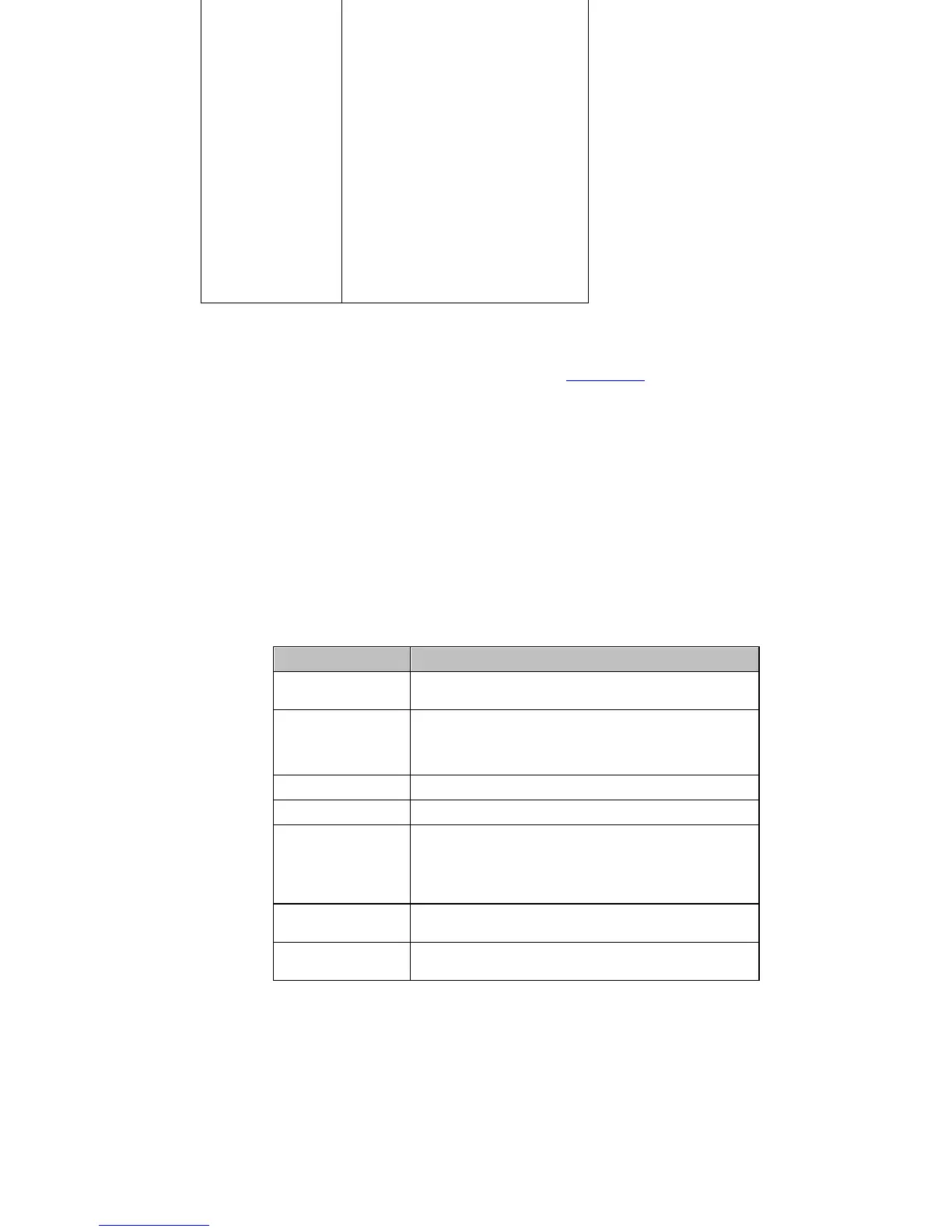
Select a record, and press Dial to make a call, or press left soft key to do the operations listed below.
Go to Menu > Phone Book to access the following features.
Name Search
Menu > Phone Book > Search Entry
Search for the records complying with conditions exactly from Contacts.
Add Number
Menu > Phone Book > Add new Entry
Add a new phone number record in Contacts, and save it in the phone or SIM card.
Copy All
Menu > Phone Book > Copy All
Select to copy all phone number records from the SIM card to the phone or from the phone to SIM card.
Delete
Menu > Phone Book > Delete
You can select to remove records one by one or all records at a time from the SIM card or from the phone. To remove all records, you have to
enter the correct PIN or phone code, if set, to proceed.
Caller Groups
Menu > Phone Book > Caller Group
The device supports five caller groups. You can select the group to view and edit group information, such as group name, melody, caller photo,
and group members.
Other Numbers
Menu > Phone Book > Extra Numbers
SMS
Settings
Folder Name, SMC Number, SMS
Validity Period, and Send
Format.
Status: Check or uncheck Status
Report and Reply Path. If
Status Report is checked, SMC
will send you a status report
when the receiver has received
the message you sent or has not
received the message due to
some reasons (network support
is needed). If Reply Path is
checked, the message sent by
the receiver will be automatically
sent to the SMC where your
message was sent just now.
Capacity Query: View the
memory status, including the
memory of the SIM card and the
phone.
Storage Location: View or
change the default folder to
which messages are stored.
Transfer Setting: Set the
network for message transfer.
Option
Description
Send SMS
Enter text and directly send it to the specified
contact.
View
View details of a record. The information can be
displayed only when the phone number is saved
in the phone memory and the corresponding
entry is selected.
Edit
Edit the information of the selected Contact.
Delete
Delete a record.
Copy
Enter the menu and select Copy or Replicate.
Copy is to copy a record from the current
storage media to another storage media.
Replicate is to duplicate a record from the
current storage media.
Move
Move a record from the current storage media to
another.
Send
Contact
Send a record through SMS or save it to File
Manager.


 To Next Page
 Loading...