Digital Video Recorder for Ness IQ-
3.5.1 Setting
Please click (
)
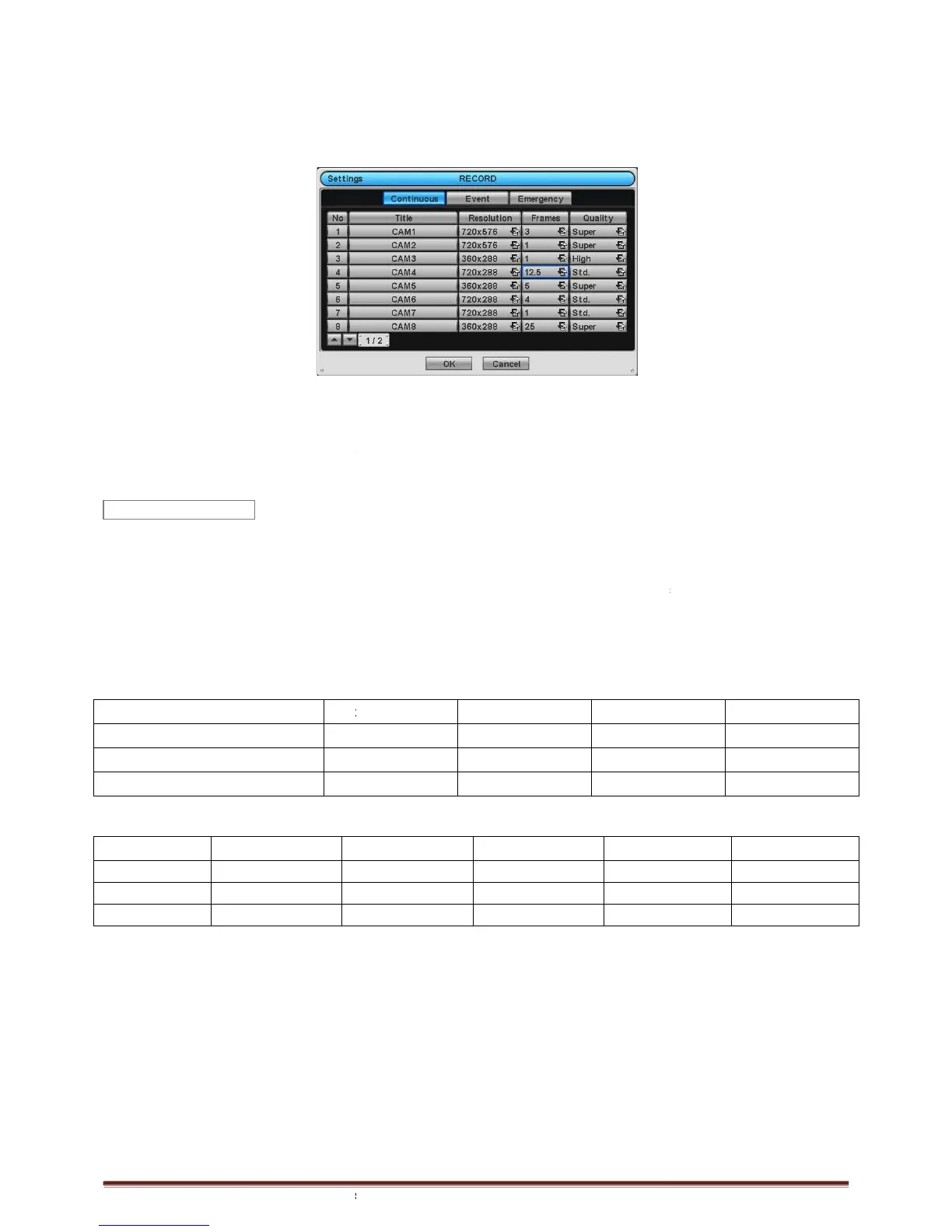
RECORD>Settings and the following screen will appear.
There are three kinds of recording mode.
- Continuous: record continuously.
- Event:
record only when Sensor or Motion calls.
- Emergency: record when press
The Continuous menu will allow user to set recording mode.
Each frame on Title column shows camera title registered in DEVICES>Camera/PTZ. User cannot change camera titles
here.
Click (
) each frame on
of 360x240(288), 720x240(288),
720x480(576), 960x480(576)
Click (
) each frame on
Frames column to select recording rate of a corresponding camera. Recording rate varies by
mera. Below lists the maximum recording rate of each camera.
4 Channel DVR
8 Channel DVR
16 Channel DVR
SDI Models
360x240 (360x288)
4 Channel DVR
Max. 30 fps per Channel
8 Channel DVR
Max. 30 fps per Channel
16 Channel DVR
Max. 30 fps per Channel
Click (
) each frame on ‘
Quality’ column to select recording quality of a corresponding camera. User may select
recording quality from Super, High,
Click (
) each frame on ‘
Duration’ column to select recording duration (i.e.,
User may change the setting values of Resolution, Frames, Quality and Duration at a time by clicking the menu tab.
Choose ‘OK’ to confirm the setting.
Continuous
RECORD>Settings and the following screen will appear.
There are three kinds of recording mode.
record only when Sensor or Motion calls.
The Continuous menu will allow user to set recording mode.
Each frame on Title column shows camera title registered in DEVICES>Camera/PTZ. User cannot change camera titles
to select recording resolution of a corresponding camera. User may select one
720x480(576), 960x480(576)
Frames column to select recording rate of a corresponding camera. Recording rate varies by
mera. Below lists the maximum recording rate of each camera.
Max. 30 fps per Channel Max. 30
Max. 30 fps per Channel Max. 15
Max. 30 fps per Channel Max. 15
Quality’ column to select recording quality of a corresponding camera. User may select
Duration’ column to select recording duration (i.e.,
User may change the setting values of Resolution, Frames, Quality and Duration at a time by clicking the menu tab.
Each frame on Title column shows camera title registered in DEVICES>Camera/PTZ. User cannot change camera titles
to select recording resolution of a corresponding camera. User may select one
Frames column to select recording rate of a corresponding camera. Recording rate varies by
Quality’ column to select recording quality of a corresponding camera. User may select
) of a corresponding camera.
User may change the setting values of Resolution, Frames, Quality and Duration at a time by clicking the menu tab.


 To Next Page