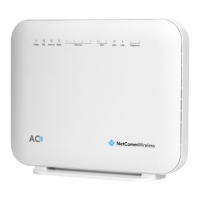
s) You now have 2 Quality of Service rules implemented for 2 devices connecting to the NF10WV router.
t) Select Management > Reboot. Click the Reboot button to restart the router and save the new settings.
u) To test your Quality of Service settings try running speed-tests (http://speedtest.net) on both PCs/devices simultaneously.
Limiting the upstream rate
a) By default, a QoS queue is created when a WAN interface is created but it is disabled by default. On the QoS Queue
page, enable the queue for the appropriate WAN interface.
b) On the QoS Classification page, add a rule to limit the upstream rate, for example:
Classification Criteria:
Class Interface: LAN
Ether type: IP
Classification Results:
Class Queue: the queue that was enabled in Step 1
Set rate-limit: set according to your preference
c) Click Apply/Save.


 To Next Page