EasyManua.ls Logo

NETGEAR N600 WNDR3400v3 - User Manual

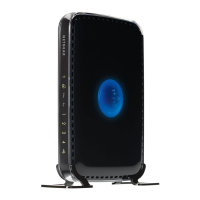
NETGEAR N600 WNDR3400v3
119 pages
Print Icon
To Next Page IconTo Next Page
Loading...
350 East Plumeria Drive
San Jose, CA 95134
USA
May 2013
202-11204-02
N600 Wireless Dual Band
Router WNDR3400v3
User Manual

Table of Contents

Questions and Answers

  • A
    anthonyscottJul 26, 2025
    What to do if I cannot log in to my NETGEAR N600 WNDR3400v3?
    • S
      Sandra AdkinsJul 26, 2025
      If you're unable to log in, verify the Ethernet connection between your computer and the router. Ensure your computer’s IP address is on the same subnet as the router. Check the connection from the computer to the router, and reboot your computer. Clear the router’s configuration to factory defaults. Make sure that your browser has Java, JavaScript, or ActiveX enabled. Try quitting the browser and launching it again. Finally, ensure you’re using the correct login information.
  • K
    Kristen JohnsonJul 30, 2025
    What does it mean if the Power/Test LED is off or blinking on my NETGEAR N600 WNDR3400v3?
    • D
      David SanchezJul 30, 2025
      If the Power/Test LED is off or blinking, ensure the power cord is securely connected to your router and the power adapter is connected to a functioning power outlet. Also, make sure you are using the 12V DC, 2.5A power adapter that NETGEAR supplied for this product. If the Power/Test LED blinks slowly and continuously, the router firmware is corrupted, possibly due to an interrupted firmware upgrade. If the error persists, it may indicate a hardware problem.
  • J
    Jacob LeAug 3, 2025
    What to do if Internet or Ethernet Port LEDs are off on NETGEAR N600 WNDR3400v3 Wireless Router?
    • M
      Michael PriceAug 3, 2025
      If the Internet or Ethernet Port LEDs are off, make sure that the Ethernet cable connections are secure at both the router and the modem or computer. Also, ensure that power is turned on to the connected modem or computer. Finally, be sure that you are using the correct cable.
  • U
    usmithAug 8, 2025
    Why are the wireless LEDs off on my NETGEAR Wireless Router?
    • J
      Jason WeberAug 8, 2025
      If the wireless LEDs are off, check to see if the Wireless On/Off button on the router has been pressed.
  • A
    Andrea ReeseAug 12, 2025
    How to fix the issue when the Push 'N' Connect (WPS) button blinks green on NETGEAR N600 WNDR3400v3?
    • C
      Chad HaleyAug 12, 2025
      If the Push 'N' Connect (WPS) button blinks green, make sure that you are using the button and not the router’s built-in registrar. Check that PIN verification has succeeded for the wireless device you are adding to the wireless network. Make sure that you have not pressed the WPS button on the side of the router after disabling the WPS feature. Check that the router is not in the temporary AP setup locked state.
  • D
    Darryl MorrisAug 16, 2025
    What should I do if the LEDs never turn off on my NETGEAR N600 WNDR3400v3?
    • K
      Kenneth MaysAug 16, 2025
      If the LEDs never turn off, cycle the power to see if the router recovers. If that doesn't work, press and hold the Restore Factory Settings button to return the router to its factory settings.
  • M
    michellewilliamsAug 20, 2025
    What to do if changes are not saved on NETGEAR Wireless Router?
    • J
      james24Aug 21, 2025
      When entering configuration settings, always click the Apply button before moving to another screen or tab. If the issue persists, click the Refresh or Reload button in the web browser.

Summary

Hardware Setup

Unpack Your Router

Instructions for unpacking the router, cables, and installation guide from the box.

Front Panel Features

Detailed description of the router's front panel, including status LEDs and buttons.

Back Panel Connections

Overview of the router's back panel, identifying ports like USB, LAN, WAN, and power.

Verify the Cabling

How to verify correct router cabling by checking the status of router LEDs.

Getting Started with NETGEAR genie

Router Setup Preparation

Information required and checks needed before starting router setup with NETGEAR genie.

NETGEAR genie Setup

Using NETGEAR genie to automate and simplify the router setup process.

Use NETGEAR genie after Installation

How to access and use NETGEAR genie after the initial router setup for managing settings.

Router Dashboard Overview

Explanation of the basic home screen dashboard for viewing network status and accessing features.

Add Wireless Devices

Methods for adding wireless devices to the network, including manual and WPS.

genie Basic Settings

Internet Setup Configuration

Screen for viewing and changing Internet Service Provider (ISP) information and connection settings.

Internet Setup Screen Fields

Detailed explanation of the fields available in the Internet Setup screen based on ISP login requirements.

Parental Controls Setup

Setting up parental controls to prevent objectionable content from reaching network computers.

ReadySHARE USB Storage

Accessing and managing USB storage devices connected to the router's USB port.

Basic Wireless Settings

Viewing and configuring basic wireless network settings like SSID and security options.

Wireless Setup Screen Fields

Explanation of fields within the Wireless Setup screen, including region, channel, and mode.

Change WPA Security Option and Password

Instructions for changing the wireless network's security option and password.

Guest Networks Configuration

Setting up a separate guest network for visitors to access the Internet without affecting the main network.

genie Advanced Home

Setup Wizard Configuration

Using the Setup Wizard to configure the router's Internet connection and settings.

WPS Wizard for Device Connection

Adding WPS-capable devices to the network using the WPS Wizard via push button or PIN.

WAN Setup Options

Configuring WAN settings, including DMZ server, MTU size, and ping responses.

LAN Setup Configuration

Configuring Local Area Network (LAN) settings, including IP address and DHCP server.

LAN Setup Screen Settings

Detailed explanation of LAN TCP/IP setup options like IP address, subnet mask, and RIP.

LAN TCP;IP Setup Details

Understanding LAN IP address, subnet mask, RIP direction, and RIP version settings.

Configure Router as DHCP Server

Setting up the router to function as a DHCP server for assigning IP addresses to network devices.

Quality of Service (QoS) Setup

Prioritizing network traffic types for improved performance of multimedia applications and games.

QoS for Applications and Online Gaming

Creating QoS policies to prioritize specific applications or online games.

USB Storage Management

ReadySHARE Access

Accessing shared USB storage contents from computers on the network.

Basic USB Storage Settings

Viewing and editing basic settings for the attached USB storage device.

Add or Edit Network Folder

Creating or modifying network folders for USB storage access and permissions.

USB Storage Advanced Settings

Configuring advanced settings for USB device name, workgroup, and network folders.

Safely Remove USB Drive

Procedure for safely removing a USB disk drive without data loss or access issues.

Network Security

Keyword Blocking of HTTP Traffic

Preventing access to specific websites or content using keyword blocking.

Block Services (Port Filtering)

Blocking specific Internet services or applications by filtering port numbers.

Router Administration

Upgrade Router Firmware

Procedure for updating the router's firmware to the latest version for security and features.

Advanced Network Settings

Network Troubleshooting

Cannot Log In to Router

Steps to resolve issues preventing login to the router's administrative interface.

Cannot Access Internet

Troubleshooting steps when the router can be accessed but Internet access is unavailable.

Restore Factory Settings and Password

Restoring the router to factory defaults and resetting the administration password.

Compliance and Regulatory Information

NETGEAR N600 WNDR3400v3 Specifications

General IconGeneral
ModelWNDR3400v3
CategoryWireless Router
Wireless Standard802.11n
Frequency Bands2.4 GHz, 5 GHz
Ethernet Ports4 x 10/100 Mbps LAN, 1 x 10/100 Mbps WAN
USB Ports1 x USB 2.0
AntennaInternal
Security FeaturesWPA, WPA2
FirewallNAT
VPN SupportYes
Weight0.35 kg
Maximum Speed300 Mbps (2.4 GHz), 300 Mbps (5 GHz)

Related product manuals