24 USB-Link™ 2 Wi-Fi Edition Installation and Setup Manual
Chapter 3 • Installing the Drivers and Setting Up the Device
Step 2: Connect the USB-Link™ 2 to a Vehicle
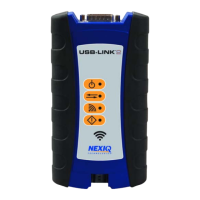
Once you have installed the USB-Link™ 2 drivers, you are ready to connect the
USB-Link™ 2 to a vehicle using an adapter cable. Any of the following adapters
can provide the interface:
•6-pin Deutsch
•9-pin Deutsch
• 9-pin Deutsch (1 meter)
• 6- and 9-pin Deutsch Y
• 16-pin J1962 for OBD II
Next, you connect the USB-Link™ 2 to your PC us
ing one of the following options:
• Using a USB cable (pg. 24)
• Using Wi-Fi—a wireless local area network (pg. 25)
Connect Using a USB Cable
To connect the USB-Link™ 2 to your PC using a USB cable:
1 Connect the USB cable (i.e., an automotive A to Mini-B USB cable) to the USB
port of the PC or laptop.
2 Connect the other end of the cable to th
e port on the bottom of the device.
3 Connect the DB26 female end of the appropriate adapter cable to the USB-
L
ink™ 2.
4 Attach the other end of the adapter cable (i.e., the Deutsch connector end) to
the
vehicle’s diagnostic connector.
i The vehicle’s diagnostic connector is typically located under the dash-
board on the driver’s side, or beside the driver’s seat. It can also be
located in the engine compartment, near the electronic control unit (ECU).
5 If you are making a wired connection, you can move on to Step 3: Test the
Connection (pg. 29).


 To Next Page