- Step 3: Test the Connection
USB-Link™ 2 Wi-Fi Edition Installation and Setup Manual 29
Step 3: Test the Connection
You use the Device Tester to test the connection between the USB-Link™ 2 and
the vehicle. At startup, the Device Tester checks for any NEXIQ™ drivers installed
on the PC.
To test the connection between the USB-Link™ 2 and the vehicle:
1 Click Start and then select All Programs
NEXIQ
Device Tester
Device Tester.
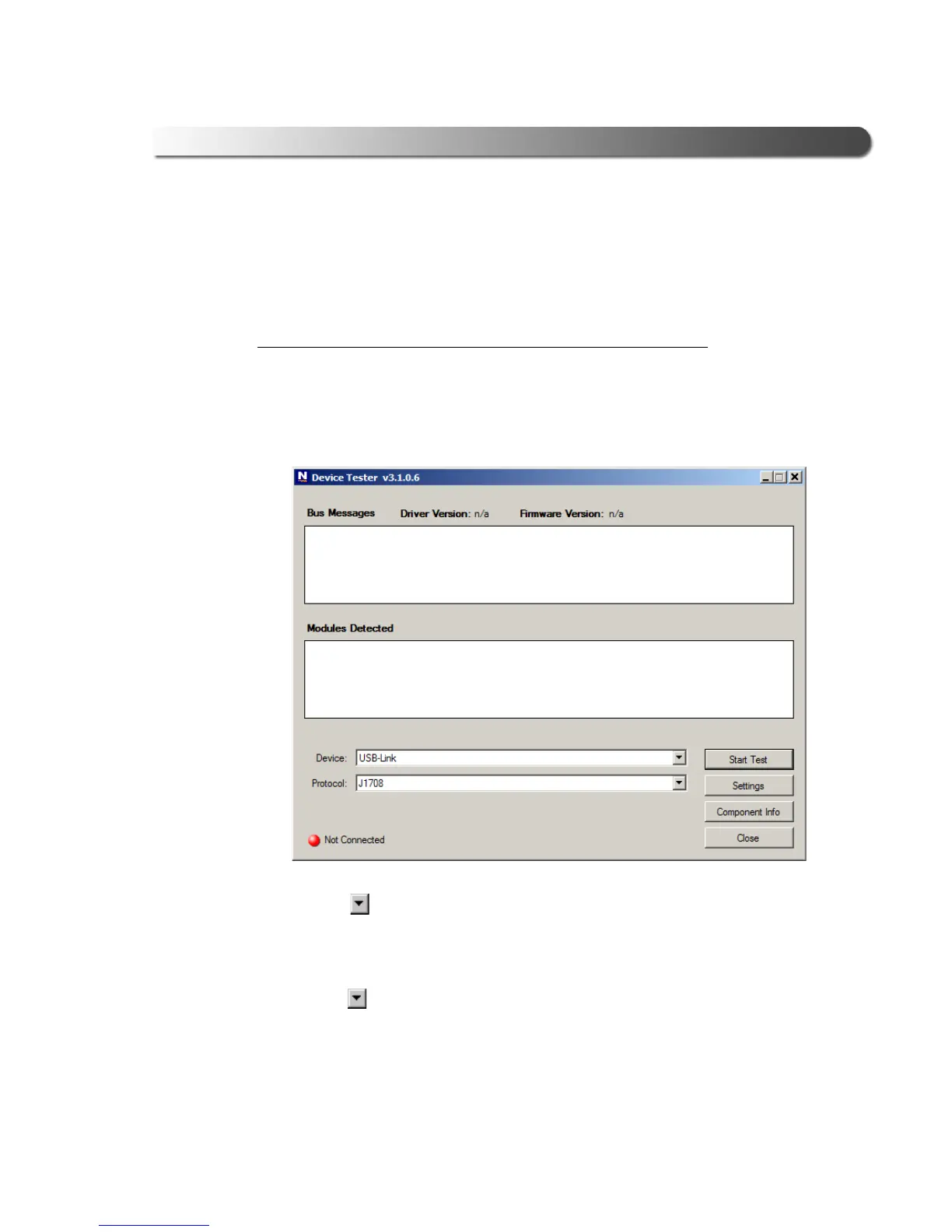
The application is started and the Device Te
ster screen is displayed.
Figure 3.14 Device Tester Screen, Showing a Status of Not Connected
2 Use the
button in the Device box to select the appropriate device (for
example, USB-Link2 WiFi).
—The Device box lists all the d
evices supported by the NEXIQ drivers in-
stalled on the PC.
3 Use the
button in the Protocol box to select the appropriate protocol (e.g.,
J1708, J1939, OBDII, etc.).
—The Protocol bo
x lists only the protocols supported by the device selected
in the Device box.


 To Next Page