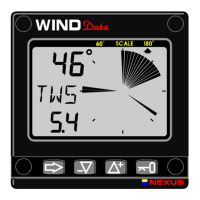
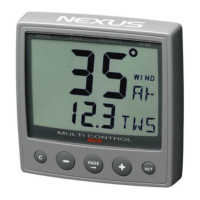
English NexusRace SW
Her you may select the following settings:
Show race time when started – If this box is ticked, this instrument will have the race
timer to pop up when started from another instrument or from the Nexus Race SW.
Show immediate messages – This function is only used for the NXR XL20 instrument
Store quick configuration – If this box is ticked, this instrument will store the display
settings when one of the four hot keys are pressed and hold. It will then jump to this
display when one of the hot keys are activated.
Select lighting colour – Here you select if you want to have green or orange back
light for this instrument.
Select start up page – Here you select in which of the four pages (SPEED, PLUS,
NAV or WIND) the instrument should start up in. You can also select last seen which is
default and the instrument will start up in the display mode it was switched off in.
6.2 Edit display of NXR Multi Control Instrument
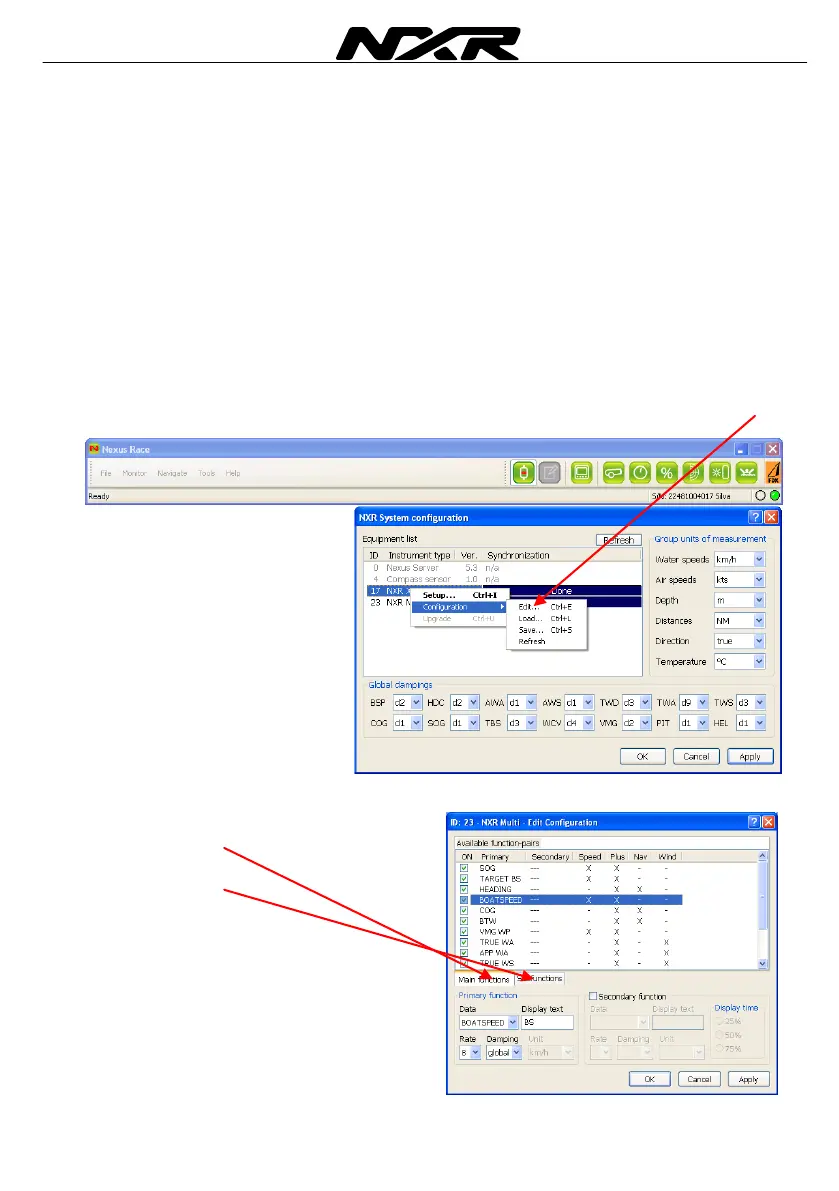
Right click on the instrument in the list you want to edit the display for and click on Edit
The following window will pop up.
The settings are divided in two folders, one
for main function
and one
for sub functions


 To Next Page