NOTE
For these functions to work the network cable
must be connected.
Menu 4.1.3.1 - nibe uplink
Here you can manage the installation's connection to
NIBE Uplink™ (http://www.nibeuplink.com) and see
the number of users connected to the installation via
the internet.
A connected user has a user account in NIBE Uplink™
which have been given permission to control and/or
monitor your installation.
Request new connection string
To connect a user account on NIBE Uplink™ to your
installation, you must request a unique connection
string.
1.
Mark “request new connection string" and press
the OK button.
2.
The installation now communicates with NIBE Up-
link™ to create a connection string.
3.
When a connection string has been received, it is
shown in this menu at "connection string" and is
valid for 60 minutes.
Disconnect all users
1.
Mark “switch off all users" and press the OK button.
2.
The installation now communicates with NIBE Up-
link™ to release your installation from all connec-
ted users via the internet.
NOTE
After disconnecting all users none of them can
monitor or control your installation via NIBE
Uplink™ without requesting a new connection
string.
Menu 4.1.3.8 - tcp/ip settings
You can set TCP/IP settings for your installation here.
Automatic setting (DHCP)
1.
Tick “automatic". The installation now receives the
TCP/IP settings using DHCP.
2.
Mark “confirm" and press the OK button.
Manual setting
1.
Untick "automatic", you now have access to several
setting options.
2.
Mark “ip-address" and press the OK button.
3.
Enter the correct details via the virtual keypad.
4.
Mark “OK" and press the OK button.
5.
Repeat 1 - 3 for "net mask", "gateway" and "dns".
6.
Mark “confirm" and press the OK button.
Caution
The installation cannot connect to the internet
without the correct TCP/IP settings. If unsure
about applicable settings use the automatic
mode or contact your network administrator
(or similar) for further information.
TIP
All settings made since opening the menu can
be reset by marking "reset" and pressing the
OK button.
Menu 4.1.3.9 - proxy settings
You can set proxy settings for your installation here.
Proxy settings are used to give connection information
to a intermediate server (proxy server) between the
installation and Internet. These settings are primarily
used when the installation connects to the Internet via
a company network. The installation supports proxy
authentication of the HTTP Basic and HTTP Digest type.
If unsure about applicable settings use the preset set-
tings or contact your network administrator (or similar)
for further information.
Setting
1.
Tick “use proxy" if you do not want to use a proxy.
2.
Mark “server" and press the OK button.
3.
Enter the correct details via the virtual keypad.
4.
Mark “OK" and press the OK button.
5.
Repeat 1 - 3 for "port", "user name" and "pass-
word".
6.
Mark “confirm" and press the OK button.
TIP
All settings made since opening the menu can
be reset by marking "reset" and pressing the
OK button.
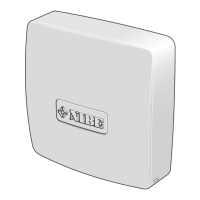
Menu 4.1.4 - sms (accessory is required)
Make settings for the accessory SMS 40 here.
Add the mobile numbers that are to have access to
change and receive status information from the indoor
module. Mobile numbers must include country code
e.g. +46 XXXXXXXX.
If you want to receive an SMS message in the event of
the alarm mark the box to the right of the telephone
number.
NOTE
Telephone numbers provided must be able to
receive SMS messages.
Menu 4.1.5 - SG Ready
This function can only be used in mains networks that
support the "SG Ready"-standard .
Make settings for the function "SG Ready" here.
51Chapter 8 | Control - MenusNIBE™ VVM 325


 To Next Page