9
You must confirm your password
by entering it a second time.
Click “OK” to save the changes.
Did you forget your password?
Right click the mouse to bring
up the system menu. Select
the login screen. Click on the
“Forget Password” button.
1
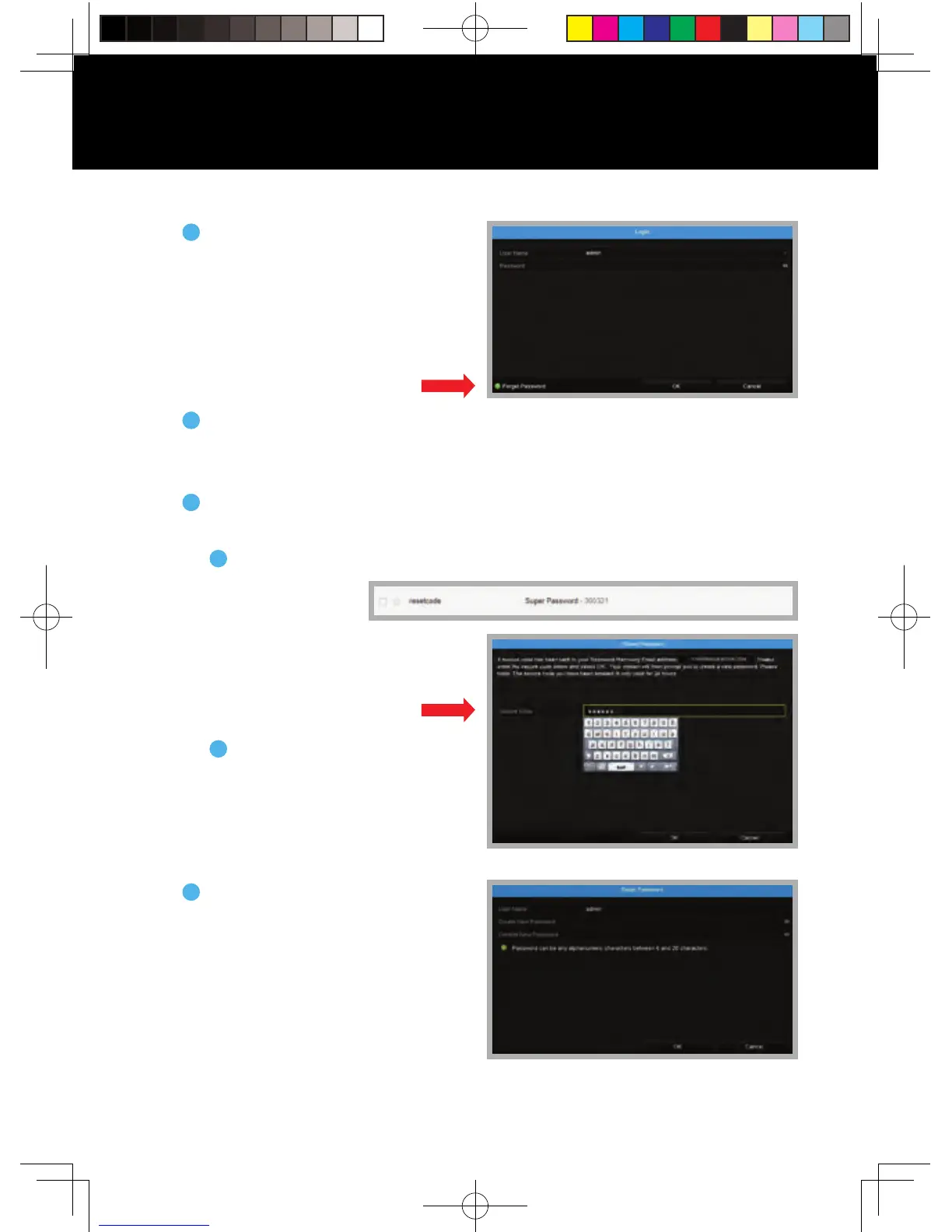
A reset code will be sent to the email address entered during account setup.
2
Log into your email to retrieve the reset password code.
3
Open the email from “resetcode” and locate the six-digit code.
A
Return to your system and
enter the six-digit code into
the “Secure Code” field.
Then, click “OK” to continue.
B
Once you’ve entered the Secure
Code, you will be prompted to
create a new password.
4
NOTE: Make sure you enter a VALID email address. This process is way better
than waiting on hold to talk to a support rep. Seriously!
NOTE: Please check your junk/spam folder if you don’t see the email in your inbox.
NOTE: This may take a few minutes. Be patient! Maybe grab a quick snack?
Password Reset Instructions
QSG-H2THD.indd 10 2018/6/22 11:00



 To Next Page