110
The Camera Control Window
Starting Nikon Capture 4 Camera Control
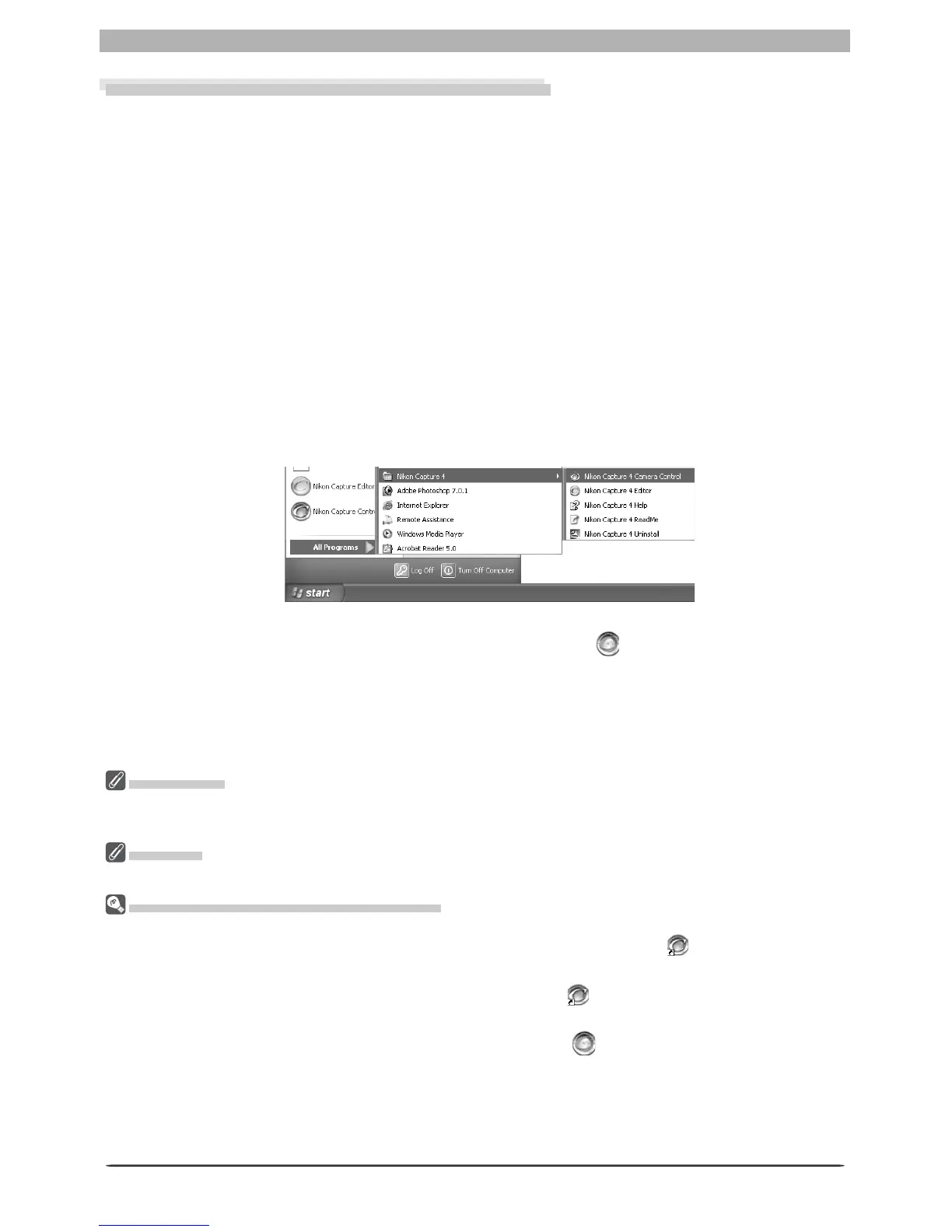
Nikon Capture 4 Camera Control can be started by se lect ing Nikon Capture 4 Camera Control
from the Start menu (Win dows) or double-click ing the ap pli ca tion icon (Macintosh).
1
Connect the camera
Connect the camera to your computer and turn the camera on. If you are using a D1-se-
ries camera, choose “PC” as the operating mode. If you are using a D100, choose P, S, A,
or M mode. Users of D2-series and D200 cameras can select any mode other than M-
UP
(mirror up). The D70s, D70, and D50 can be connected in any shooting mode.
2
Close the transfer dialog
If PictureProject Transfer or Nikon Transfer starts, click the Close button.
3
Start Nikon Capture 4 Camera Control
Windows
From the Start menu, select All Programs > Nikon Capture 4 > Nikon Capture 4
Cam era Control (Windows XP Home Edition/Windows XP Professional) or Pro grams >
Nikon Capture 4 > Nikon Capture 4 Cam era Control (other Win dows ver sions).
Prod uct Key
If prompt ed to supply a product key when starting Nikon Capture 4 Editor or Nikon Capture 4 Camera
Control, en ter the product key supplied on the Nikon Capture 4 CD case.
Mac OS 9
Dutch, Italian, Korean, and Swedish versions of Nikon Capture 4 are not available for Mac OS 9.
Oth er Ways of Starting Camera Con trol
Windows: If a shortcut to Nikon Capture 4 Camera Control was created on the desktop during installa-
tion, Camera Control can also be started by double-clicking the shortcut icon ( ) on the desktop.
Mac OS 9 : If an alias for Nikon Capture 4 Camera Control was created on the desktop during installation,
Camera Control can also be started by double-clicking the alias ( ).
Mac OS X: If Nikon Capture 4 Camera Control was reg is tered in the Dock during installation, Camera
Control can also be started by clicking the Nikon Capture 4 icon ( ) in the Dock.
Nikon Capture 4 Editor: Nikon Capture 4 Camera Control can also be started by selecting Show Nikon
Capture Camera Control from the Tools menu in Nikon Capture 4 Editor.
PictureProject: Nikon Capture 4 Camera Control can also be started by selecting Camera Control > Start
Camera Control from the PictureProject File menu.
Macintosh
Double-click the Nikon Capture 4 Camera Control icon in the folder to which you
installed Nikon Capture 4.




 To Next Page