144
Appendix B
Step 2—Adjusting Settings in Adobe Photoshop
The following describes the minimum necessary adjustments to ensure consistent color re-
production in Adobe Photoshop 7.0. The menus and dialogs referred to below are all from
Adobe Photoshop.
Opening TIFF and JPEG Images Created Using Nikon Capture 4
Images saved in TIFF, JPEG (JFIF), and JPEG (Exif) formats include color-space profi le informa-
tion. Open fi les in these formats as described below.
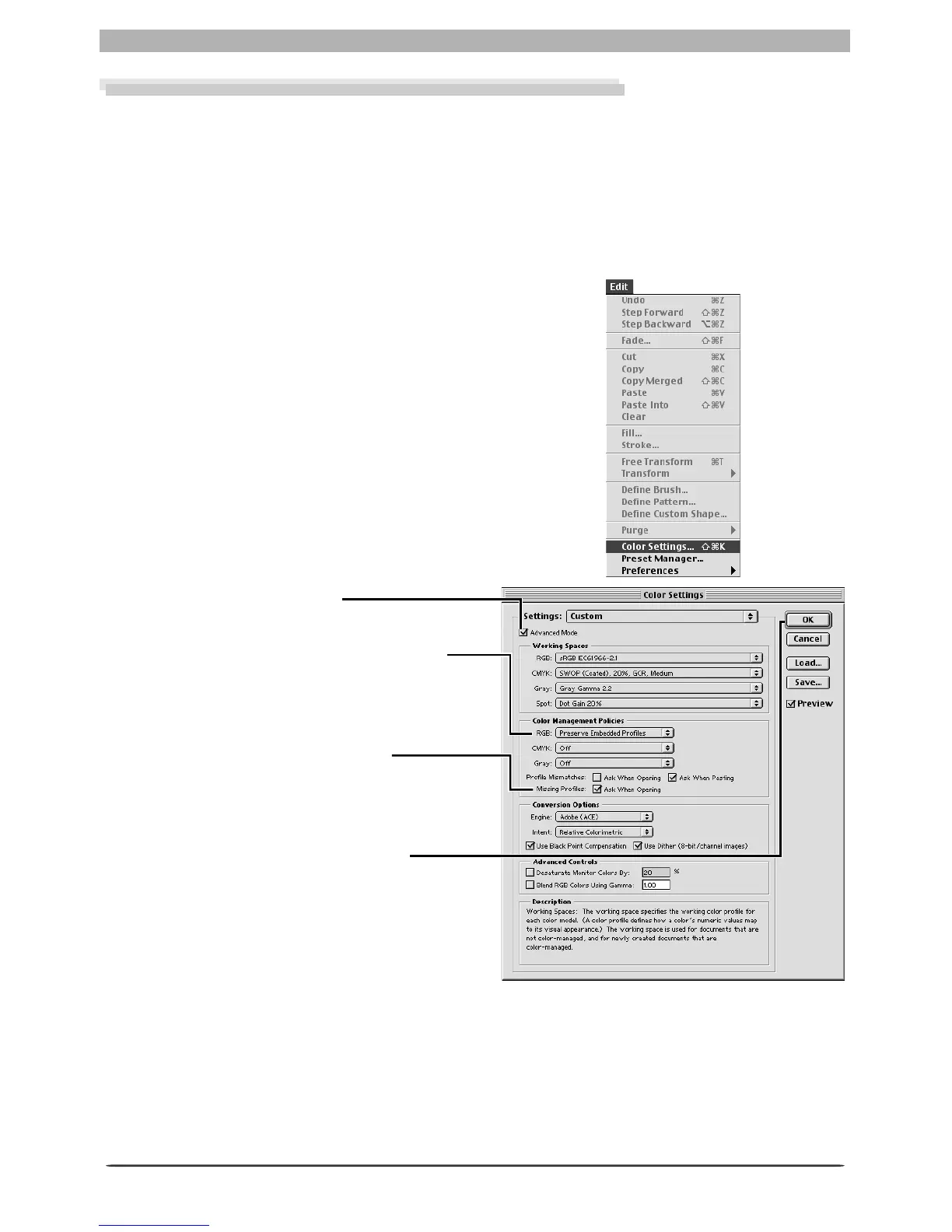
1
Display the Color Settings dialog
Select Color Settings… from the Adobe
Photoshop Edit menu.
2
Check Advanced Mode
3
Select Preserve Embedded Profi les
Select Preserve Embedded Profi les from
the RGB pop-up menu in the Color Man-
age ment Policies section.
4
Deselect Ask When Opening
Remove the check from Ask When Open-
ing in the Profi le Mismatches area of the
Color Man age ment Policies section.
5
Close the Color Settings dialog
Click OK to close the Color Settings dia-
log.
At these settings, a warning may be displayed when an image is opened. To prevent the warn-
ing being displayed again, select the appropriate option in the warning dialog.




 To Next Page