15
Getting to Know Nikon Capture 4 Editor
Opening the Multi-Image Window
The Multi-Image window shows the images in the selected folder as small thumbnail pre-
views. Use the Multi-Image window to view other images while making adjustments to the
current image, or to select multiple images for editing, saving, or printing.
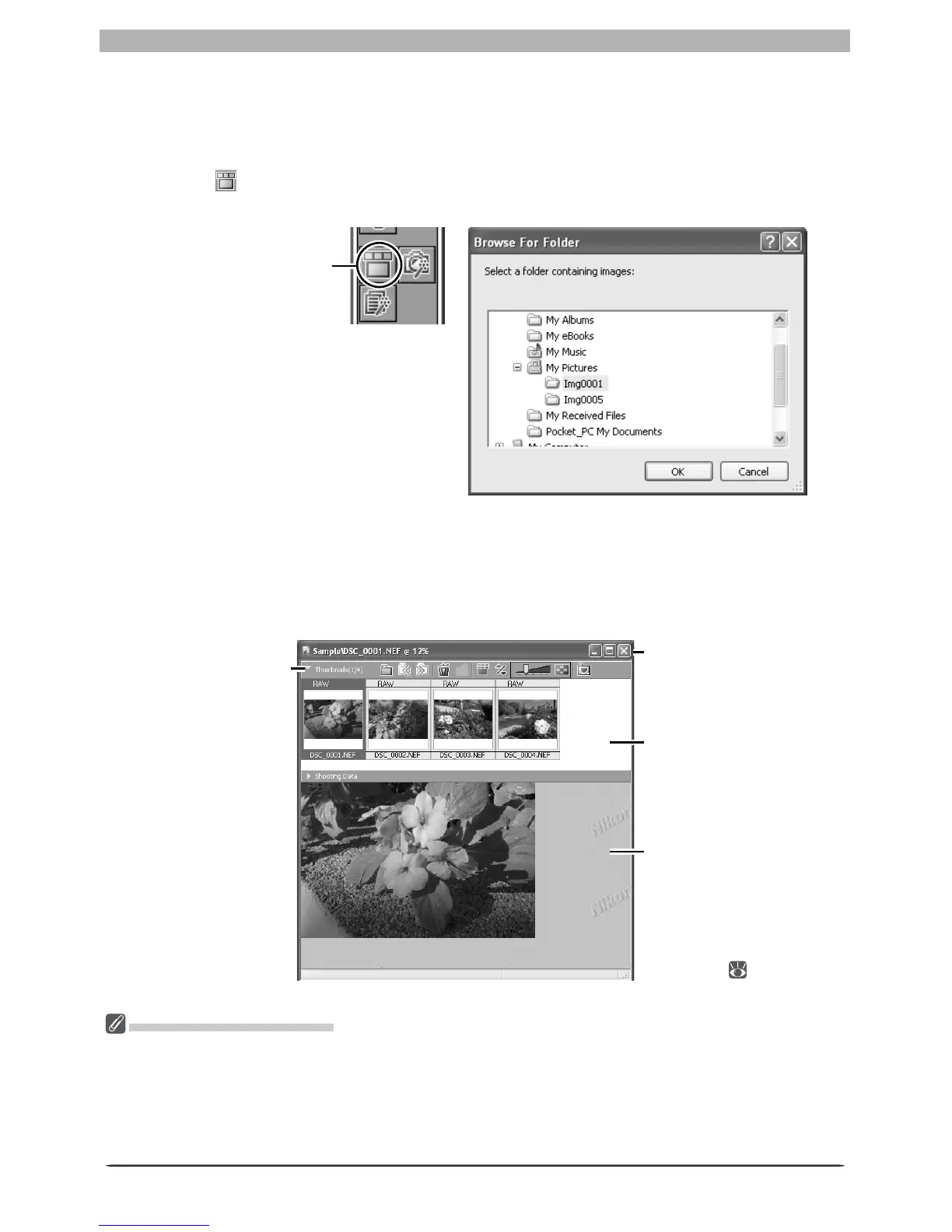
1
Click the button or select Open Multi-Image Window from the File menu
The Browse For Folder dialog will be displayed.
2
Select a folder
Select the folder containing images you want to view or edit.
3
Click OK
The Multi-Image window will open, with the images in the selected folder displayed as
thumbnails.
Thumbnail area
Displays the imag-
es in the selected
folder as thumb-
nail previews.
Multi-Image window
Lists the images
in the selected
folder.
Image area
Shows the image
currently being
edited. Images are
edited in the same
way as in image
windows ( 29).
The Multi-Image Window
The Multi Image window can be used to display multiple images without opening them in separate im-
age windows, reducing the amount of memory required. No more than one Multi-Image window can
be open at a time. Before opening a folder in the Multi-Image window, make sure that none of the
images in the selected folder are open in image windows. If the user attempts to open one of the im-
ages in the thumbnail list in an image window, it will be opened in the image area of the Multi-Image
window instead.
Open Multi-Image
Window button
Click to hide or
view the thumb-
nail area.




 To Next Page