38
Confirming Device Registration (Windows 2000 Professional)
After registering the scanner, confirm that the device is working normally as described below.
1
Turn the scanner on
Make sure that the scanner is connected and turned on.
2
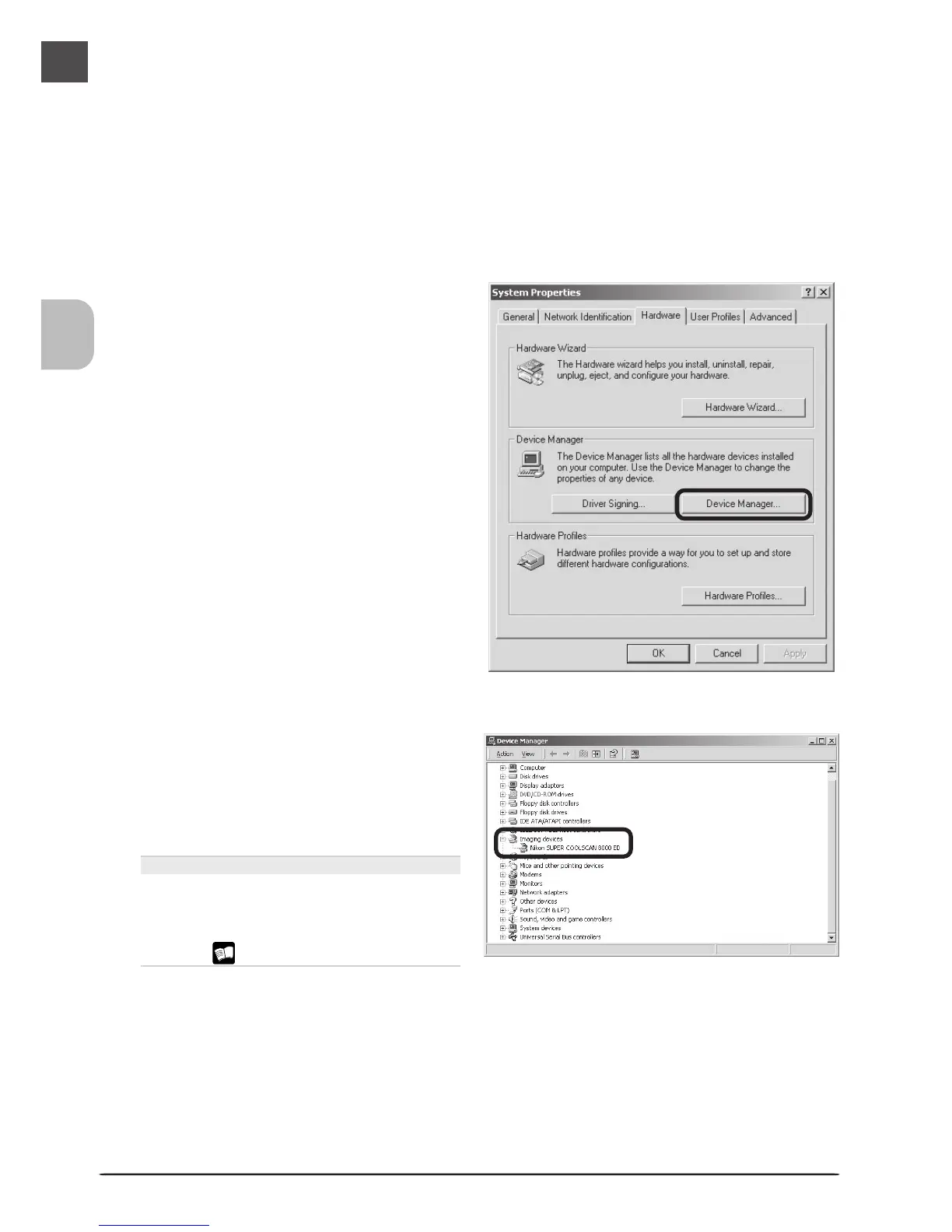
Open the System Properties dialog
From the Start menu, select Settings > Control Panel and double-click the System
icon.
3
Display the Device Manager
The System Properties dialog will be dis-
played. Open the Hardware tab and click
Device Manager….
4
Confirm that the scanner is listed under “Imaging devices”
If “Imaging devices” appears in the De-
vice Manager, click the “+” to its left to
view the imaging devices currently regis-
tered with Windows. Confirm that your
scanner is listed.
If the Scanner Is Not Listed
If the scanner is not listed under “Imag-
ing devices,” proceed to “Updating the
Device Driver (Windows 2000 Profes-
sional)” ( 40).





 To Next Page