8
5. HARDWARE DESCRIPTION:
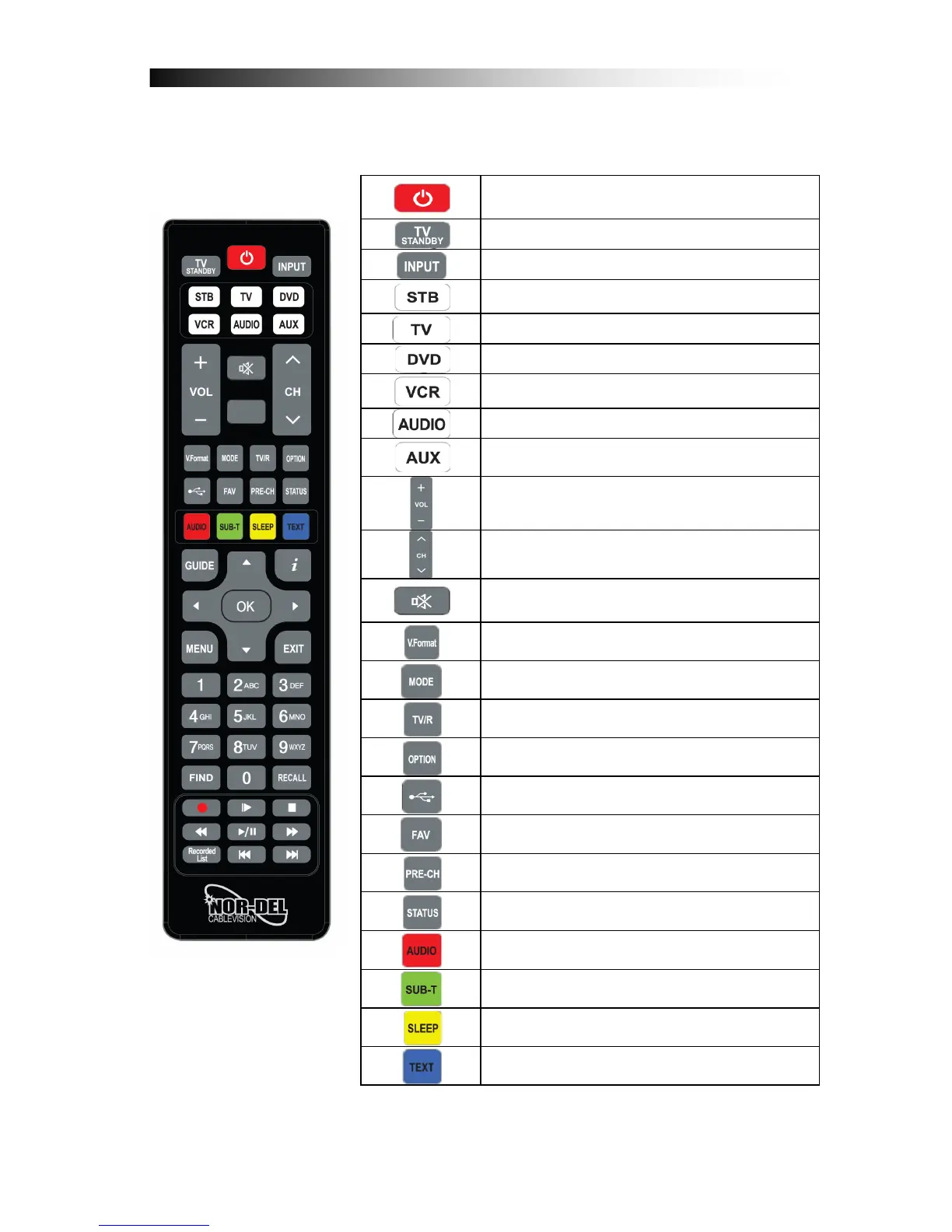
5.1 Remote Control unit
POWER. By pressing this button, the receiver will go into
standby mode. When the receiver is in standby mode, it can
be awakened by pressing this button again.
Once configured for TV remote control, this button is for TV
power on/off.
(Universal RCU) By pressing this button, user can choose
from video source.
(Universal RCU) By pressing this button, user can use this
RCU for STB.
(Universal RCU) By pressing this button, user can use this
RCU for TV.
(Universal RCU) By pressing this button, user can use this
RCU for DVD player or recorder.
(Universal RCU) By pressing this button, user can use this
RCU for VCR.
(Universal RCU) By pressing this button, user can use this
RCU for Audio amlifier.
(Universal RCU) By pressing this button, user can use this
RCU for other devices.
VOL +/-: Increases/Decreased the Volume
CH +/-: Changes up/down channel within the channel-list OR
jump to previous /next channel.
MUTE. By pressing this button, all audio outputs of the
receiver are muted. When muted, Audio output can be
regained by pressing this button again.
V.Format : By pressing this button you can change Video
output resolution
MODE : By pressing this button you can select on between 4:3
/16:9 and pan & scan / LetterBox
TV/RADIO. By pressing this button the user can jump between
TV and radio lists of the receiver.
USB: By pressing this button you can access the recorded
files and media files on a connected USB Hard-Disk-Drive
FAV / FAVORITE: By pressing this button you can open the
Favorite Channel Lists, if you have previously programmed.
PRE-CH : By pressing his button, you can return to previously
viewed channel
STATUS: Displays Information about the status of the
receiver, connected USB device and channel reception data
RED / AUDIO: By pressing this button you can choose
alternative Audio tracks if provided by the channel operator.
GREEN / SUBTITLE: By pressing this button you can display
subtitles if provided by the channel operator
more times, the user can determine the time after which the
receiver will automatically go into Standby.
BLUE / TELETEXT: By pressing this button, the user can
activate the teletext application.
* requires a USB HDD to be connected and operational


 To Next Page