10.4.3 User Manual Contents April 17, 2020
Firmware: 5.2.1 Page 40 of 142
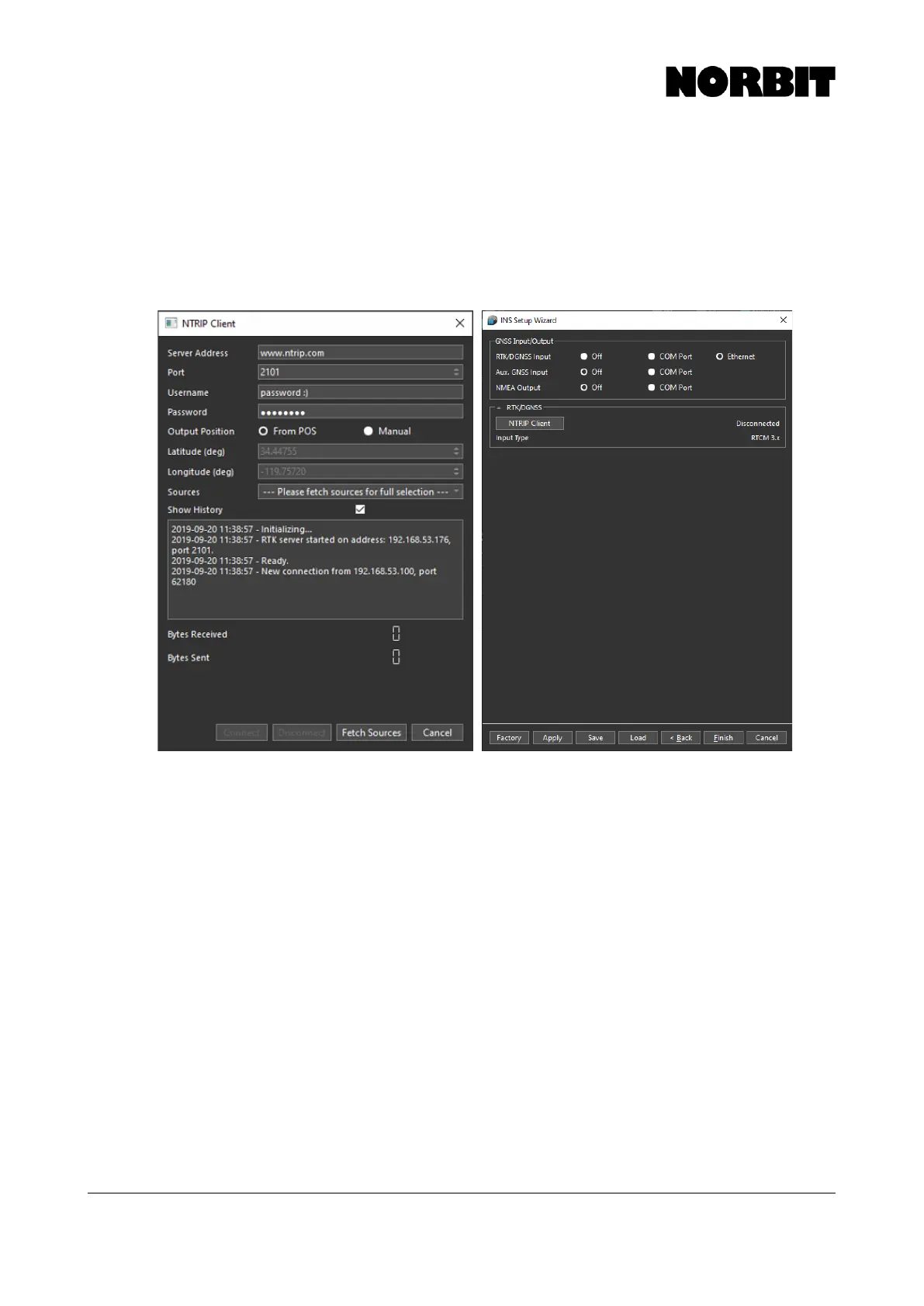
To enable RTK corrections via NTRIP, select Ethernet as the RTK/DGNSS Input. Select NTRIP
Client and enter the login details. Select Fetch Sources, and then select the source from the
dropdown menu. Click Connect.
When the NTRIP client shows Bytes Received and Bytes Sent values increasing, a connection is
established. If, for any reason, the numbers are not increasing, select Disconnect and Connect to
restart the service. Losing connection to the internet, even for a brief period, may cause the NTRIP
connection to fail.
The client may be accessed at any time by selecting INS Tools on the settings menu, then select
NTRIP Client. The connection status can be monitored on the INS status bar at the top of the GUI.
Click Finish to complete the setup wizard. If Heading Alignment Wizard was selected in section
4.4.1.3, finishing the setup wizard automatically starts the alignment wizard. If performing a heading
alignment calibration is not possible at this time, you may select Cancel, with no loss of input values,
and perform the calibration later.



 To Next Page