Led Display Video Controller VX4 Series User's Manual
www.novastar-led.com
12
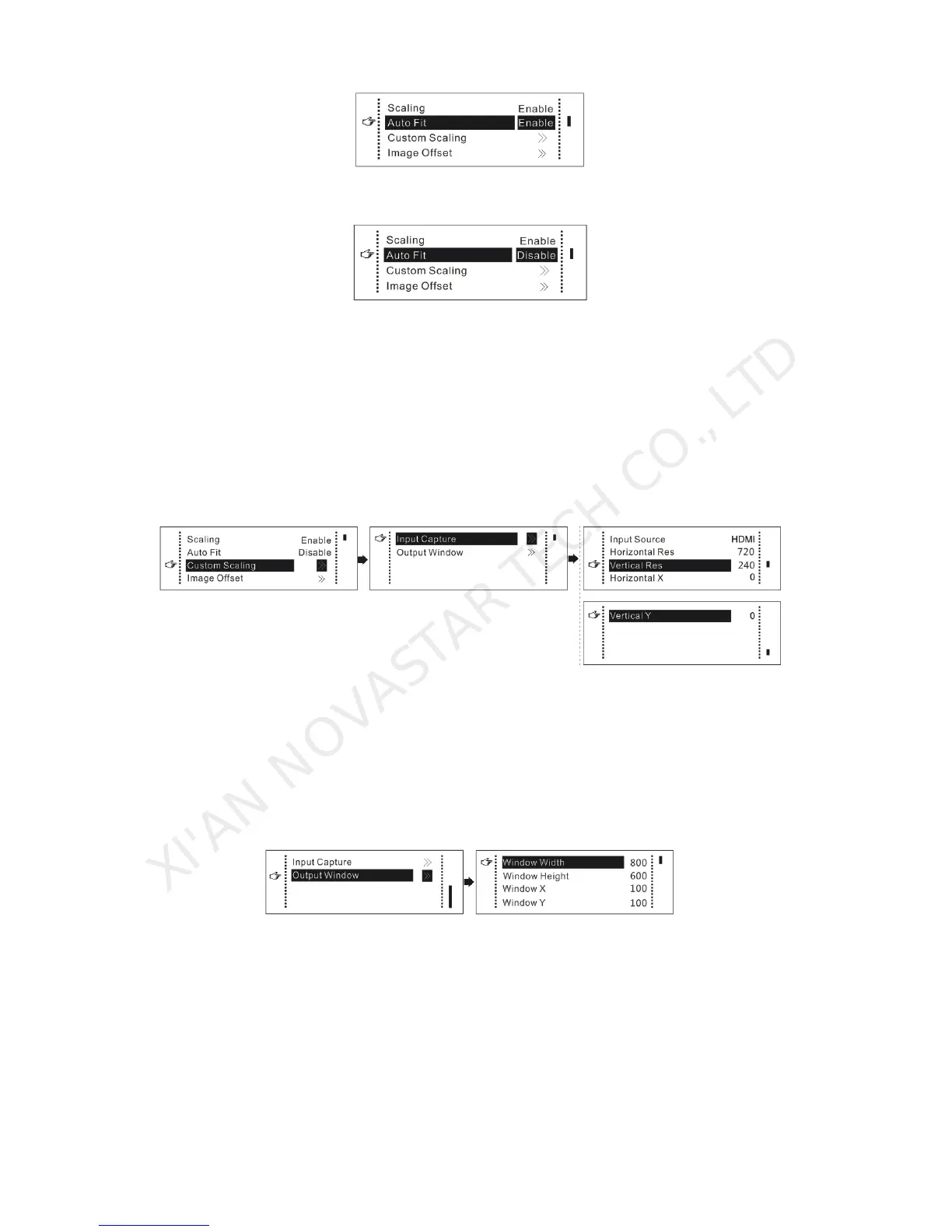
Third one: Custom Scaling. At this point [Enable Scaling] is Enabled, while [Auto Fit] is Disabled.
The following steps should be performed for custom scaling:
Step 1: Set the input Capture, i.e., capture part of interesting screens from behind one starting point of
inputting image and display it on LED display. It is generally required to set Horizontal Res (smaller
than or equal to the lateral resolution of input source), Vertical Res (smaller than or equal to the vertical
resolution of input source), horizontal X and vertical Y.
Step 2: Set output window, the size of window is smaller than or equal to the size of LED display; after
setting the window, the images can only be adaptive to the displayed size within the range of window,.
This option is applicable to the application scenarios requiring reserving border at the LED display or
restricting playing area.
After setting according to the above two steps, the captured contents will only be input and displayed
at the set area on the LED display, as shown below:


 To Next Page