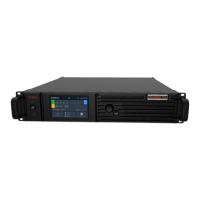
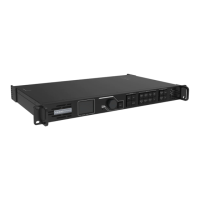
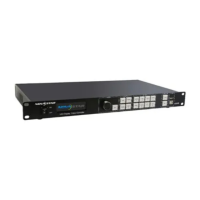
MX30 LED Display Controller User Manual
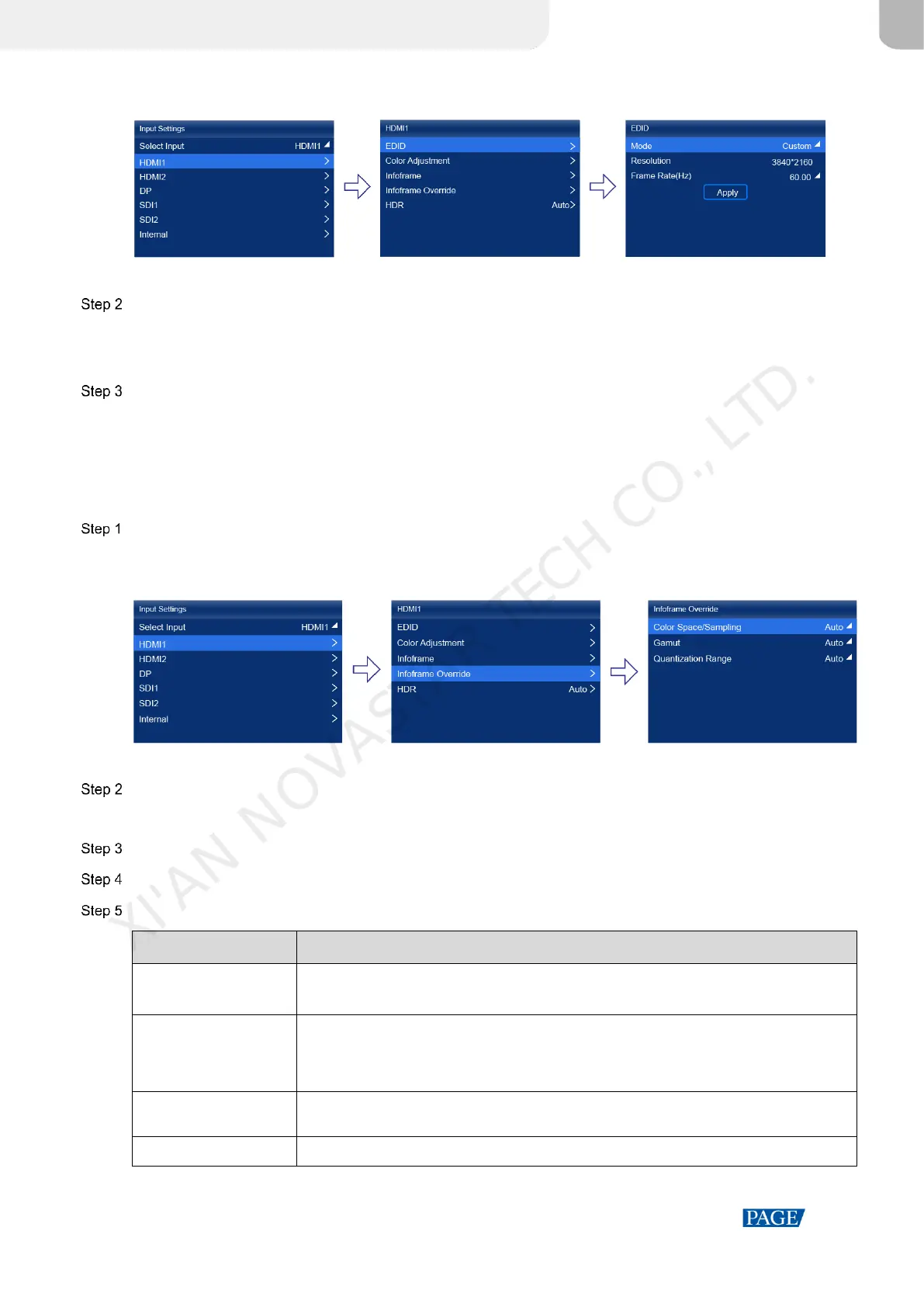
Figure 6-3 EDID
When the device working mode is All-In-One Controller, the Select Input menu is not displayed.
Set Mode to Custom or Standard, and then set the resolution and frame rate.
Custom: Set the resolution manually.
Standard: Select the desired resolution from the drop-down options.
After the settings are done, click Apply.
6.2.3 Adjust Color
Set the infoframe override parameters of the external input source and adjust the color. The override parameter will
be used in the calculation of color adjustment. If the value of this parameter is not set manually, the value that comes
with the input source will be used.
On the main menu screen, choose Input Settings > input source > Infoframe Override. The input source is HDMI1,
HDMI2, DP, SDI1 or SDI2.
Figure 6-4 Infoframe override
When the device working mode is All-In-One Controller, the Select Input menu is not displayed.
Set the override parameters as required.
Select Auto and the device will read the attribute value that comes with the input source.
Press the BACK button to go back to the upper-level menu.
Select Color Adjustment.
Set the related parameters.
It is used to adjust the brightness of the dark areas of the image. The smaller the value,
the darker the dark part of the screen.
It is used to adjust the brightness of the highlight areas of the image. The greater the
value, the brighter the highlight part of the screen.
Contrast and black level together affect the overall contrast of the image.
It is used to adjust the color purity of the image. The greater the value, the more vivid
the color.
It is used to adjust the color effect of the displayed image color.
XI'AN NOVASTAR TECH CO., LTD.



 To Next Page