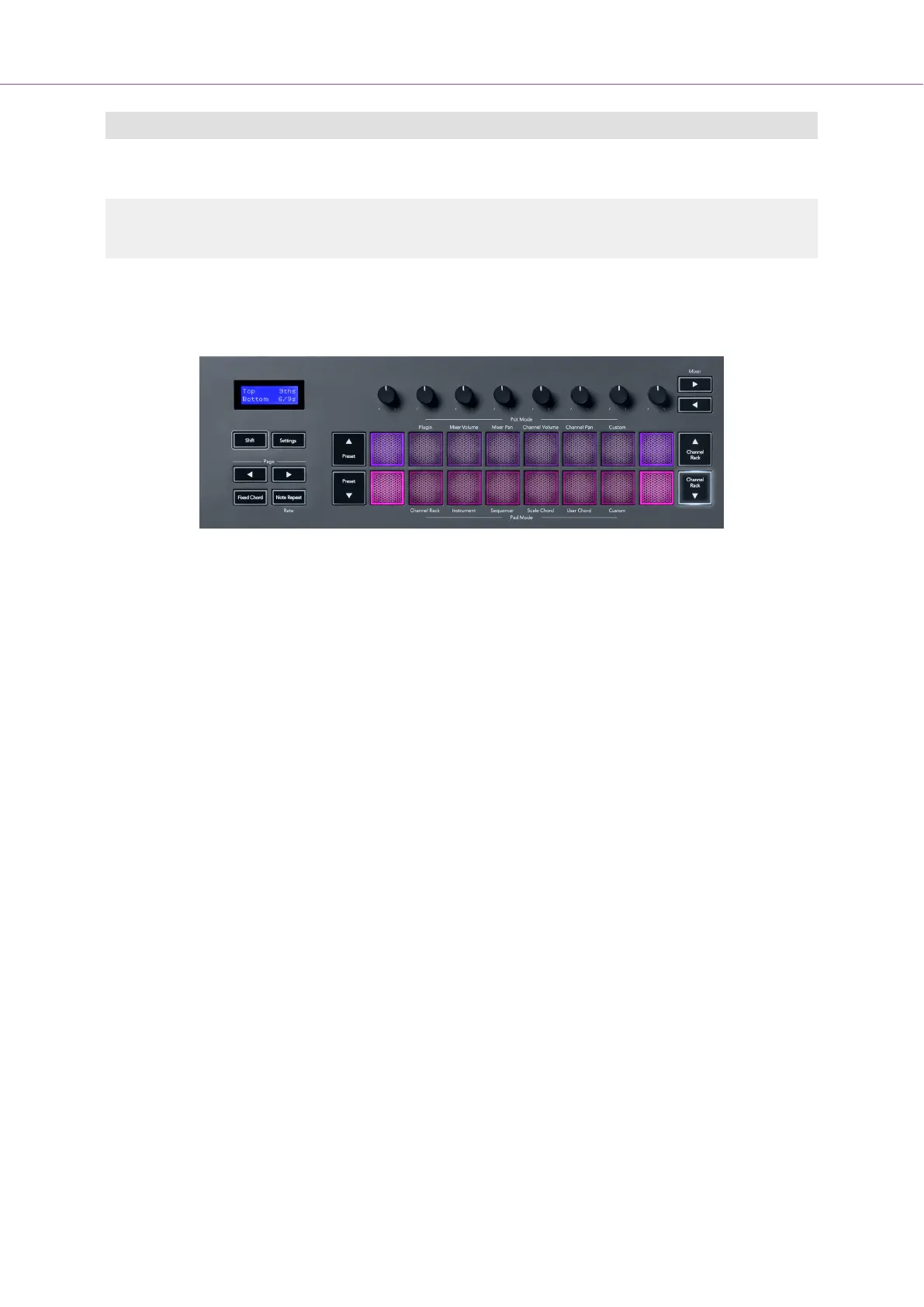
Visible on screen
Page 1
(Shown above)
Top: Triads (Light blue)
Bottom: 7ths (Dark Blue)
Page 2 Top: 7ths (Dark Blue)
Bottom: 9ths (Purple)
Page 3
(Shown below)
Top: 9ths (Purple)
Bottom: 6/9s (Pink)
When you press a pad, it lights green and returns to its original colour when released. To change the
chord’s octave, hold Shift and press the Page ◄ ► buttons, these provide access to a range of -3 to +3
octaves.
Press Shift + Scale to choose a scale with the pink lit pads and a root key with any note on the
keyboard that changes the predefined chord’s scale and root key.
User Chord Mode
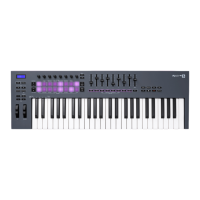
In User Chord Mode, you can assign up to six note chords to each pad. The FLkey saves these
chords to its internal memory and is accessible between power cycles. Any assignments you make are
available after you turn your FLkey off and on again.
Hold the Shift button to enter User Chord Mode and press the User Chord pad (6th pad).
To assign a chord to a pad: press and hold a pad and press the notes you want to assign from the
keyboard. You can assign up to six notes to each pad using individual key pushes; you do not need to
hold all the notes at once if the pad is held.
When you assign a chord, the pad lights up blue. When you press the pad, it plays the chord and lights
up green. If a pad has no chord assigned, the pad isn’t lit. The four blue pads below show pads with
assigned chords.
FLkey User Guide
25





 To Next Page