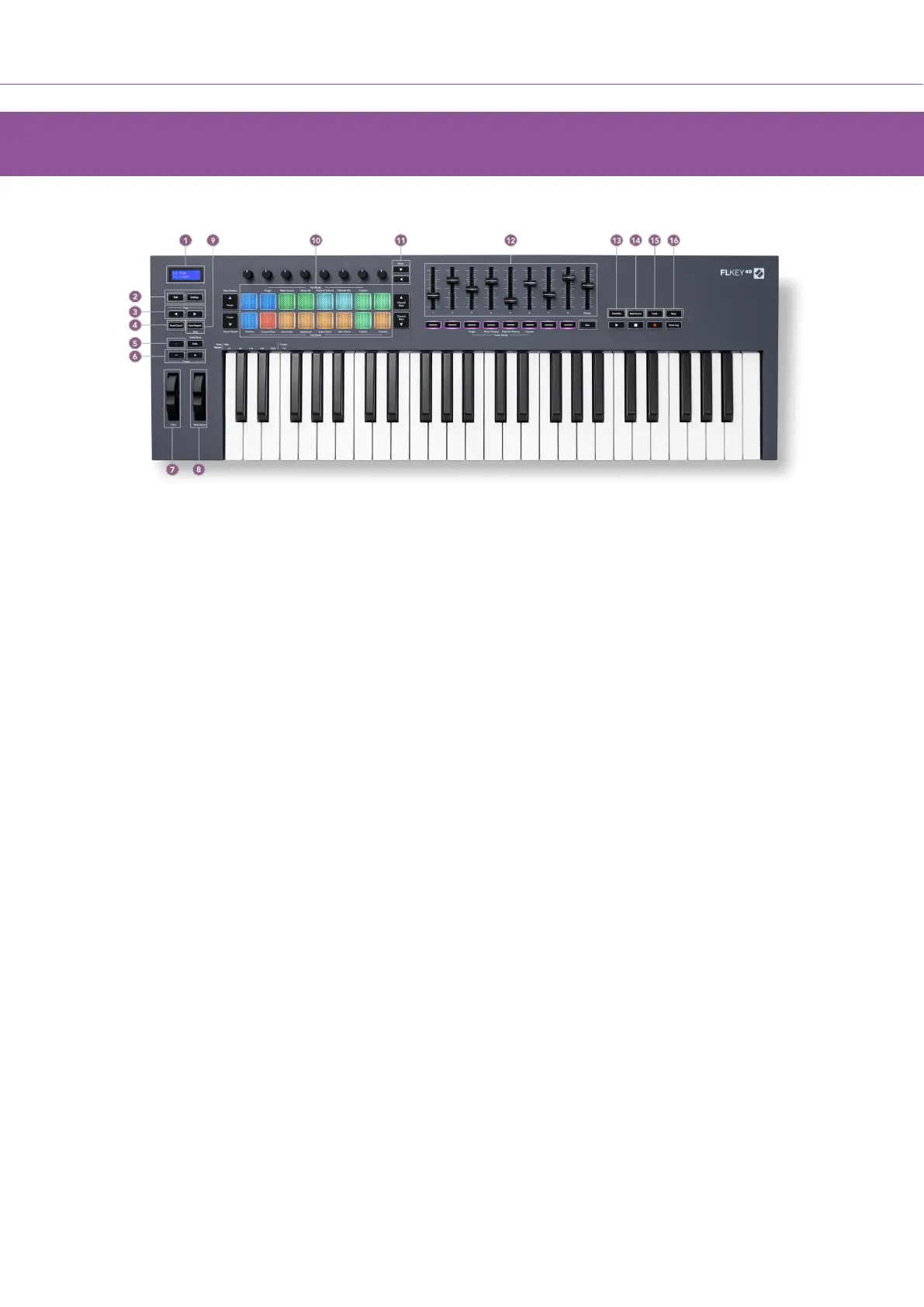
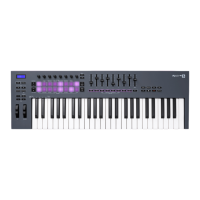
FLkey 49/61 Hardware Overview
1. LCD Display - Shows the device status, and parameter values, and lets you navigate through
menus.
2. Shift & Settings buttons - Enable access to secondary shift functions, shown in text on the
front panel and open the Settings menu on the screen.
3. Page ◄ ► Buttons – These navigate left and right in the Channel Rack to extend patterns
when sequencing, page between banks in FPC and bank between pages of Slicex/Fruity
Slicer. You can also change the voicing page in Scale Chord mode, Transpose in User Chord
or Custom mode and, adjust the pad octave in Instrument mode.
4. Fixed Chord Button – Stores a chord for you to play anywhere on the keyboard. While holding
the Fixed Chord [41] button, press and release the keys you wish to be part of the ‘fixed’
chord.
5. … Button (Navigation Mode) - Pressing the “...” button puts the FLkey into a navigation mode
for browsing samples and presets.
6. Octave - + Buttons - Transposes the keyboard across ten octaves (C-2 to C6). Pressing both
buttons sets the transposition amount back to 0. See Octave Buttons [41].
7. Pitch Wheel - Bends the pitch of the note being played.
8. Modulation Wheel - You can map this to modulate software/hardware parameters.
9. Note Repeat Button - Enables the pads to send repeated notes at various rates specified using
the Shift function on the keyboard. See Note Repeat [42].
10. Pads – Audition and select channels in Channel Rack mode. Use integrations with FPC, Slicex,
and Fruity Slicer in instrument mode. Sequence beats using Sequencer mode. Trigger chords
using the Scale and User Chord modes and Custom Modes.
FLkey User Guide
8





 To Next Page