Getting Started
Connecting FLkey with a Computer
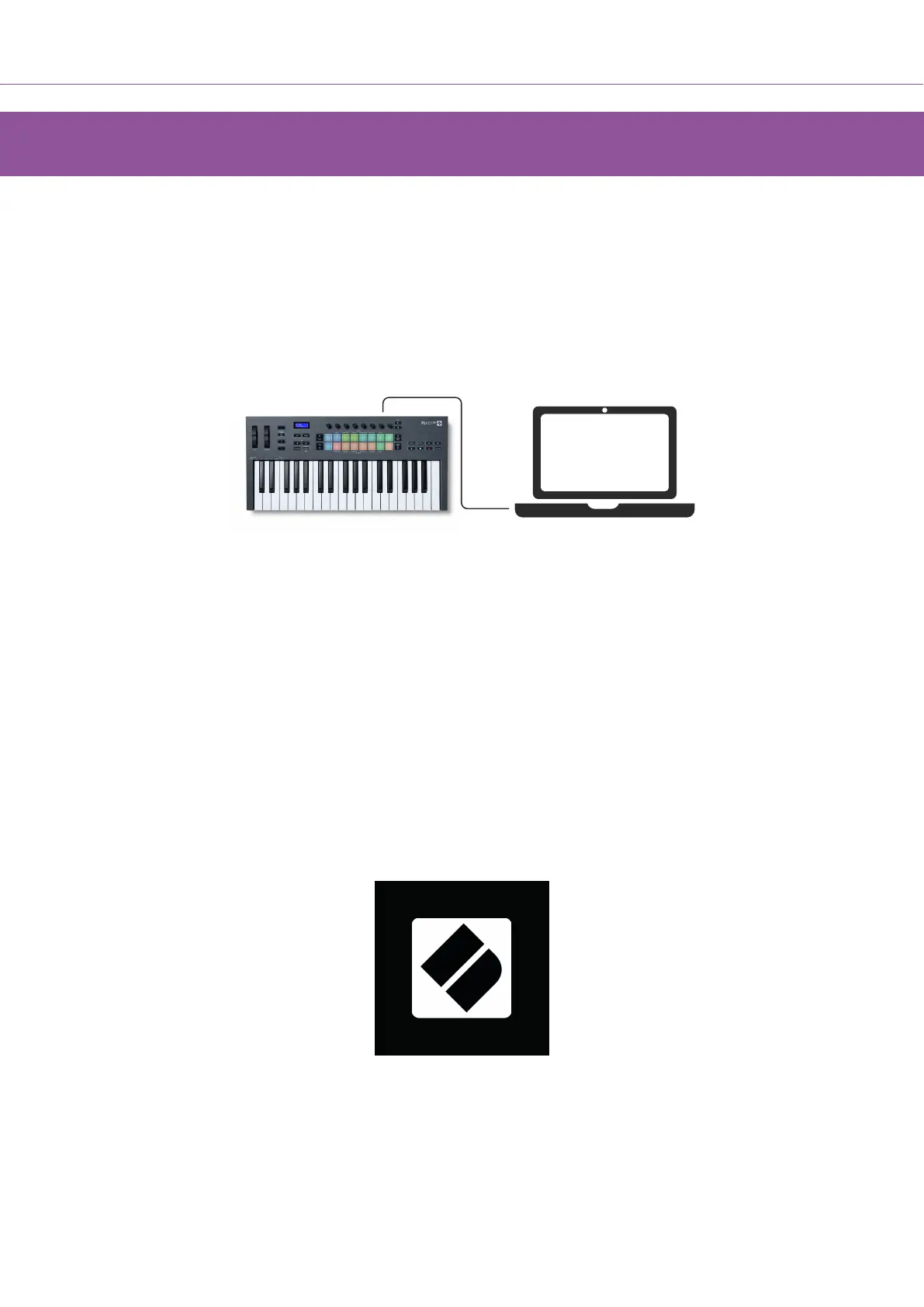
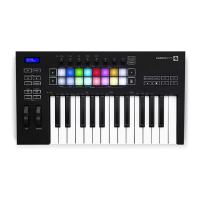
FLkey is USB bus-powered, it turns on when you connect it to your computer with a USB cable. When
you connect FLkey to a Mac, it may show the Keyboard Setup Assistant. This is because FLkey also
functions as a computer keyboard to enable the Navigate functionality. You can dismiss the Keyboard
Setup Assistant.
Easy Start
The ‘Easy Start’ give you a step-by-step guide to setting up your FLkey. This online tool guides you
through your FLkey’s registration process and accessing the software bundle.
On both Windows and Mac computers, when you connect your FLkey to your computer, it first appears
as a Mass Storage Device, like a USB drive. Open the drive and double click ‘Click Here To Get
Started.url’. Click ‘Get Started’ to open Easy Start in your web browser.
After you’ve opened the Easy Start tool, please follow the step-by-step guide, to install and use your
FLkey.
Alternatively, if you don’t want to use the Easy Start tool, please visit our website to register your FLkey
manually and access the software bundle.
customer.novationmusic.com/register
FLkey User Guide
6





 To Next Page