8 - 18 en-938821/2
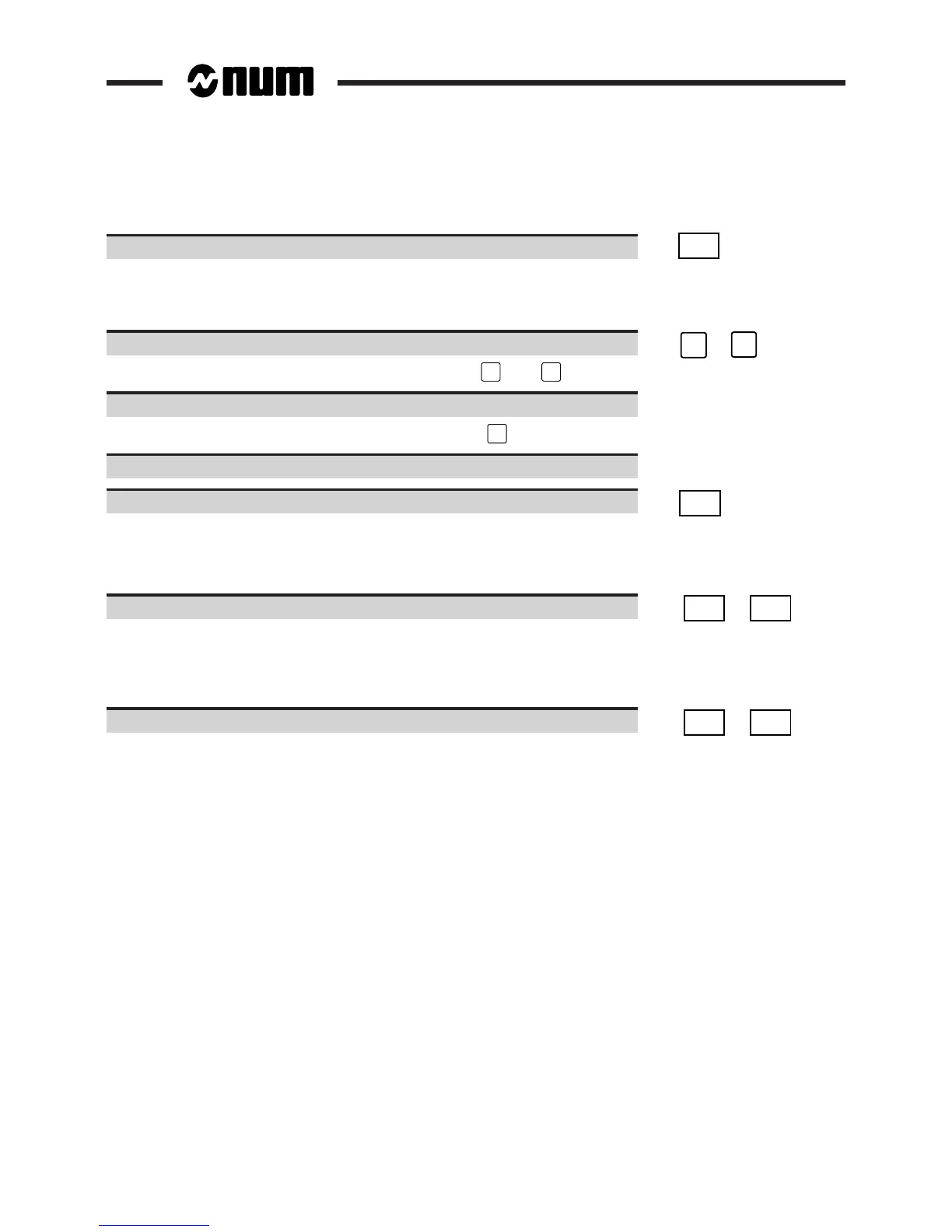
Exit from the Procedure
Exit from the utility. ☞
EXIT
Return to the "CN UTILITY" menu.
8.4.1 Changing the Colour Palette
Select one of the colours to be changed. ☞
➞
or
➞
Colours 0 and 15bis can be selected directly by pressing
Home
and
End
respectively.
Use the Red/Green/Blue, +/- softkeys to change the colour.
The colours can be changed more rapidly by pressing the
SHIFT
key at the same time as the +/- keys
Save the new customised palette.
Lancer l'enregistrement de la nouvelle palette personnalisée. ☞
Save
Display of the message:
WARNING: ALL OLD PALETTES WILL BE LOST
OK? (YES/NO)
Confirm or refuse the palette. ☞
Yes
or
No
A positive answer replaces the old customised palette by the one just created. The standard NUM palette is always
available.
8.4.2 Selecting a Palette
Select the colour palette to be used. ☞
Num
Palette
or
Custom.
Palette
These keys toggle between the NUM palette and the customised palette.


 To Next Page