23
Tap the Favorite//Frequent button to view your most-used contacts.
The Menu//Overflow button lets you adjust list display settings, change or add ac-
counts, import, explore, and otherwise manage your contacts list.
Tap the Search button to search through your contacts. Just start typing to search
by name, e-mail, and so on.
Bluetooth
Your smartphone is equipped with Bluetooth, which allows it to connect to all kinds of
useful things: wireless speakers, headsets, and in-car sound systems just to name a few.
While each Bluetooth device may differ in how it’s used, they all connect in a similar way.
Here are the general steps for making that kind of connection, known as “pairing” your
smartphone with the Bluetooth device.
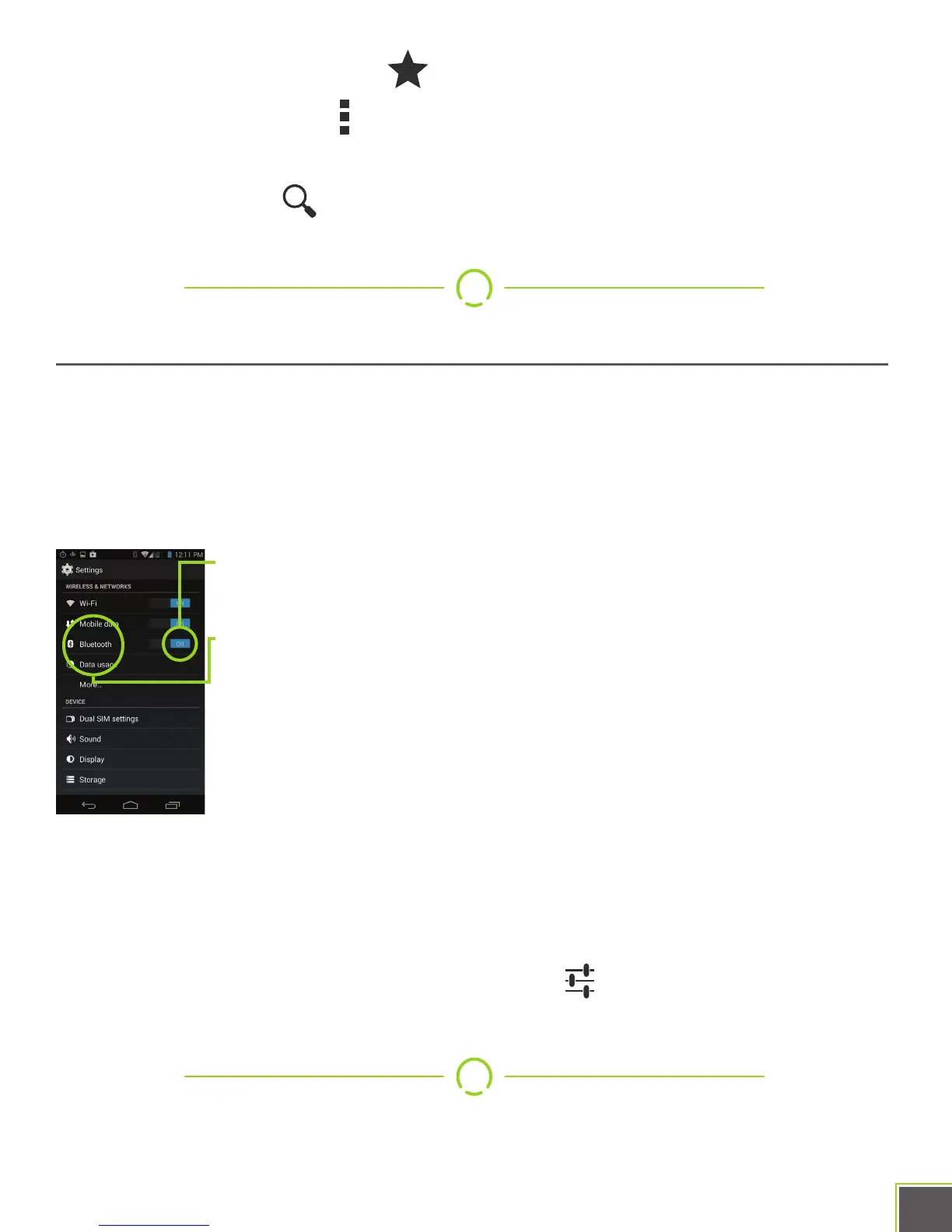
Open Settings and you’ll find Bluetooth near the top of the list. Make
sure it is on by tapping the on/off switch.
Now, tap directly on the word “Bluetooth” to open the Bluetooth menu.
Locate the “Search For Devices” button and tap it.
At this point, your phone is actively searching for nearby Bluetooth
devices and will continue to do so for about two minutes. Now you
must turn on your device’s “Pair” function, sometimes known as
“pairing mode”. This usually has a button dedicated to it, but be sure
to read your device’s instructions for specific steps!
Soon your phone will find the Bluetooth device, and all that’s usually necessary is to tap
on the device when it shows up in the list. Sometimes you might get asked to enter a
code, but again, this should be covered by your device’s instructions.
Once the pairing is complete, there’s a configure icon for each device. Tap this to
get at the options for your device, if any.


 To Next Page