Nuvoton Nu-Link Debug Adapter User Manual
Oct 28, 2014 - 25 - Revision V1.01
4.2.4 CooCox CoIDE
Step 1: Install CooCox CoIDE, which does not require any driver installation.
Step 2: Open CooCox CoIDE and open the project to be set. Please also refer to the CoIDE Quick
Start.
Debugger Settings:
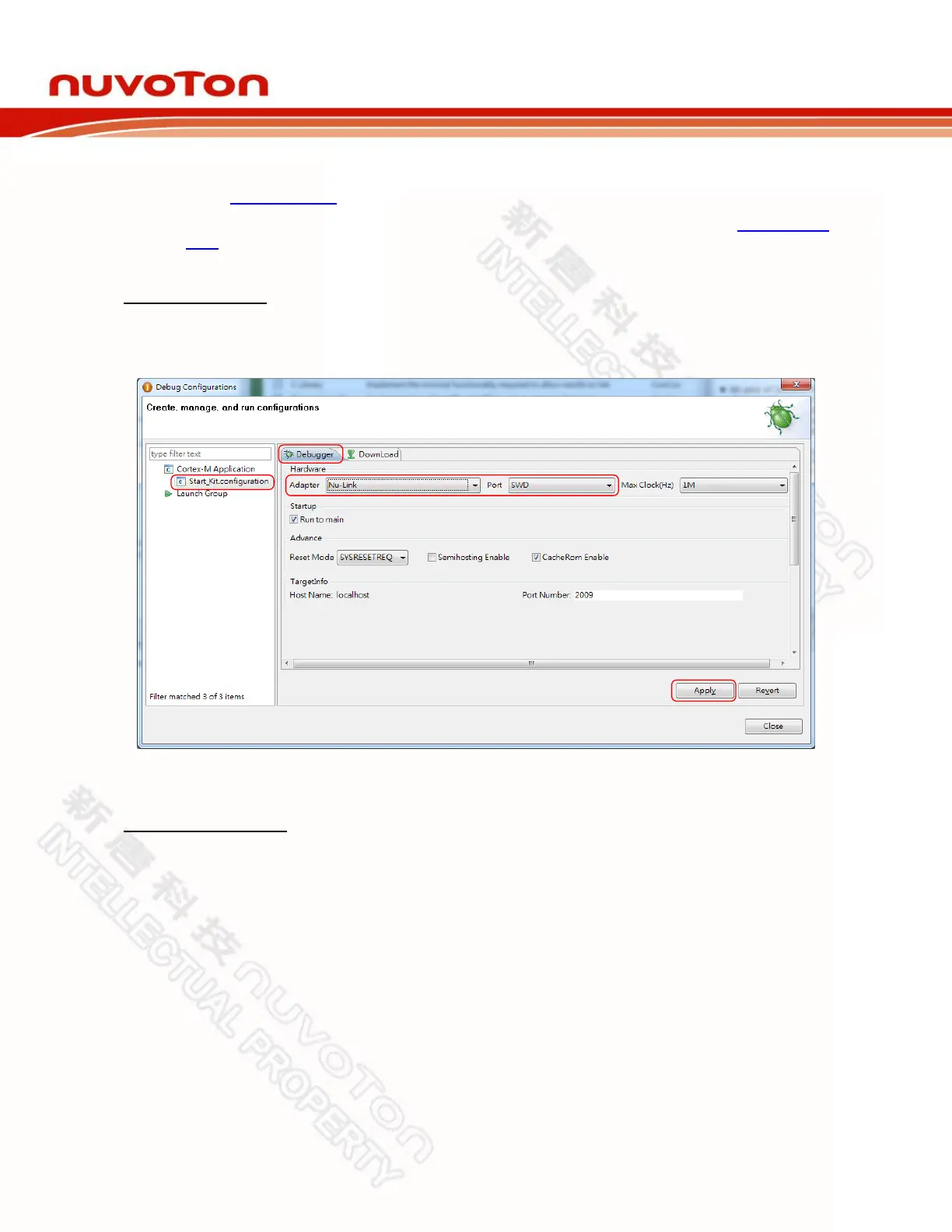
Step 3: In the Debugger tab of the Debug Configurations form (through invoking Debug → Debug
Configurations), select “Nu-Link” as the Adapter, select “SWD” as the Port, and click Apply
to save the settings, as shown in Figure 4-20.
Figure 4-20 Specify the Debugger Options for CooCox CoIDE
Programmer Settings:
Step 4: In the Download tab of the Debug Configurations form (through invoking Debug → Debug
Configurations), select the Auto Download Before Debugging or Verify After Download
option to proceed with a specific programming, and set the Programming Algorithm path
as ”C:\CooCox\CoIDE\flash\NUC1xx_128.elf”, as shown in Figure 4-21.


 To Next Page