AcquiSuite Ally 12 & 48 User Guide (Rev D)
37 | P a g e
Communication Verification
• Verification includes confirmation of BOTH the physical interface settings (Serial
or Ethernet) and the protocol (Modbus or BACnet) settings.
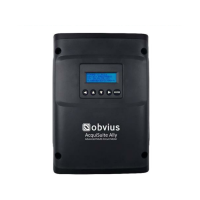
The LCD User Interface can be used to quickly confirm the settings required for each combination of
interface and protocol. The interface is intuitive and groups together commonly associated registers. The
complete interface is presented in Appendix A as a navigational map. Arrows indicate how to move from
one menu display to the next. A Reverse Contrast entry in the documentation indicates the active menu
item in a list which corresponds to a blinking character in the physical LCD. The ENTER button is used to
select a property and up / down buttons are used to select among the values supported by the meter.
Note that changes to the meter configuration are limited to the communication interface using the LCD.
If additional changes (such as CT type) are required they must be made using a software interface.
Example LCD Navigation
OBVIUS ALLY CONFIGURATION CONSOLE / WEB APPLICATION
If your AcquiSuite™ Ally model does not include the LCD User Interface or if you prefer to verify the
installation using software then verification is facilitated through the Obvius Ally Configuration Console
PC application or the Web App which shares a common design. Refer to the section on Configuration
Details for an overview and list of instructional videos for Obvius Ally Configuration Console or the
AcquiSuite™ Ally Web App.


 To Next Page
 Loading...