Login
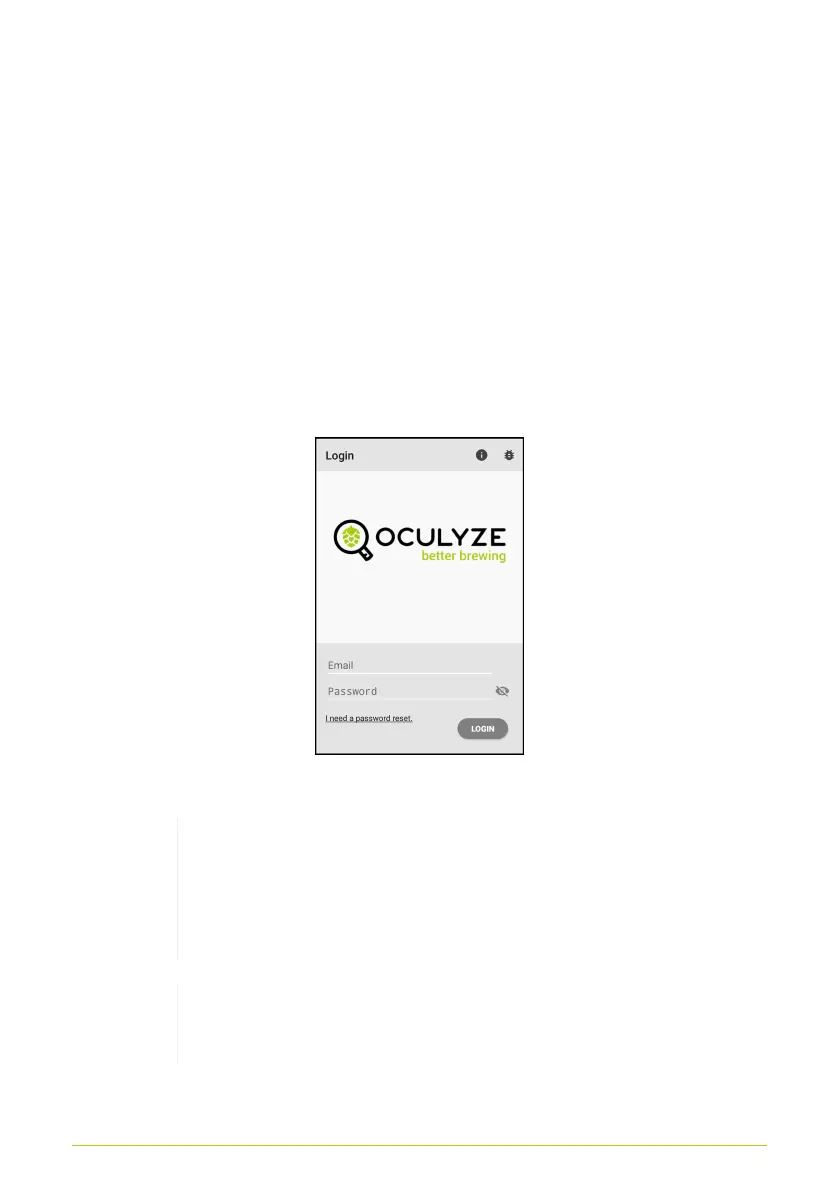
After starting the app, you will be led to the login screen (Fig. 11).
In the upper right hand corner of the screen, you will see
operating elements, which will lead you to the online version of
this handbook (“i”) and will also allow you to report errors in the
app (Bug icon; also see Troubleshooting).
On the login screen, you must enter your appropriate login data
in the “Email” and “Password” fields. Then press the “Login”
button to proceed.
Figure 11. App login screen
If you wish to change or if you forgot your
password, press the "I need a password reset" at
the bottom of this screen. A link to a reset form for
your password will be send to your user email.
Should you encounter problems during login,
please consult the Troubleshooting section.
11



 To Next Page