1_OCS SMART APP OJMAR 27
1. Open lock: This icon on the user app allows the user to open or close the lock.
Depending on the License assigned to the user it well act a certain way as per the
following examples:
EXAMPLE 1:
User licenced to operate one free type lock
:
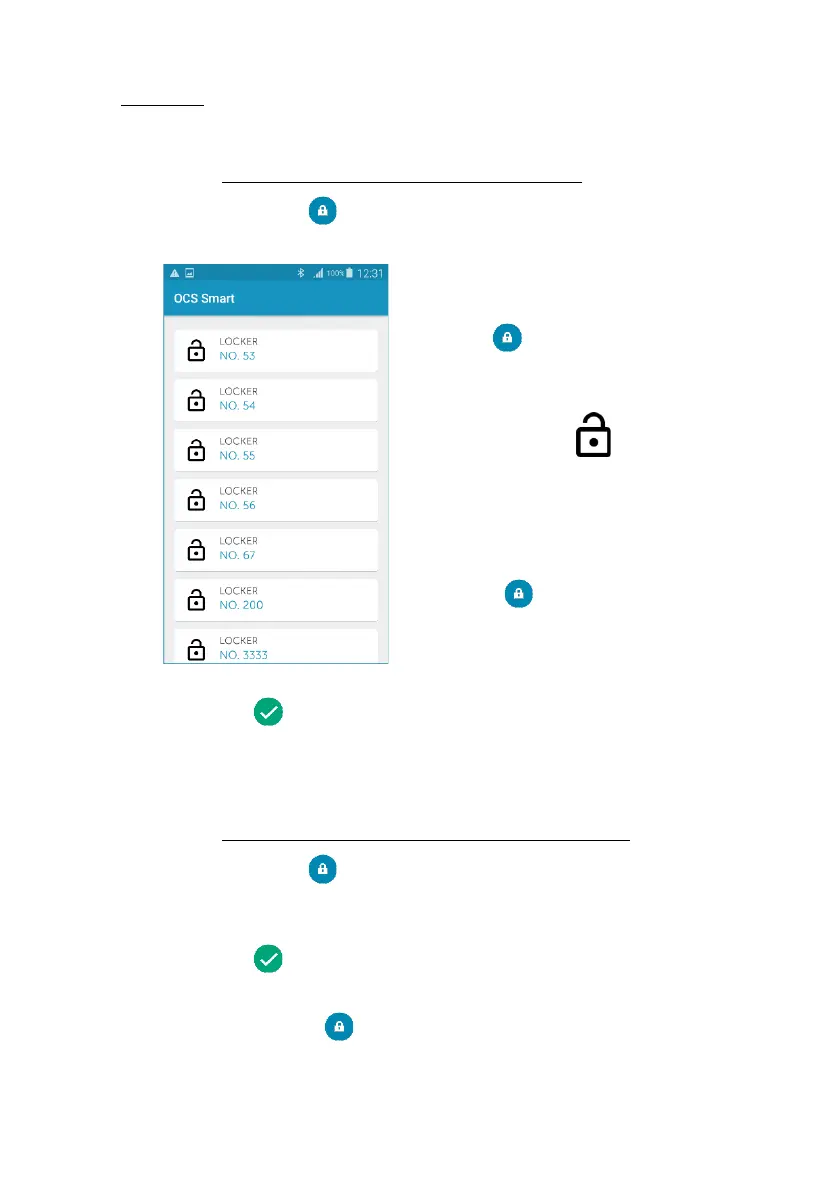
Step 1: Tapping on the icon will display a list of all the free locks available
nearby.
• NOTE:
After tapping the large blue lock
button on the Main Menu, the locks
available for use are shown using the
following icon:
• NOTE:
The list of lockers only populates
when a user does not have a locker in
use. If the user already has a locker
bound to their app it will automatically
search for the lock to unlock it when
they tap .
Step 2: Select the lock you want. That lock will close automatically and the
following icon will be displayed in the app indicating that the process has
been carried out correctly.
Step 3: The next time the button is tapped, the lock will open automatically (as
there is only one lock assigned).
EXAMPLE 2:
User licenced to operate multiple free type locks
:
Step 1: Tapping on the icon will display a list of all the free locks available
nearby.
Step 2: Select the lock you want. That lock will close automatically and the
following icon will be displayed in the app indicating that the process has
been carried out correctly.
Step 3: The next time the button is tapped the list of locks will be displayed,
enabling the following options:


 To Next Page