OCS SMART _ USER MANUAL _ VERSION 1.00 OJMAR 28
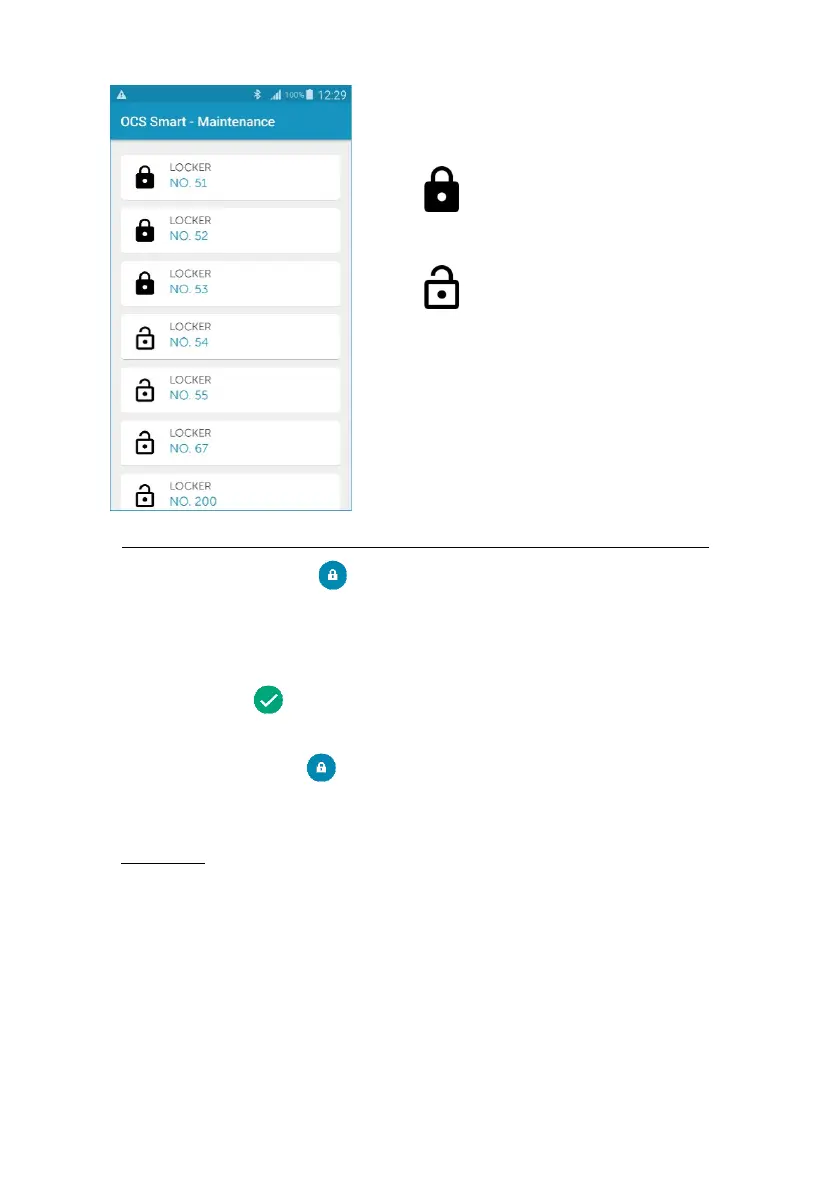
• Lock in use by user. Tapping on it
will open it and it will be free to be used
again.
• Lock not in use. Tapping on it will
put it into use by the user.
• NOTE:
Depending on the Permit assigned
to the user, the user can have up to a
maximum of 3 locks in use.
EXAMPLE 3: User licenced to operate one or more dedicated type locks
:
Step 1: Tapping on the icon will display a list of all the dedicated locks
assigned to the user.
• NOTE: Maximum of 6 locks for Users with a permit for dedicated locks.
Step 2: Select the lock you want. That lock will close automatically and the
following icon will be displayed in the app indicating that the process has
been carried out correctly.
Step 3: The next time the button is tapped the list of dedicated locks assigned
to the user will be displayed, allowing one to be selected so it can be opened
or closed.
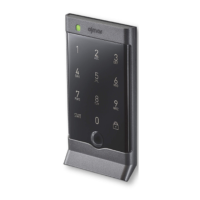
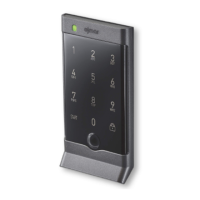
2. User code: The user can open the lock by entering their user code on the lock’s
touch keypad.
• EXAMPLE: If you have forgotten your smart device at home or it has died,
you can input the locks assigned user code by using the touch keypad.
• WARNING: IF THE USER APP WAS USED TO PUT A LOCK INTO USE BUT
THEN THE TOUCH KEYPAD IS USED TO OPEN THE LOCKER, THAT LOCK
MUST BE OPERATED WITH THE USER APP AGAIN BEFORE IT CAN BE
LIBERATED FOR ANOTHER USER.


 To Next Page