1_OCS SMART APP OJMAR 29
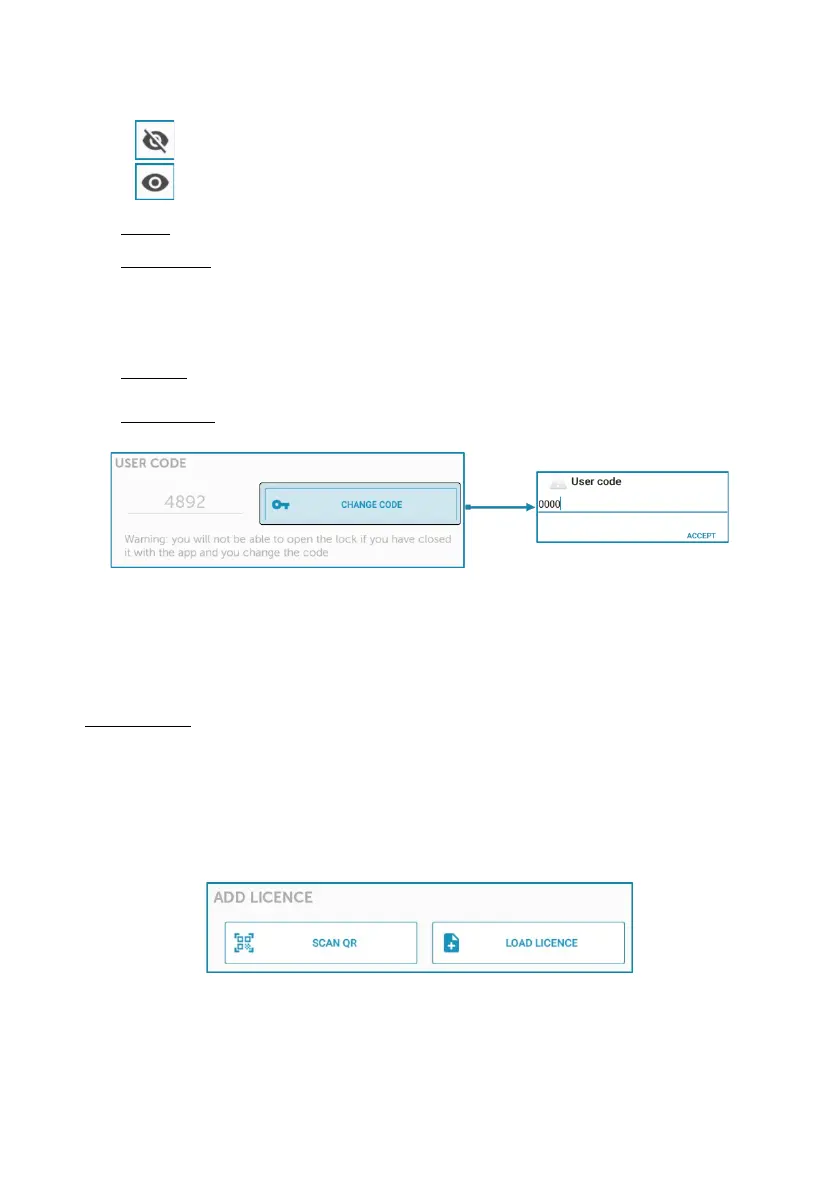
This code, by default, is hidden, but it is shown by tapping the following icon:
Hidden code. Tap to show it.
Visible code. Tap to hide it.
3. Home: Allows the user to return to the main menu.
4. My lockers: Shows the number of lockers in use by the user, up to a maximum
of 3 free or 6 dedicated.
If lockers have been in use, the identification number, or numbers of the lockers
in use are displayed.
5. Permits:
User code:
Allows the user to change the access code for there lock.
• NOTE: The code must be 4, 5 or 6 digits long (depending on how the lock
has been configured (see Section
1.4.1)).
• WARNING: IF THE LOCK HAS BEEN CLOSED USING THE APP AND THE
CODE IS CHANGED, THEY WILL NOT BE ABLE TO OPEN IT AGAIN.
Add License:
this section allows the user to upload a permit that is generated by the
facility staff. It is available as a QR Code or as a compressed file that
can be share with the customer via email.
• Note: A Permit is a type of license that is programmed with the locker
number, type of lock (free vs dedicated), and amount of usable locks
Step 1: Select the option that fits how you want to share the license.
-
Scan QR code
: If you use the ‘‘SCAN QR’’ option, the user will need to
scan the newly generated QR code by using the Ojmar User App on their
personal mobile device.


 To Next Page