EasyManua.ls Logo

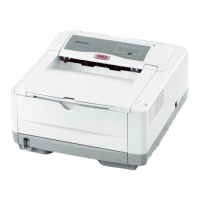
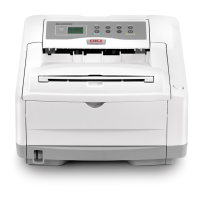
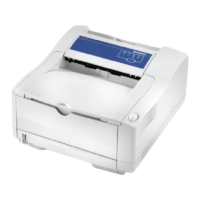
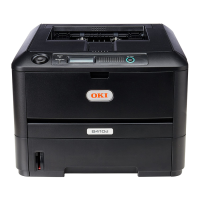
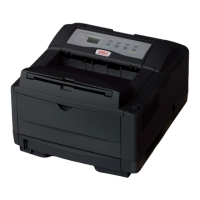
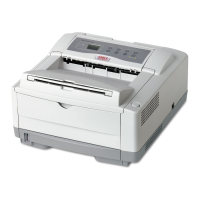
Oki B4400 Series - User Manual

Oki B4400 Series
104 pages
Print Icon
To Next Page IconTo Next Page
Loading...
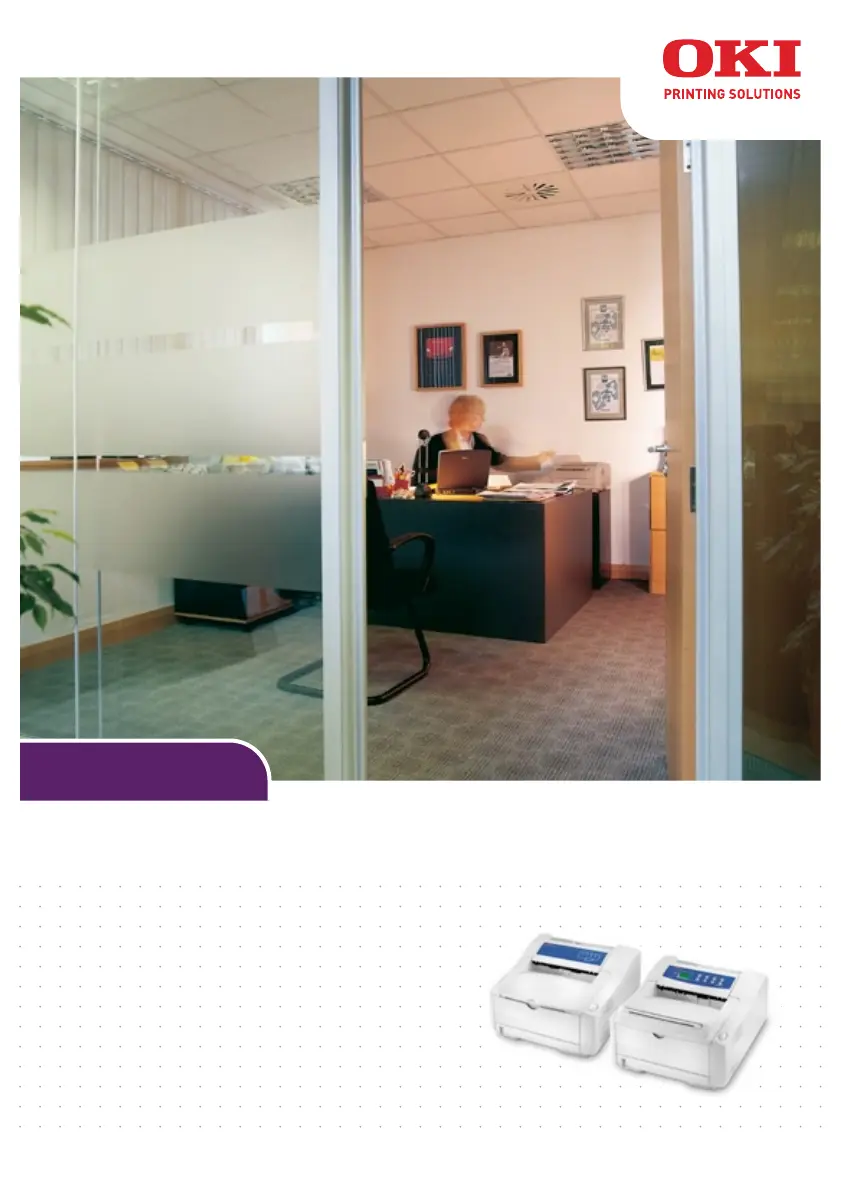
User’s Guide
B4400/B4600 Series

Table of Contents

Other manuals for Oki B4400 Series

Questions and Answers

  • L
    Laura ToddSep 10, 2025
    Why does my Oki Printer emit odours?
    • M
      Monica MoranSep 10, 2025
      If you notice odours coming from your Oki Printer, it's likely due to gases being emitted by forms or adhesives passing through the hot fusing unit. Ensure that the forms you use can withstand heating, and provide adequate ventilation in the area.
  • M
    Michael HallSep 9, 2025
    What to do if Oki B4400 Printer freezes or displays error message when computer is rebooted?
    • M
      matthew40Sep 9, 2025
      If your Oki Printer freezes or displays an error message when the computer is rebooted, it could be due to a communications error caused by booting the computer while the printer is on. Turn the printer off before rebooting the computer.
  • B
    Bryan WalkerSep 8, 2025
    Why is my Oki Printer printing garbage?
    • S
      Shane SnyderSep 8, 2025
      If your Oki Printer is printing garbage, it might be due to an incorrect cable configuration. Check the cable configuration, continuity, and length.
  • B
    brooksandrewAug 22, 2025
    How to fix Oki Printer input jam?
    • M
      Maria YangAug 23, 2025
      If your Oki Printer is experiencing an input jam, begin by removing the paper tray from the printer. Next, carefully remove any crumpled or folded paper that may be causing the jam. Also, check and remove any paper from the underside of the printer. Once you've cleared the obstruction, replace the paper tray. After successfully removing any damaged or misfed paper, the printer should continue printing.
  • K
    kirsten07Sep 5, 2025
    Why does the size of top margin increase with each page printed on Oki B4400?
    • J
      Jenny RyanSep 6, 2025
      If the size of the top margin increases with each page printed on your Oki Printer, it's likely due to creeping text. This occurs when the number of lines per page in your software doesn't match the printer's setting. Many software packages assume 66 lines per page, but your printer’s default is 64. Adjust your software accordingly, or set the LINES Per PAGE in the soft control panel to match the lines per page in your software.
  • R
    Ryan DavilaSep 4, 2025
    What to do if Oki B4400 Printer has smeared or blotched print?
    • L
      Lindsay MartinezSep 4, 2025
      If you're experiencing a smeared or blotched print on your Oki Printer, it could be due to dirty rollers, toner dropped inside the printer, or an image drum problem. Try replacing the image drum and toner.
  • W
    Whitney SheaSep 3, 2025
    Why is Oki B4400’s output below rated speed?
    • J
      Jennifer PrestonSep 3, 2025
      If your Oki Printer's output is below its rated speed, it's likely due to the application you're using. For maximum speed, use text in your document and utilize a printer resident font.
  • L
    Lisa DelacruzSep 2, 2025
    Why is print darker than usual on my Oki B4400?
    • A
      Adam CooperSep 2, 2025
      If the print on your Oki Printer is darker than usual, the darkness setting might be set too high. Try adjusting the darkness setting to a lower level.
  • J
    Jennifer Williams MDSep 1, 2025
    Why is printing garbled on my Oki B4400 Printer?
    • A
      Adrienne TuckerSep 1, 2025
      If your Oki Printer is printing garbled output, it is possible that an incorrect driver is installed. Try installing an appropriate driver for your printer model.
  • J
    John JohnsonAug 30, 2025
    Why does my Oki Printer page have grey background?
    • K
      kharrisonAug 31, 2025
      If your Oki Printer is producing a page with a grey background, it's likely due to static electricity, often caused by dry environments. This can cause toner to stick to the background. To resolve this, try changing the paper to a smoother laser bond or using a humidifier to increase the humidity in the room.

Summary

Introduction to the Printer

Printer Features Overview

Details the various models, memory, speed, resolution, and emulations available for the printer.

Using Your Printer Effectively

Provides guidance on maximizing printer use through available supporting materials and resources.

Understanding Printer Components

External Component Identification

Identifies and labels key external components of the printer for user reference.

Internal Component Details

Illustrates and labels internal components like the LED array, image drum, and fuser unit.

Operator Panels and Controls

B4400;B4400 n Operator Panel

Describes the operator panel for the B4400/B4400n, including LEDs and the Online button.

Online Button Functions

Explains the primary and secondary functions activated by the printer's Online button.

Printer Settings and Menus

Menu Functions Overview

Introduces the printer's internal settings accessible via software menus for customization.

Information Menu Details

Describes how to list various items stored within the printer through the Information Menu.

Paper Handling and Recommendations

Paper and Envelope Types

Provides guidelines for selecting appropriate paper and envelopes for optimal printer performance.

Installing Paper Correctly

Step-by-step instructions on how to correctly load paper into the printer's paper tray.

Printer Operation and Settings

Printer Settings in Windows

Details how to configure printer settings using Windows applications and the driver interface.

PCL Emulation Configuration

Guides users through the PCL emulation settings, including paper size, source, and finishing options.

Consumables and Maintenance

Toner Cartridge Life and Replacement

Information on toner cartridge life, replacement procedures, and disposal guidelines.

Image Drum Replacement

Details on image drum life, replacement procedures, and handling precautions.

Troubleshooting Printer Issues

Clearing Paper Jams

Provides step-by-step guidance on how to safely remove paper jams from the printer.

Resolving Print Quality Problems

Offers solutions for common print quality issues like fuzzy print, streaks, or faint pages.

Oki Contact and Support Information

Oki B4400 Series Specifications

General IconGeneral
Print TechnologyLED
TypeMonochrome Printer
Paper Input Capacity250 sheets
Duplex PrintingManual
ConnectivityUSB 2.0, Parallel
First Page Out Time5 seconds
Media TypesPlain paper, envelopes, labels, card stock
Media SizesA4, A5, B5, Letter, Legal, Executive
Operating Systems SupportedWindows, Mac OS, Linux
Power Consumption7W

Related product manuals