19 / 34
Scan Modes Parallel and Zigzag
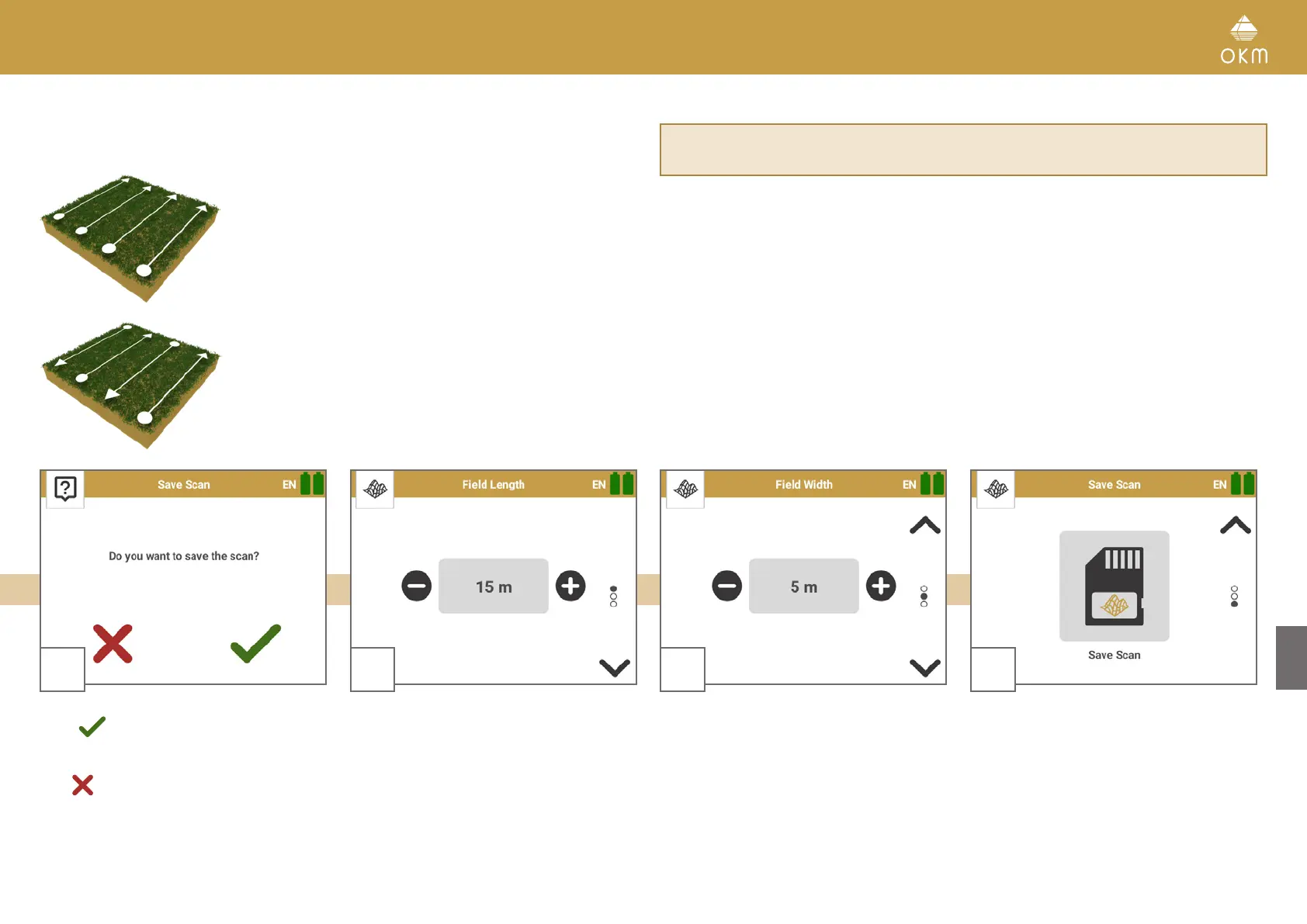
If you have selected the Scan Mode Parallel, all scan lines head into
the same direction.
Scan the first scan line to its end and then go back to the starting point
without further scanning. Take one step to the left and scan the next
line parallel to your first scan line.
Repeat this until you reached the last scan line.
If you have selected the Scan Mode Zigzag, all scan lines must be
scanned in zigzag style.
Scan the first scan line to its end, then take a step to the left and scan
the second line in reverse. Step to the left again and scan the next line.
Repeat this until you reached the last scan line.
Read more about the scanning procedure in the "3D Ground Scan Guide"
(see
infobox on page 33).
After finishing and saving your 3D Ground Scan, you can view your scan image directly on the
Android device display (see section 5.5 FILE EXPLORER on page 24) or transfer the scan files to a
computer for in-depth analyses (see chapter 6 FILE TRANSFER on page 30).
5
Press to save the scan.
If you want to finish the scan without saving,
click
.
6
Enter the correct field length.
7
Enter the correct field width.
8
Confirm by pressing Save Scan
You can swipe up again (or use the navigation
arrow on the right) to return to the previous
screen to correct your information.



 To Next Page