6 FILE TRANSFER
6.1 PAIRING BLUETOOTH
Prior to transferring scan data to the Visualizer 3D Studio software for the first time, your comput-
er's Bluetooth must be paired with your OKM Rover UC App.
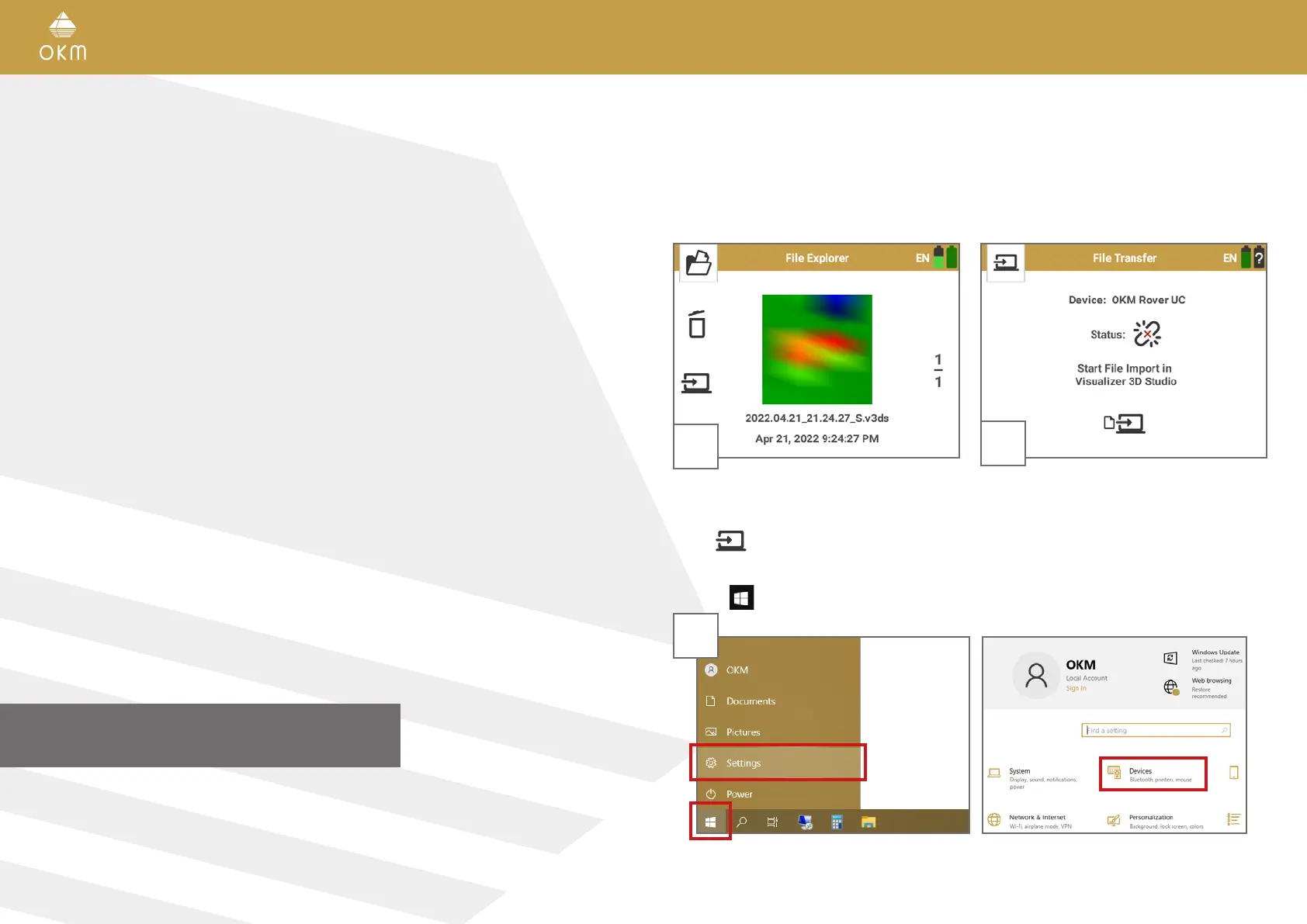
When pairing Bluetooth for the first time, proceed with the following steps on the notebook:
Click on
and open Settings > Devices:
3
1
Power on the Smartwatch. Start the Rover UC
App and select File Explorer.
Tap on
to start transferring scans.
2
After starting the transfer, the App wants to es-
tablish a Bluetooth connection to the notebook
with Visualizer 3D Studio.
30 / 34
FILE TRANSFER



 To Next Page