32 / 34
6.2 IMPORTING SCAN DATA
Make sure you have processed the steps from section 6.1 PAIRING BLUETOOTH on page 30
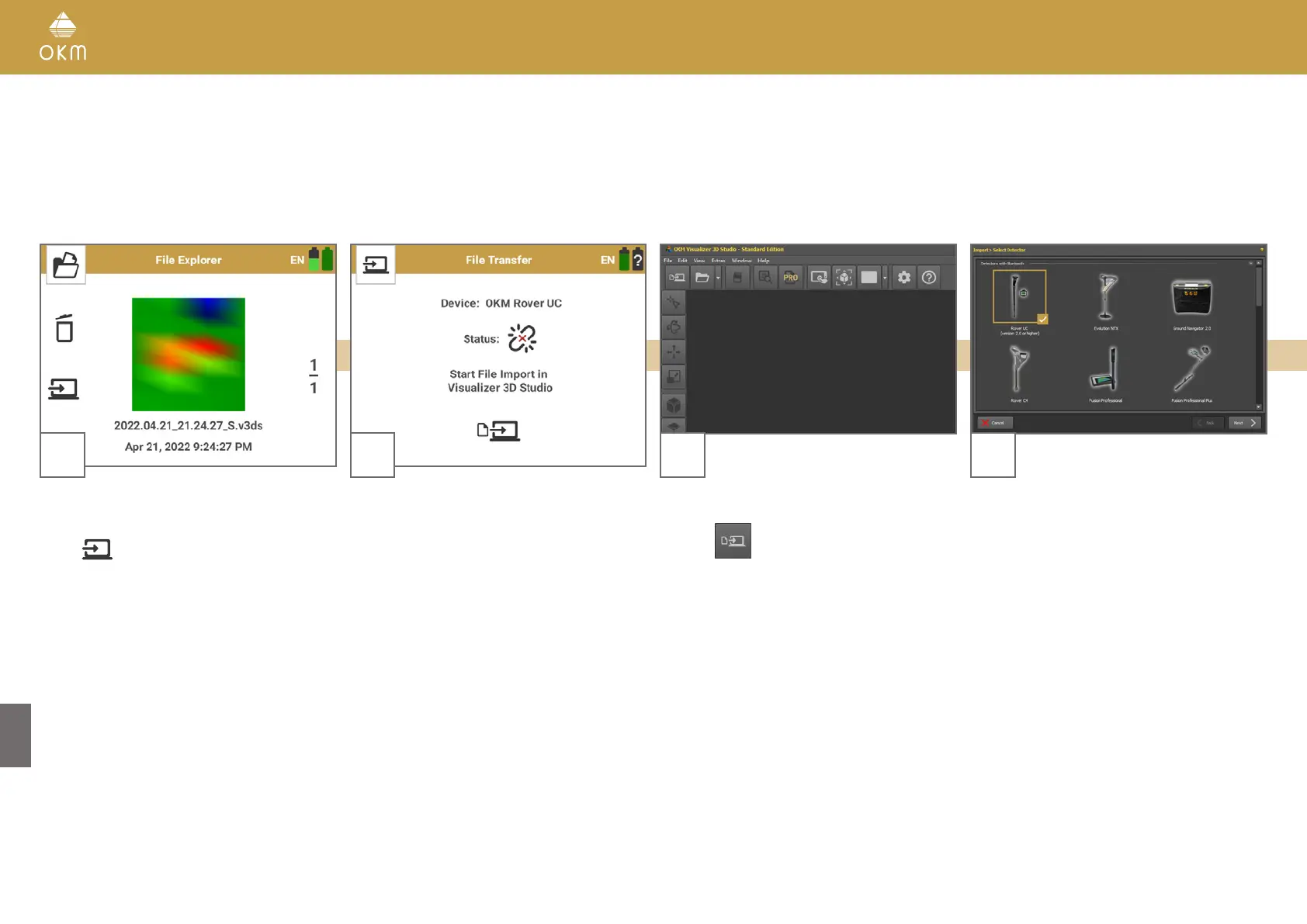
2
After starting the transfer, the App wants to es-
tablish a Bluetooth connection to the notebook
with Visualizer 3D Studio.
When pairing the Rover UC App for the first
time, please make sure you have processed
the steps in section 6.1 PAIRING BLUETOOTH
on page 30
1
Power on the Smartwatch. Start the Rover UC
App and select File Explorer.
Tap on
to start transferring scans.
4
Select “Rover UC (version 2.0 or higher)” from
the list and click Next.
3
After launching your Visualizer 3D Studio soft-
ware, select File > Import from the menu or
click the
icon in the Main Toolbar.



 To Next Page