4-53
Using the Operation Panel
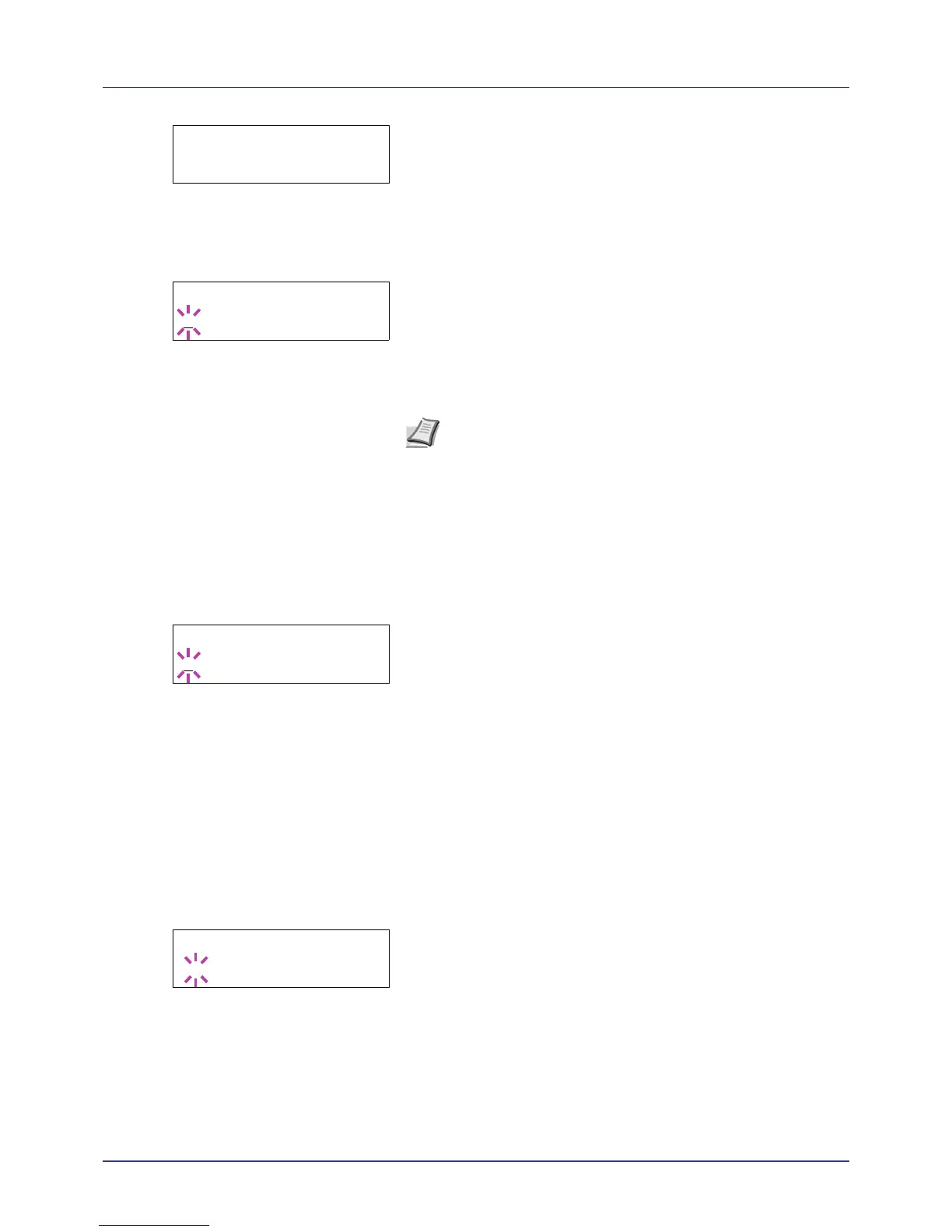
2 Press U or V repeatedly until >Date Setting > appears.
Date (date setting)
1 Press Z while >Date Setting > is displayed.
2 Press U or V repeatedly until >>Date (Year/Mon/Day) appears.
3 Press [OK]. A blinking cursor (_) appears.
4 Use the arrow keys to set the year, month, and day. Press U or V to
increase or decrease, respectively, the value at the blinking cursor.
Use Y and Z to move the cursor right and left.
5 Press [OK].
6 Press [MENU]. The display returns to Ready.
Time (time setting)
1 Press Z while >Date Setting > is displayed.
2 Press U or V repeatedly until >>Time (Hour:Min:Sec) appears.
3 Press [OK]. A blinking cursor (_) appears.
4 Use the arrow keys to set the hour, minute, and second. Press U or
V to increase or decrease, respectively, the value at the blinking
cursor. Use Y and Z to move the cursor right and left.
5 Press [OK].
6 Press [MENU]. The display returns to Ready.
Date Format (date format selection)
One of three formats can be selected for the date format.
1 Press Z while >Date Setting > is displayed.
2 Press U or V repeatedly until >>Date Format appears.
3 Press [OK]. A blinking question mark (?) appears.
4 Press U or V to select Date Format. The following date formats
can be selected:
Month/Day/Year
Day/Month/Year
Year/Month/Day
5 Press [OK].





 To Next Page