2-11
Printing Operation
Status Monitor
The Status Monitor monitors the printer status and provides an ongoing
reporting function. It also allows you to specify and modify settings for
printers not included in the Printing Sysytem Driver.
The Status Monitor is installed automatically during Printing Sysytem
Driver installation.
Accessing the Status Monitor
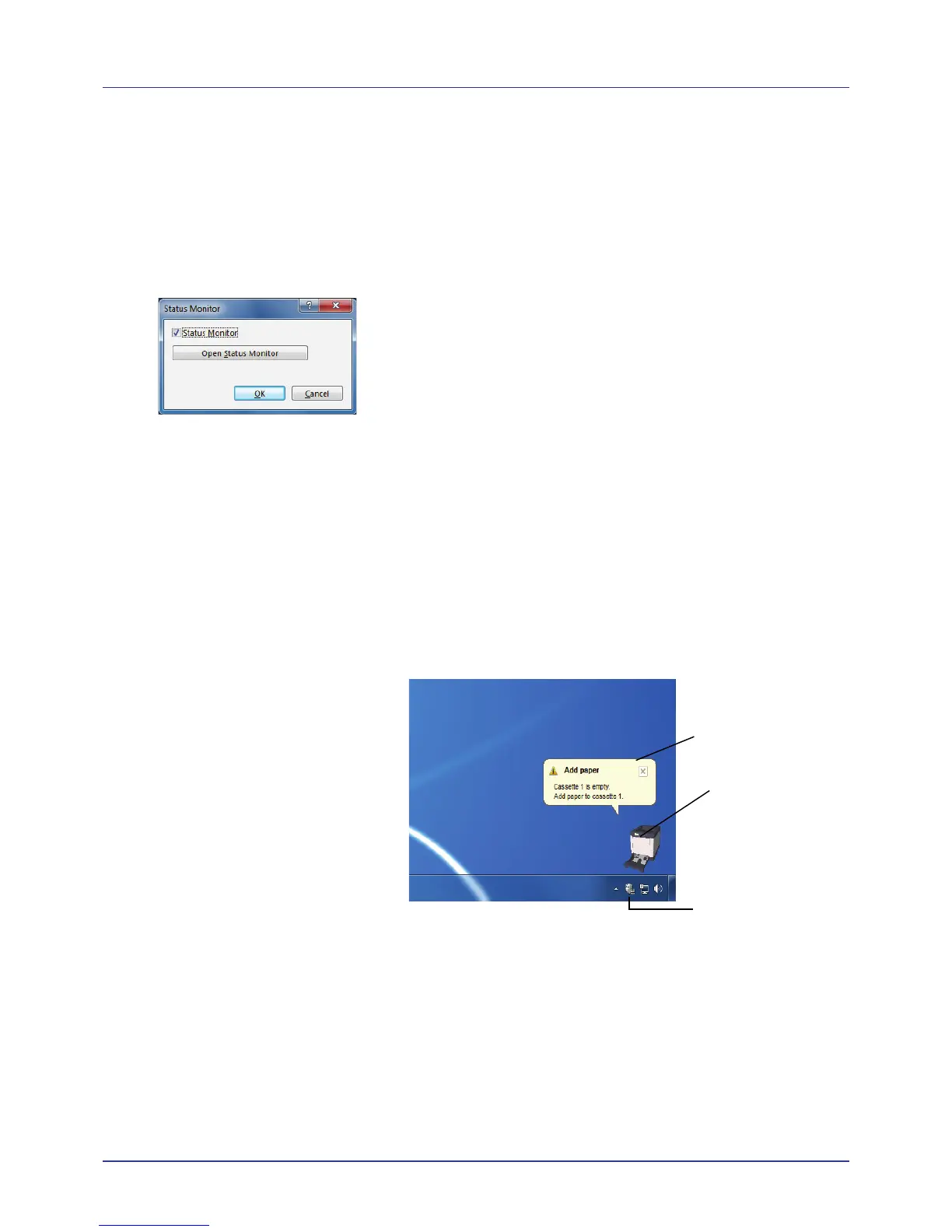
To display the Status Monitor dialog box, click the Printer Preferences
button in the printing system driver properties and click the Status
Monitor button on the Advanced tab.
• Status Monitor:
The Status Monitor appears during printing. If multiple printers are
used for printing, the same number of Status Monitors are opened.
• Open Status Monitor:
This opens the Status Monitor.
Exiting the Status Monitor
Use either of the methods listed below to exit the Status Monitor.
• Exit manually:
Right-click the Status Monitor icon in the taskbar and select Exit in the
menu to exit the Status Monitor.
• Exit automatically:
The Status Monitor automatically shuts down after 5 minutes if it is not
being used.
Screen Overview
The screen overview of the Status Monitor is as follows.
Pop-up window
If an information notification event occurs, a pop-up window appears. This
window only appears when the 3D View is open on the desktop.





 To Next Page