Printing Operation
2-4
Installing the Printing System Driver
Ensure the printer is plugged in and connected to the PC before installing
the printing system driver from the CD-ROM.The printing system driver is
necessary to print data created in an application.
For details on the printing system driver, refer to Printing Driver User
Guide on the CD-ROM
Installing the Software in Windows
If you are connecting this printer to a Windows PC, follow the next steps
to install the printing system driver. The example shows you how to
connect your printer to a Windows 7 PC.
You can use either Express Mode or Custom Mode to install the software.
Express Mode automatically detects connected printers and installs the
required software. Use Custom Mode if you want to specify the printer
port and select the software to be installed.
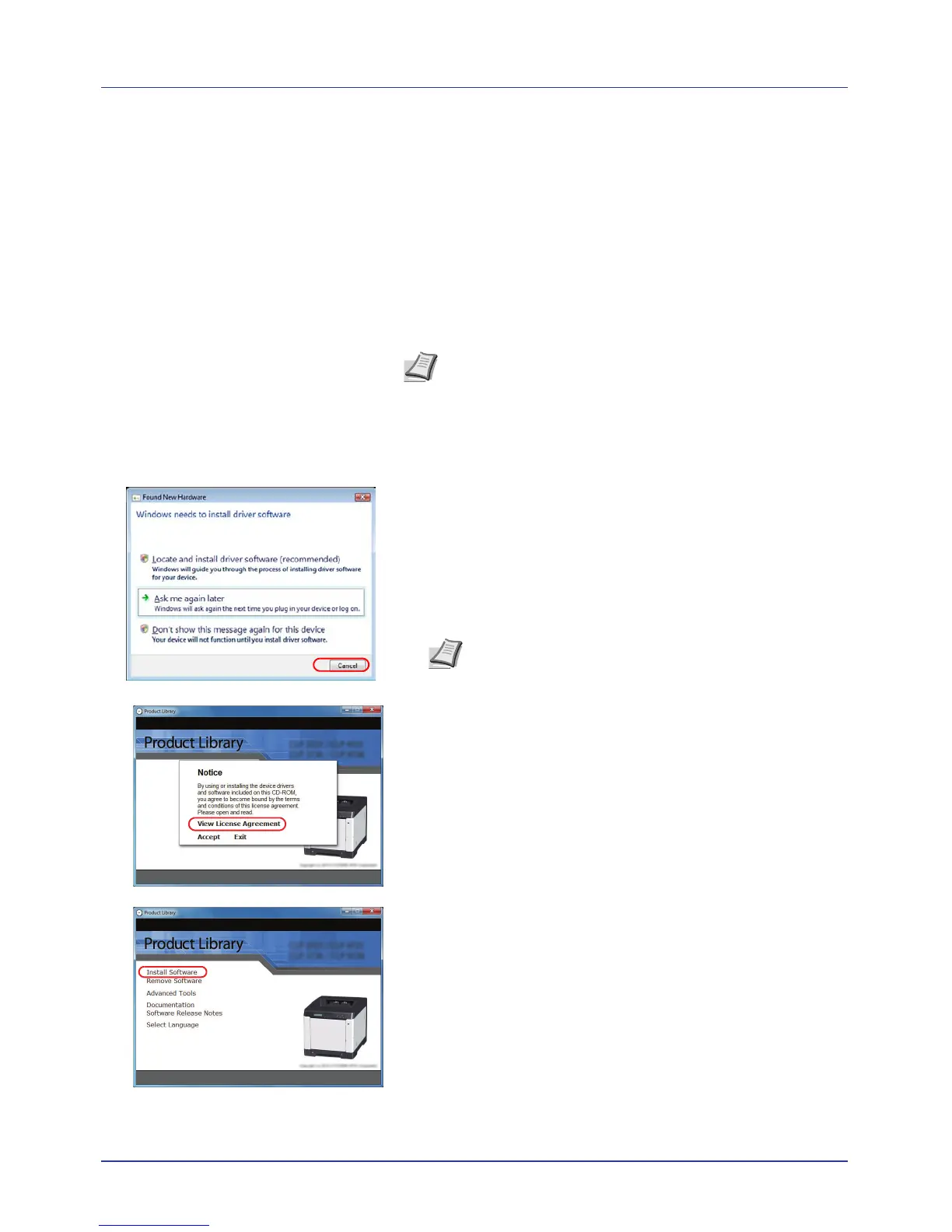
1 Turn on the computer and start up Windows.
If the Welcome to the Found New Hardware Wizard dialog box
displays, select Cancel.
2 Insert the CD-ROM supplied with the printer into the optical drive of
the PC. In Windows 7, Windows Server 2008 and Windows Vista, the
user account management window appears. Click Yes (Allow).
The installation program launches and the main menu appears..
3 Click View License Agreement and read the License Agreement.
Click Accept.
4 Click Install software.
The software install wizard starts up. Click Next.
From this point, the procedure differs depending on your version of
Windows and your connection method. Proceed to the correct
procedure for your connection type.
• Express Mode
• Custom Mode
Note In Windows 7/Vista/XP/2000 and Windows Server 2008/
2003, you must be logged on with administrator privileges.
Note If the software install wizard does not launch
automatically, open the CD-ROM window in Windows
Explorer and double-click Setup.exe.





 To Next Page