4-13
Using the Operation Panel
Print Status Page
You can check the printer's current status, including available memory
space and option settings by printing a status page.
1 Press Z while Report Print > is displayed.
2 Press U or V repeatedly until >Print Status Page appears.
3 Press [OK]. A question mark (?) appears.
4 Press [OK] again. The message Processing appears and the
printer prints a status page.
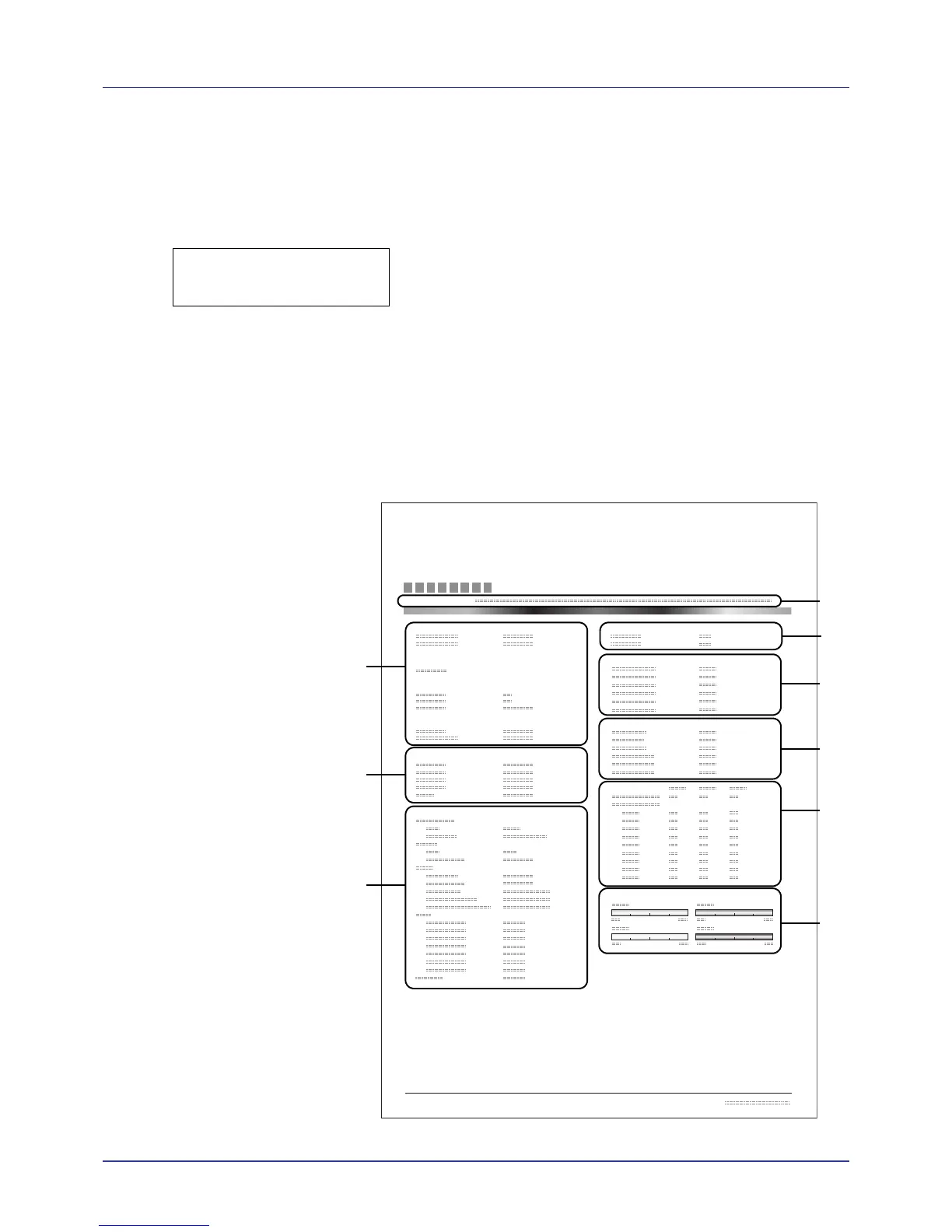
For a sample status page and its full description, refer to the next section
Understanding the Status Page.
Understanding the Status Page
The numbers in the following diagram refer the items explained below the
diagram. The items and values on the status page may vary depending
on the printer’s firmware version.





 To Next Page